Uninterrupted Communication Within Branches
You can set up a redundant communication server for each branch. If the connection to the central PBX is lost, employees can still call each other within the branch via SIP devices. External calls and calls to other branches will be unavailable at this time.
How it works:
1. A separate physical redundant communication server is installed in the branch.
2. While the connection is active, the redundant communication server synchronizes employee data with the central server.
3. If the connection is lost, the server will switch to autonomous mode: calls within the branch will continue to function.
4. When the connection is restored, the redundant communication server will return to normal mode, and calls to other branches and external numbers will become available again.
Setting Up Uninterrupted Communication Within Branches
1. Contact technical support at support@digitaltide.io to have a physical redundant communication server installed and configured at your facility. You will receive the status page address of the redundant communication server and login credentials.
2. Log in to the status page of the redundant communication server and enter the central server address (the operator domain address of your Cloud PBX). Click Connect.
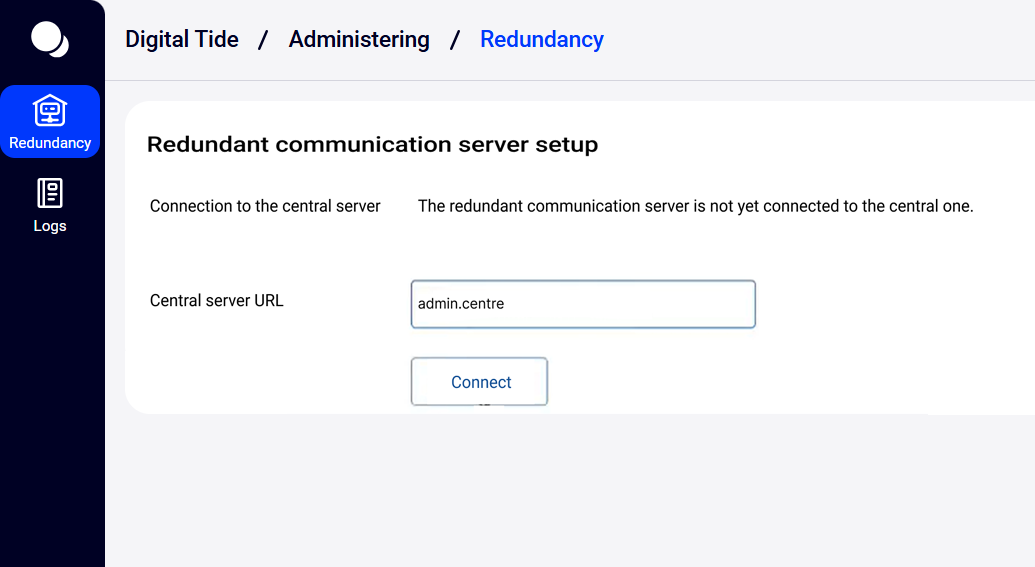
You will be redirected to the central server settings in the operator interface. To log in, enter the system administrator’s username and password.
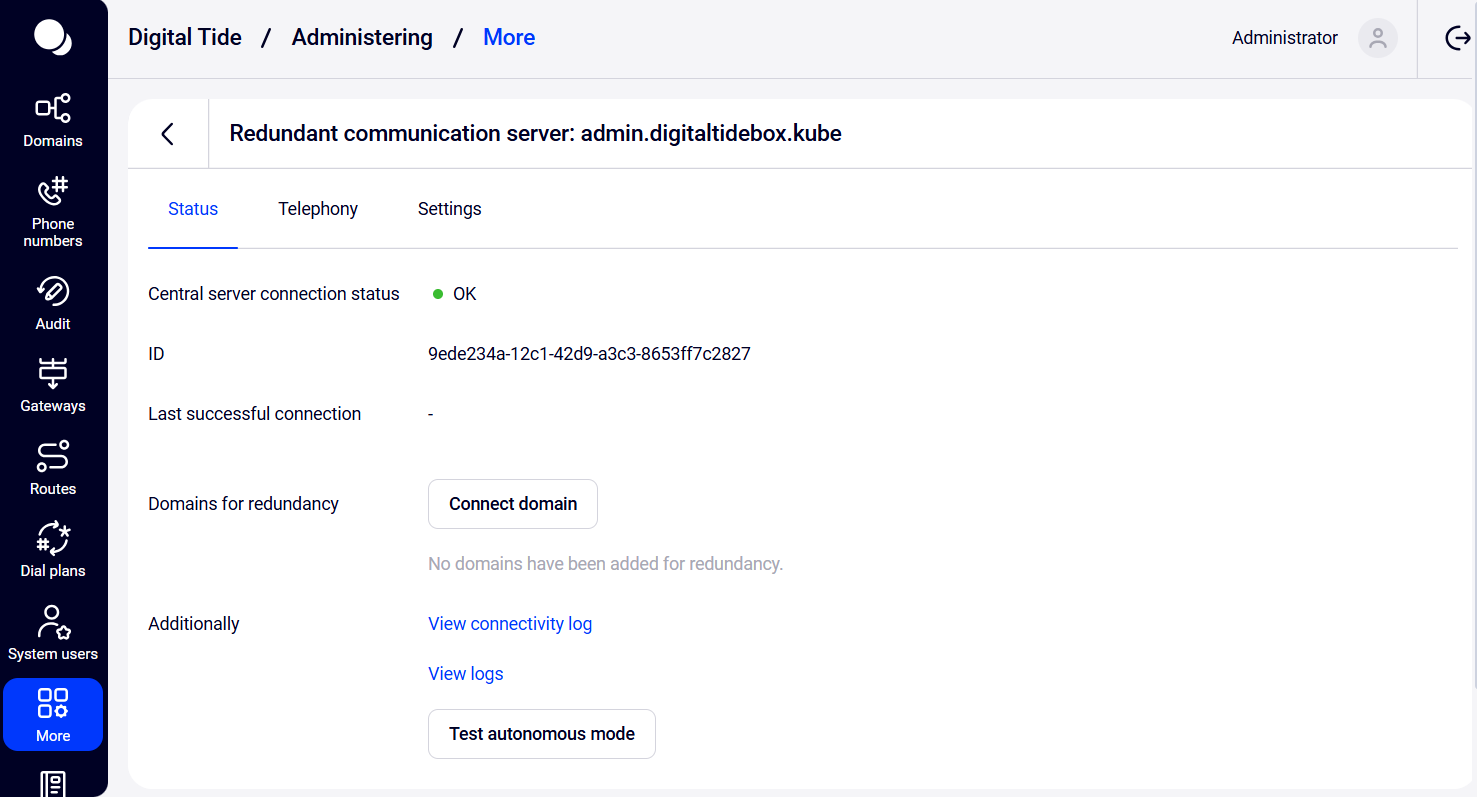
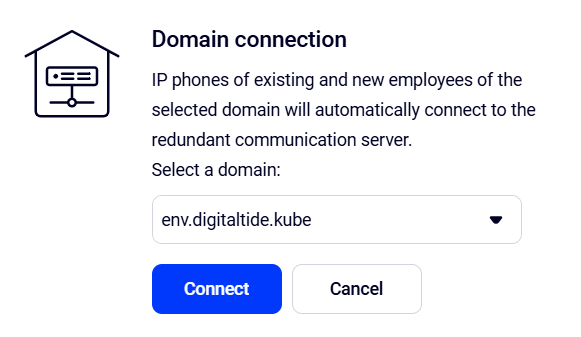
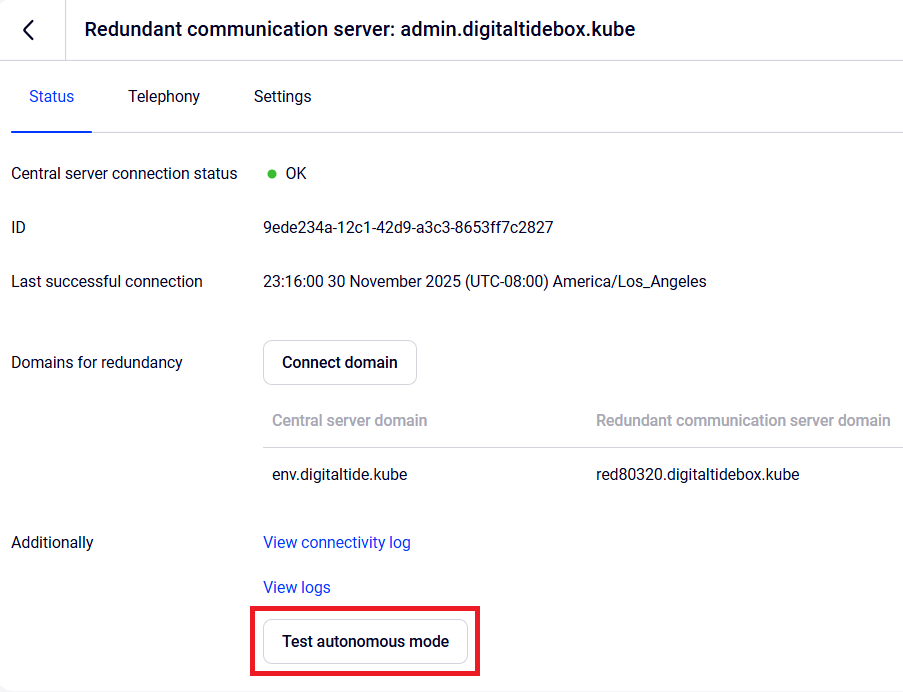
3. Now you need to connect the domain with employees to the redundant communication server for synchronization. Click Connect domain, select a domain from the list, and click Connect.
The connected domain will appear on the redundancy page.
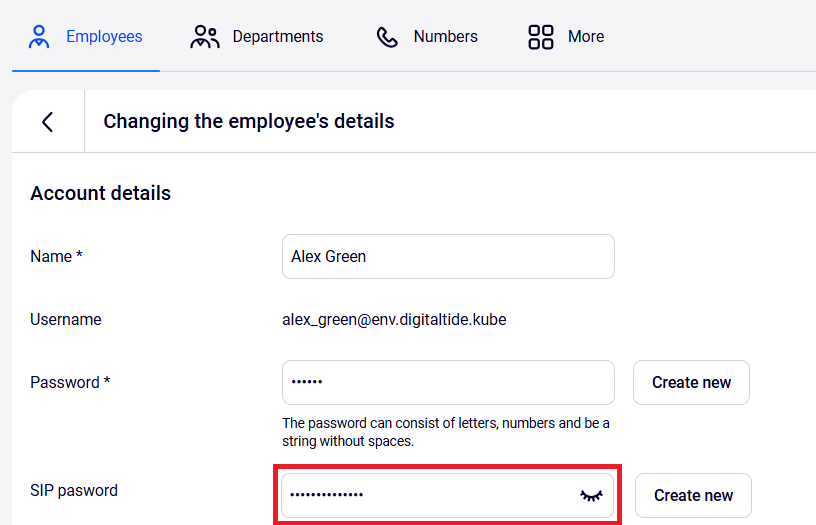
4. Reconfigure employees’ SIP phones. To do this, in the SIP phones settings, specify the new authorization server from the Redundant communication server domain column.
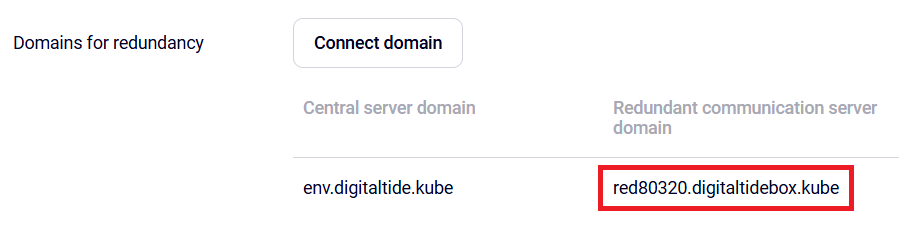
SIP passwords can be found in the employee profiles.
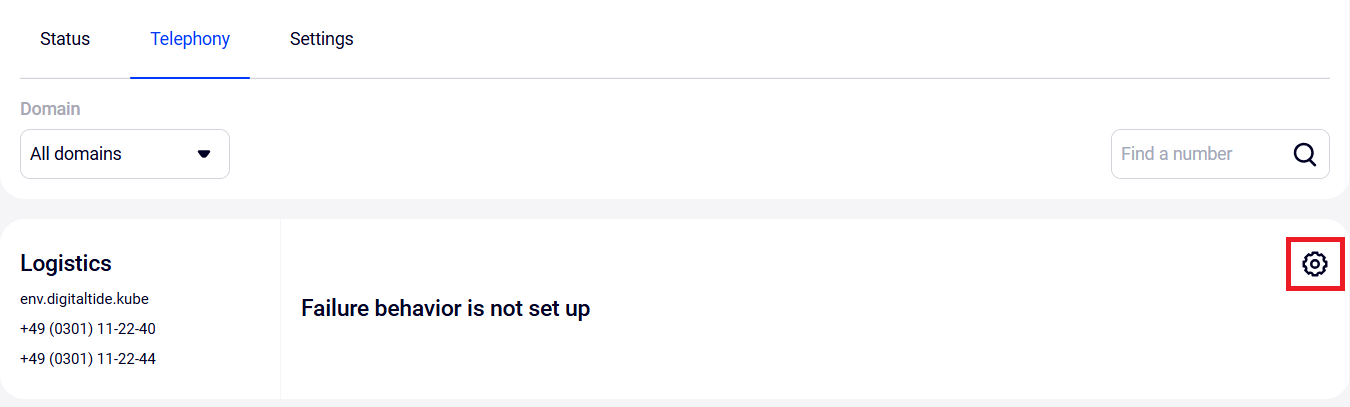
5. Set up scenarios for incoming calls to Cloud PBX numbers when a branch becomes disconnected from the center. Go to the Telephony tab and click the gear icon next to the required number.
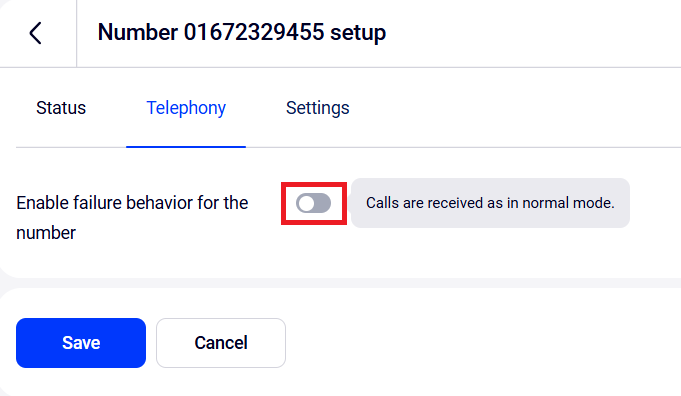
6. Enable the failure behavior for the number.
7. Choose what to do with incoming calls to this number:
- forward them to voicemail;
- play an off-hours message to the caller;
- forward them to fax;
- forward them to the attendant at an external number.
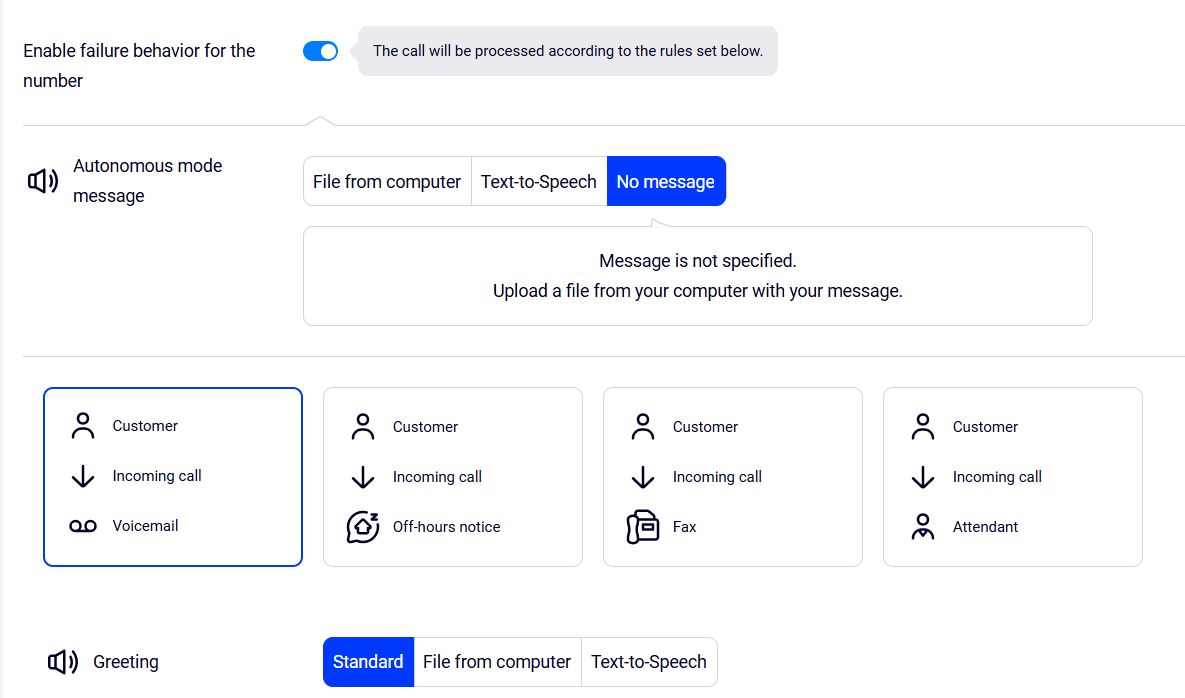
Click Save at the bottom of the page.
8. By default, after the connection with the central server is restored, employees will be able to make external calls in 1 minute. You can change this and other uninterrupted communication parameters in the Settings tab:
Deferred connection in — specify how long after the connection to the central server is restored employees will be able to make external calls. Deferred connection is required to support stability of restoring connection with the center.
Notify about switching between operating modes — add the employees’ email addresses to receive notifications about autonomous mode being enabled or disabled for the branch.
Change password and view login details for the redundant communication server status page.
Disconnect the redundant communication server.
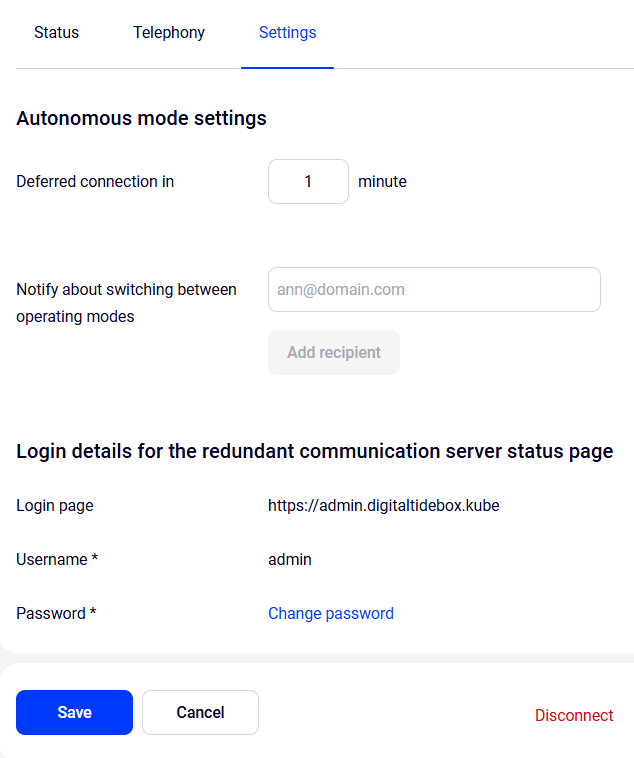
If you changed any settings, click Save.
You can now test the redundant communication server. To do this, go to the Status tab and in the Additional section, click Test autonomous mode.
Choose how long the server should remain in autonomous mode.
Please note: the value specified in the Deferred connection in setting will be added to the selected time.
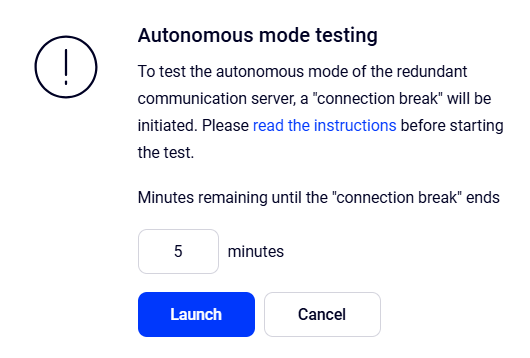
Click Launch.
You can restore the connection to the central server earlier by clicking Restore connection now.