Getting Started With Corporate Messenger
Corporate Messenger brings all your work communication together in one place — you can chat with colleagues and call customers without switching between different apps. Getting started is easy, and this quick overview will help you explore the key features.
How to Install Corporate Messenger
- When signing in, enter:
- your Cloud PBX profile login in the user@company.ats12345.com format.
- password.
Navigating Corporate Messenger
On any screen in Corporate Messenger, you have access to the top and side panels. From there, you can:
- in the top panel — find the required contact or channel, handle incoming calls from the departments you belong to, as well as make calls using the dial pad.

- in the sidebar — go to Chats, Call History, and Contacts sections, start a new chat or join channels, as well as update your profile settings;
How to Answer a Call
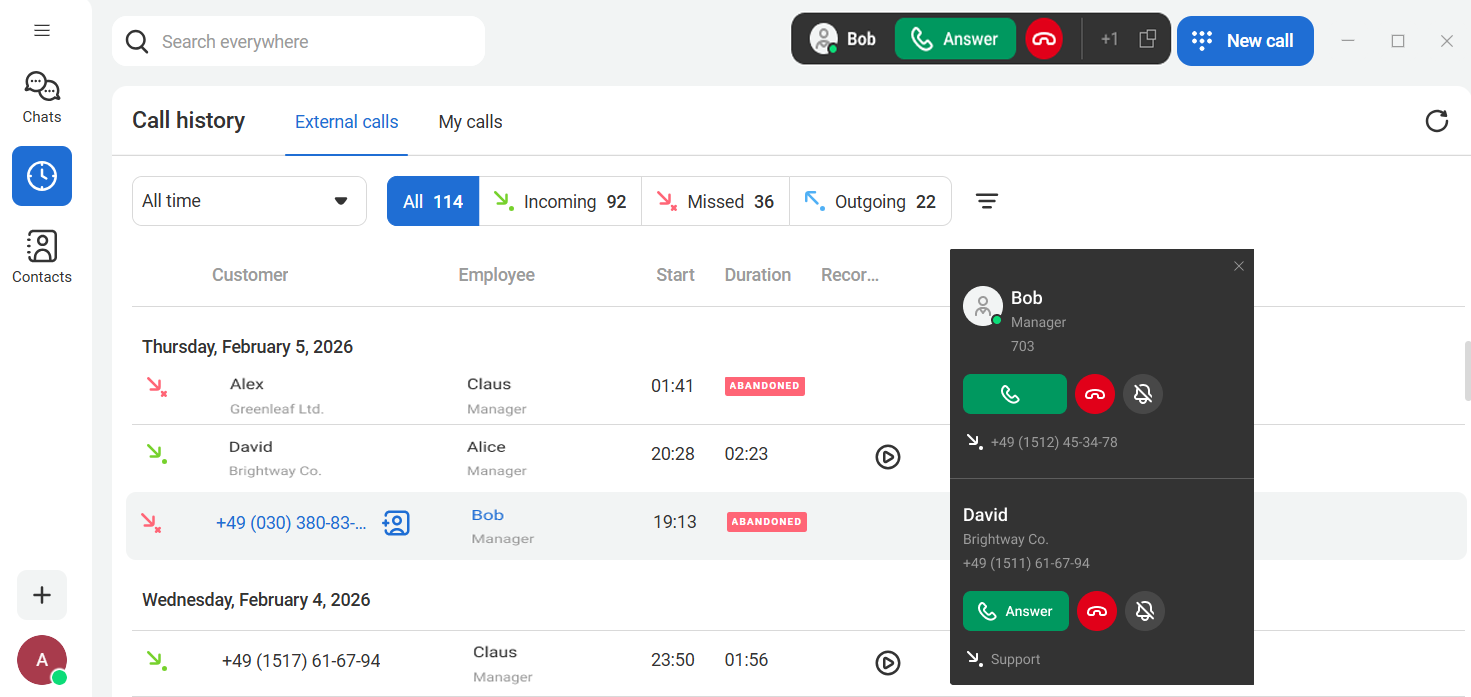
When a call comes in, a card pops up in the messenger with key contact details: the caller’s name, department, and the company number the call was made to. This helps you address the caller by name and quickly understand the context. To answer the call, click Answer.
How to Quickly Return a Missed Call
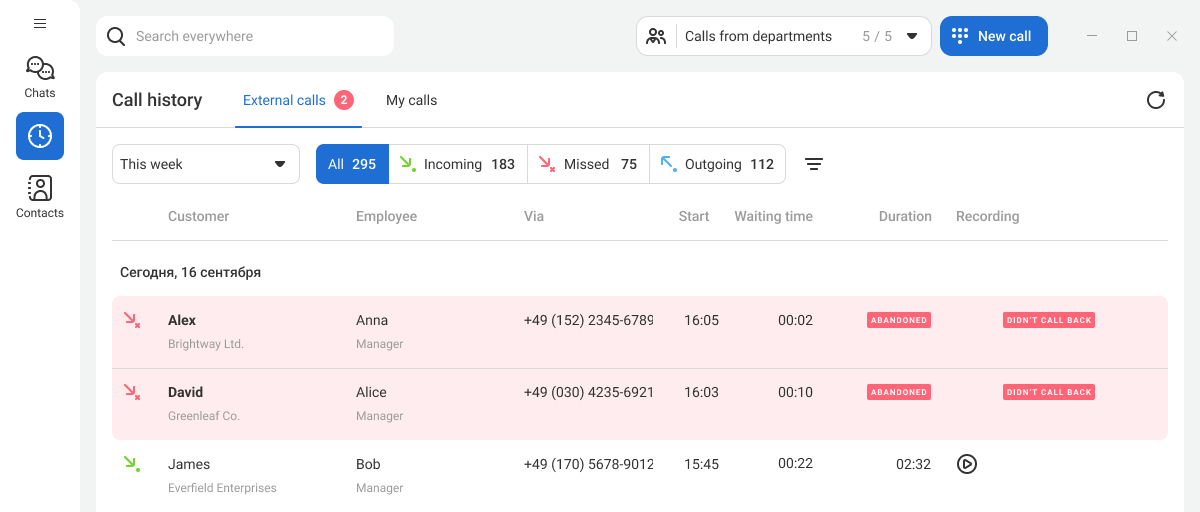
The call history icon in the sidebar shows the total number of missed calls, including both personal and department calls.

When you open the call history, a new missed call is highlighted in red. The notification disappears if you keep the tab open for a while or if another employee returns the call.
To return a missed call, hover over the relevant entry and click the Callbutton on the right.
How to Make an Outgoing Call
You can call any number using the dial pad. To open it:
1. Click the phone icon in the top-right corner. 2. As you enter a number, the messenger automatically suggests contact numbers that start with the same digits.
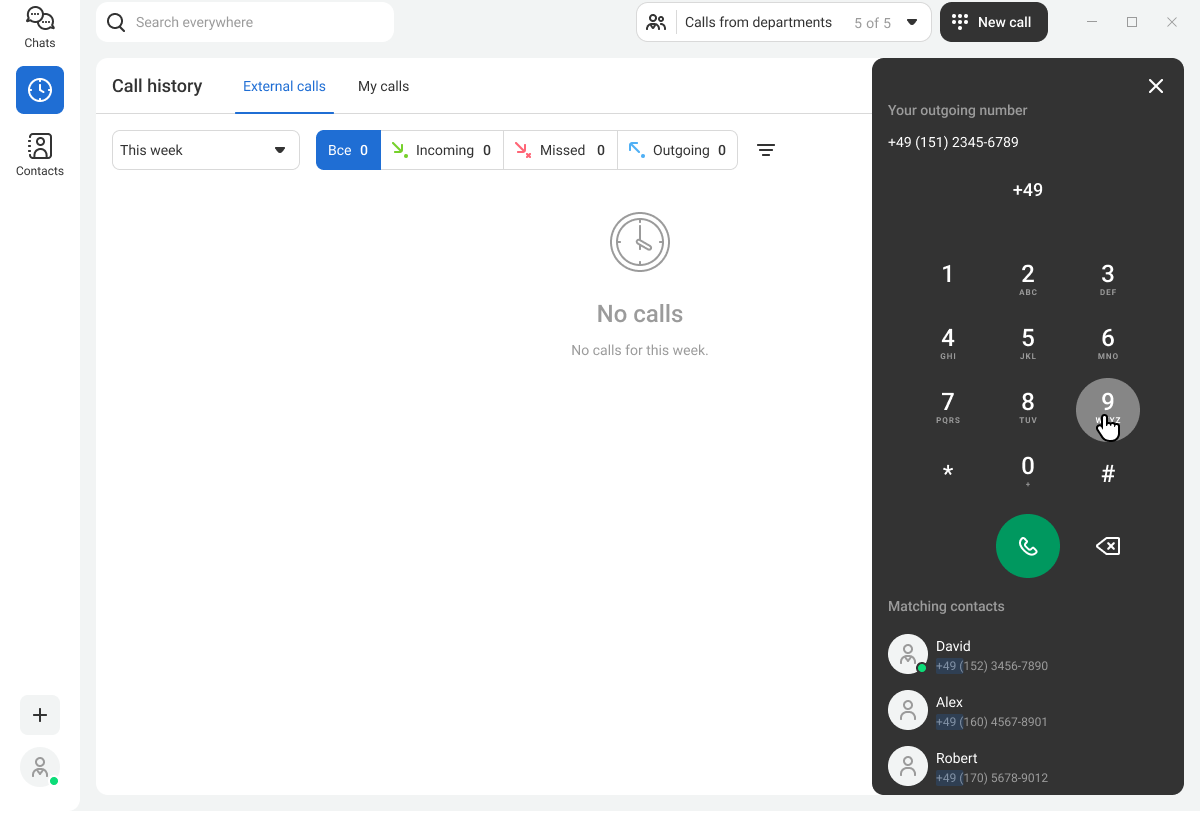
You can also make calls from other sections: from a contact card, the search bar, a chat with a colleague, or from the channel member list.
How to Create a Chat With a Colleague
To start a conversation with a colleague in the messenger, click the plus icon in the sidebar and select Create chat.
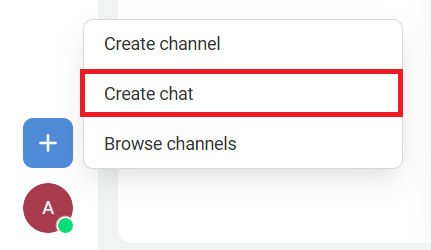
A chat window will open, where you can send a message to your colleague. You can add emojis to your message and attach files.
You can also start a chat by finding a colleague in the search bar or in the contact list and clicking the chat icon.
How to Join a Channel
There are two types of channels:
- Public channel appears in search results and is available to everyone.
- Private channel is available by invitation only.
To join public channels on your own:
1. Click the plus icon in the sidebar and select Browse channels.
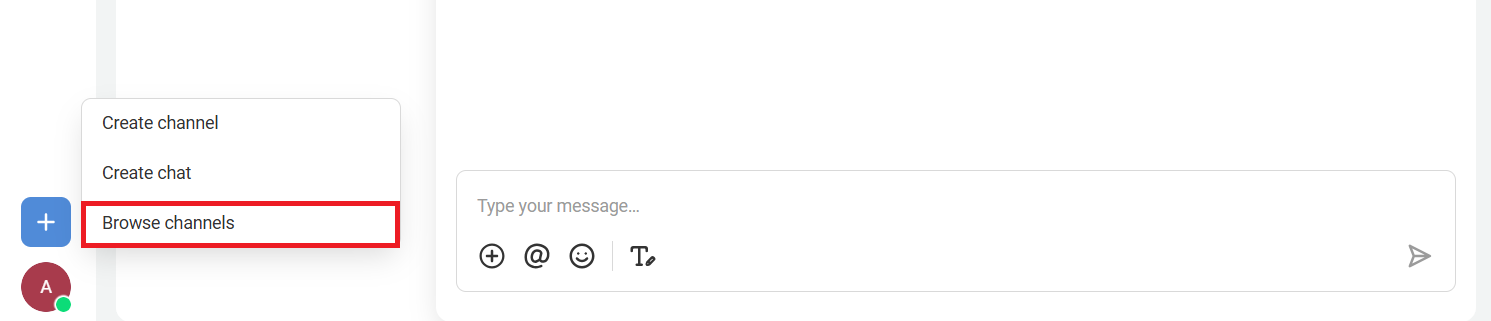
2. Click Join next to the required channels.
Before joining a channel, you can preview its content — just click the channel name.
How to Quote a Message in a Conversation
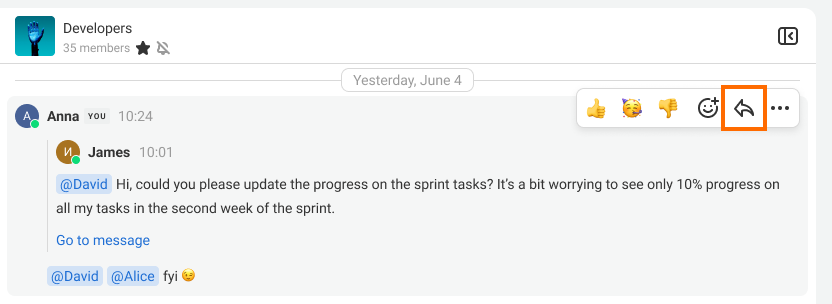
We recommend using quotes during active channel discussions so that others can clearly see which message you are replying to. To do this, hover over the message and click the arrow on the right.
How to View Call History
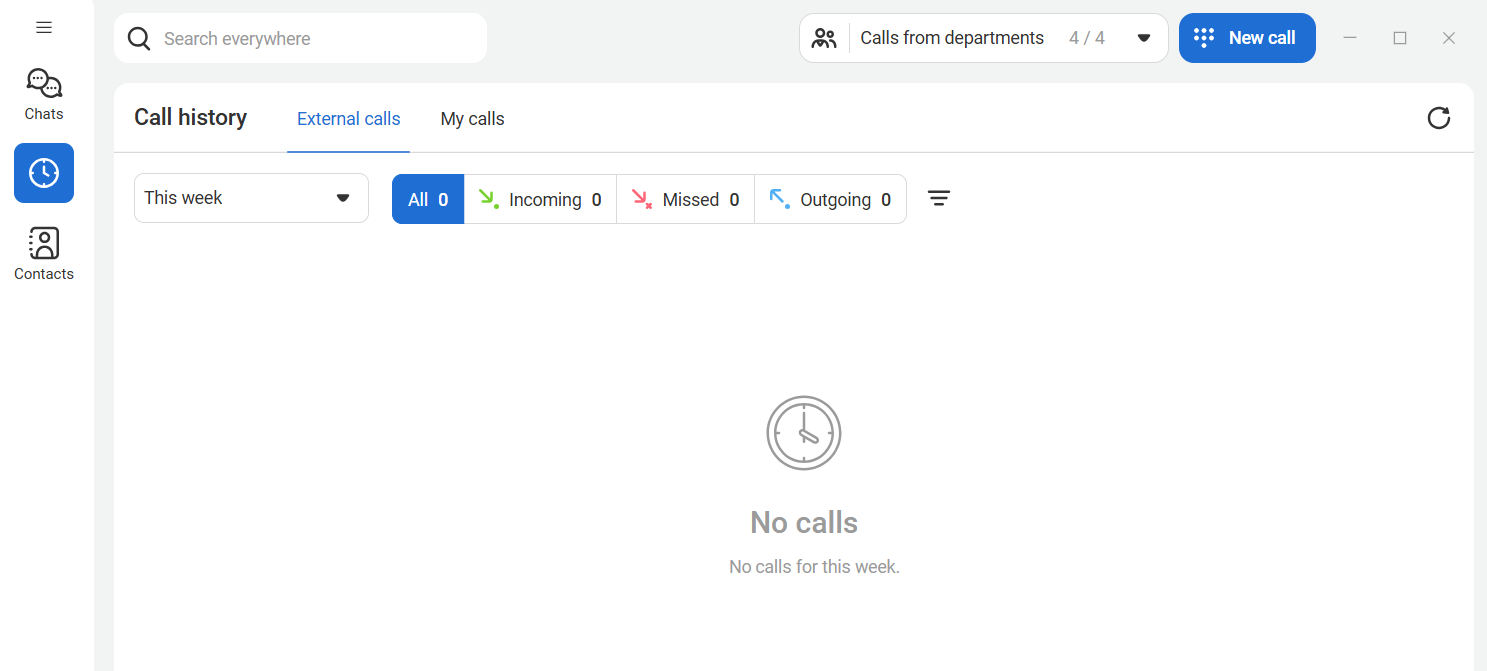
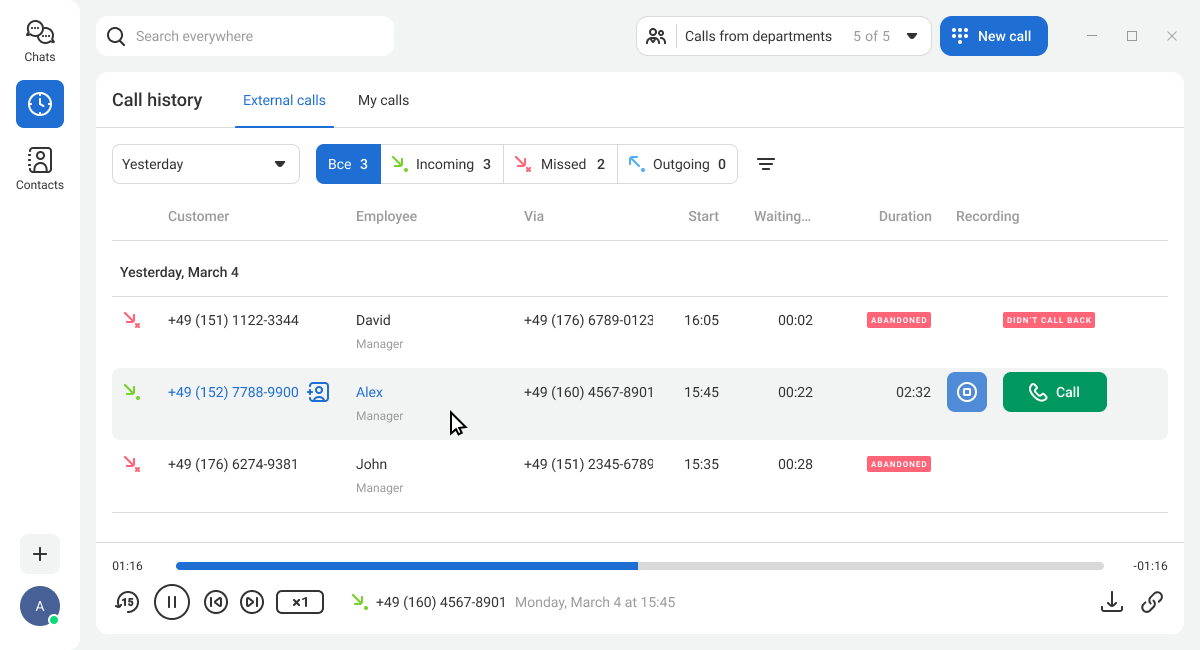
In the call history, you can learn more about a contact and quickly call them back. A flexible filtering system helps you find any call in the archive and listen to its recording if necessary.
How to Find a Customer, Colleague, or Channel
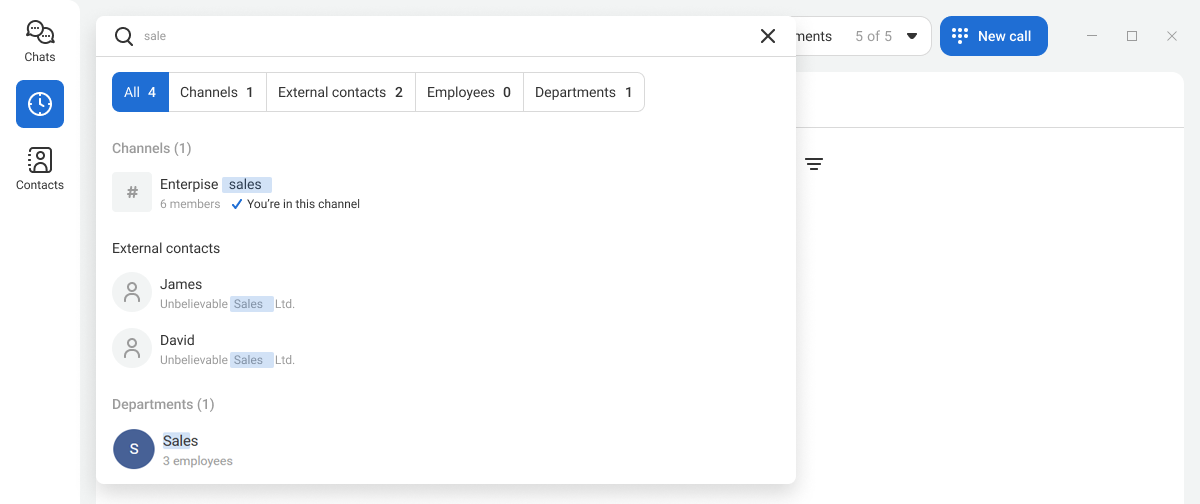
To quickly find a customer, colleague, or channel you need, use the global search bar. From there, you can send a message or make a call right away.
How to Create a New Contact
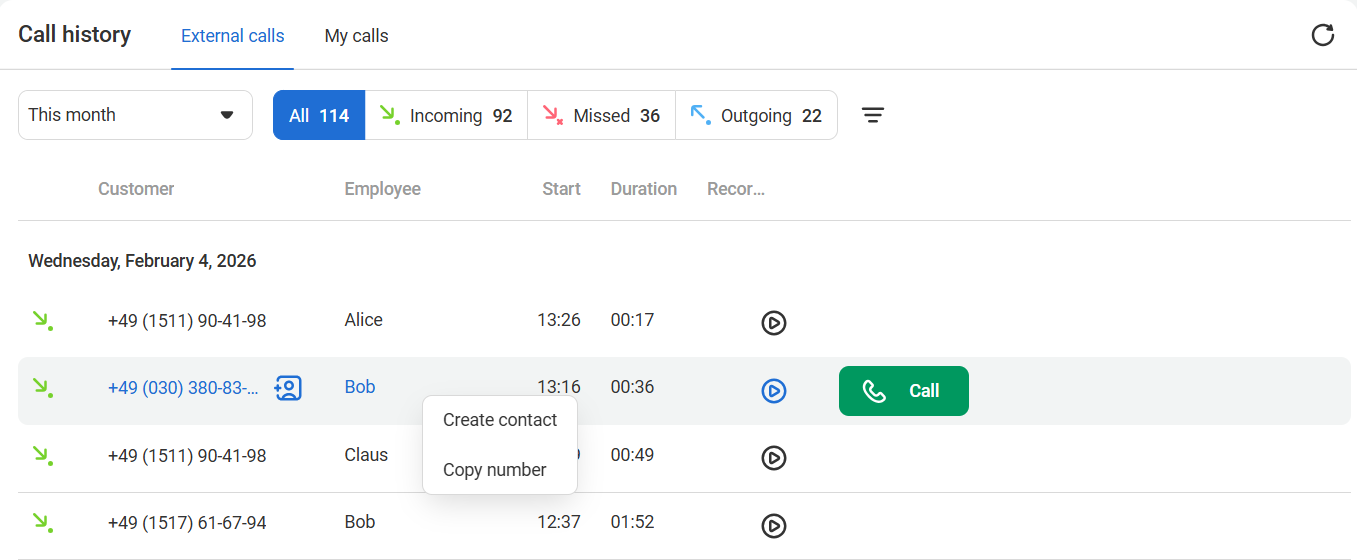
You can create a new contact in two ways: from the call history or from the contact list. Let’s look at each option in more detail.
In the call history, right-click a call and select Create contact.
In the contact list, click Add contact.

A window for adding a contact will open. Fill in the fields and click Save. The customer details will appear in the main contact list.
How to Check If a Colleague Is Available
You can see whether your colleagues are available by checking their status under the profile picture in the Chats and Contacts sections. Your own status is also shown in the sidebar under your profile picture.
| Status | Color | Meaning |
| Online | Green | The messenger app is running, and the employee has used their computer within the last 15 minutes |
| On a call | Red | The employee has the messenger running on their computer and is currently on a call |
| Do not disturb | Red | The employee sets this status manually |
| Away | Yellow | The messenger app is running, and the employee has not used their computer within the last 15 minutes |
| Offline | Gray | The messenger app is not running |
How to Disable Incoming Calls
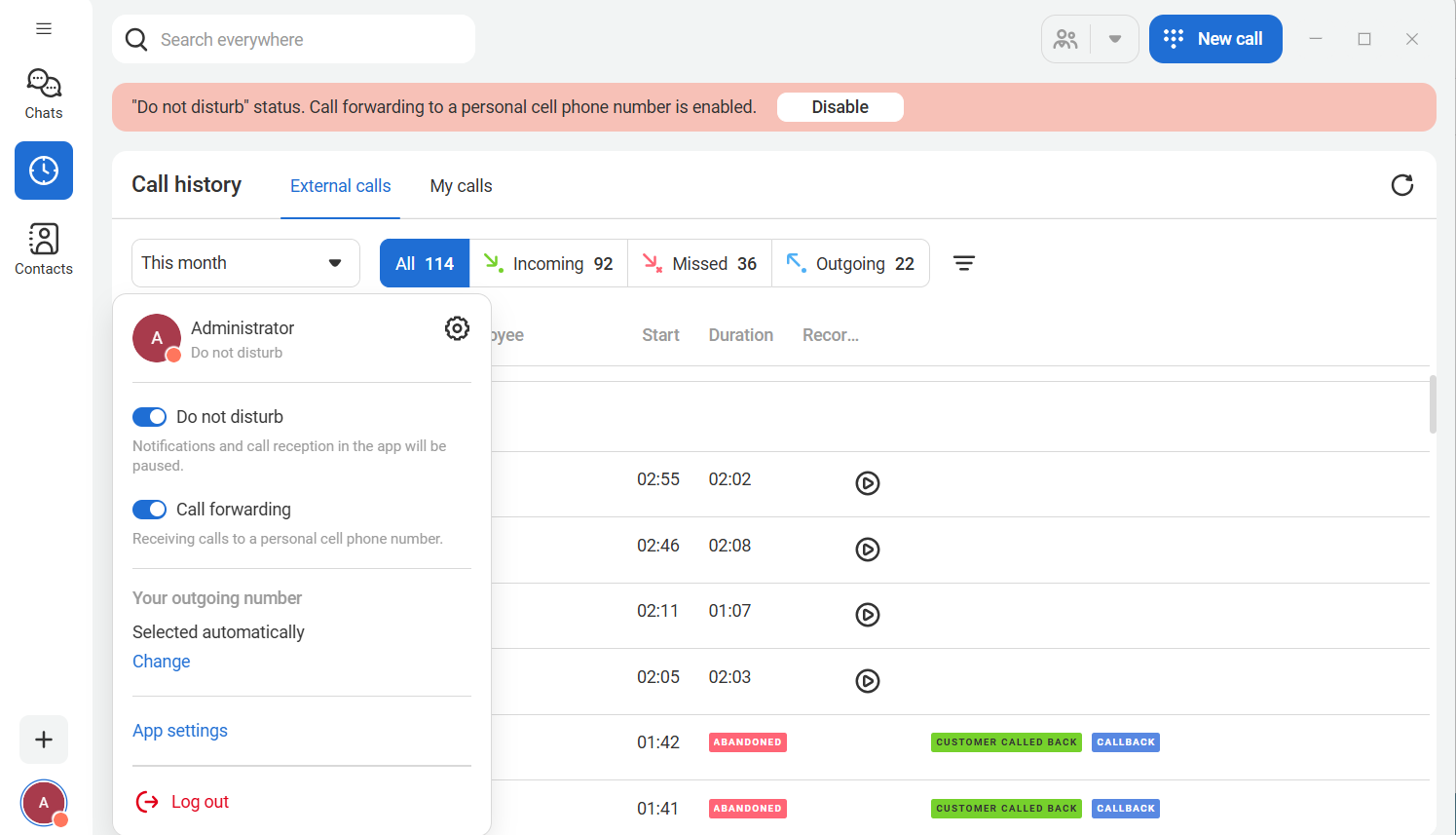
To temporarily disable incoming calls from Cloud PBX numbers, toggle Do not disturb on in the user settings. The Do not disturb status will appear at the top of the screen. In this mode, you cannot be reached: calls from departments will not be distributed to you, and direct calls to your extension or corporate SIM can be forwarded to your personal cell phone if needed.