Zoho CRM and Cloud PBX Integration Guide
This page outlines the steps required to connect and configure the Zoho CRM and Cloud PBX integration. Before you begin, make sure you have administrator rights in both systems.
In the Zoho Interface
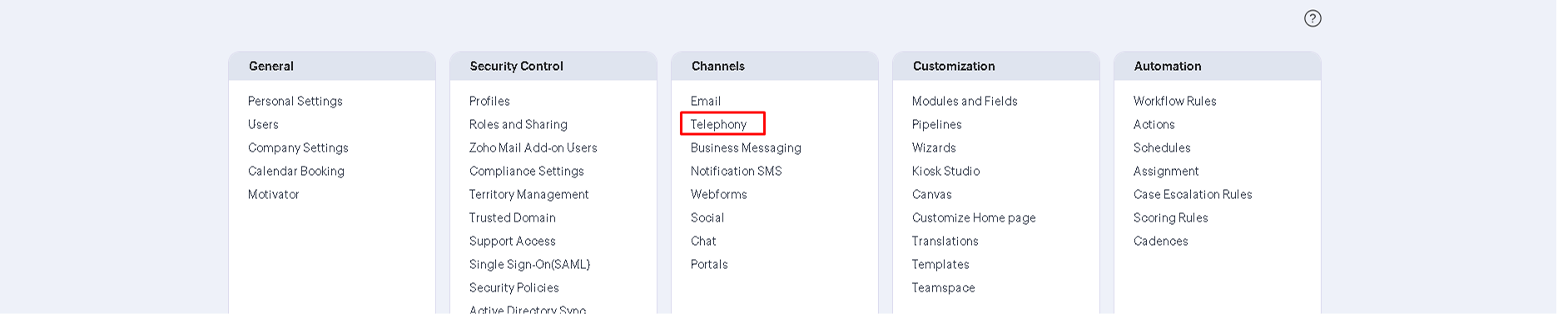
1. Go to the Setup section, and select Telephony under Channels.
2. In the window that opens, click View configuration.

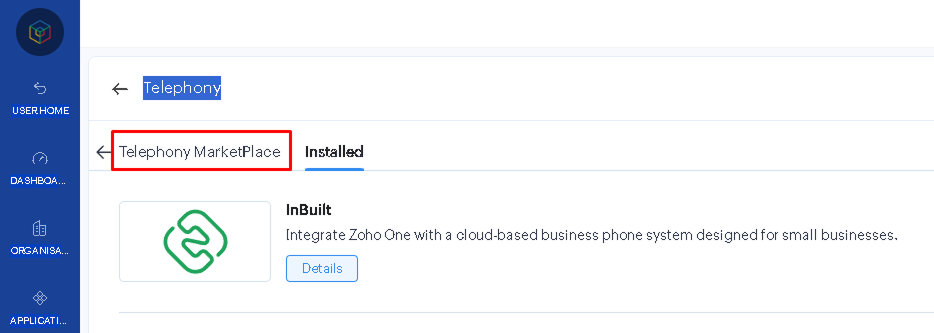
3. Open the Telephony MarketPlace tab.
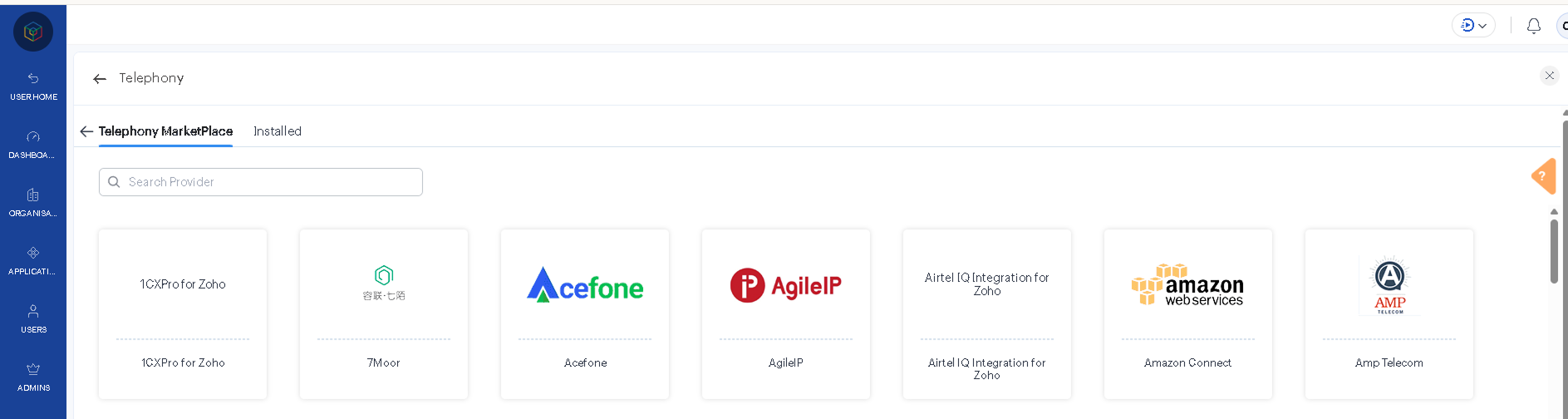
4. In the search bar, enter the name of your provider.
5. Open the app page and click Install.

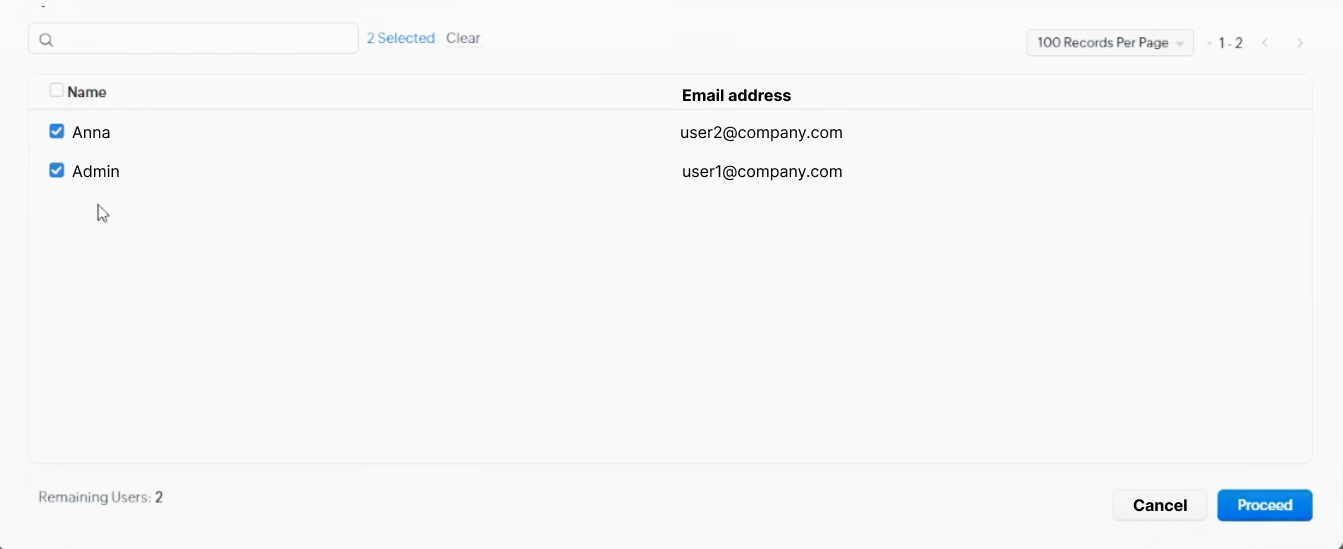
6. Select the required users and click Proceed at the bottom of the screen.
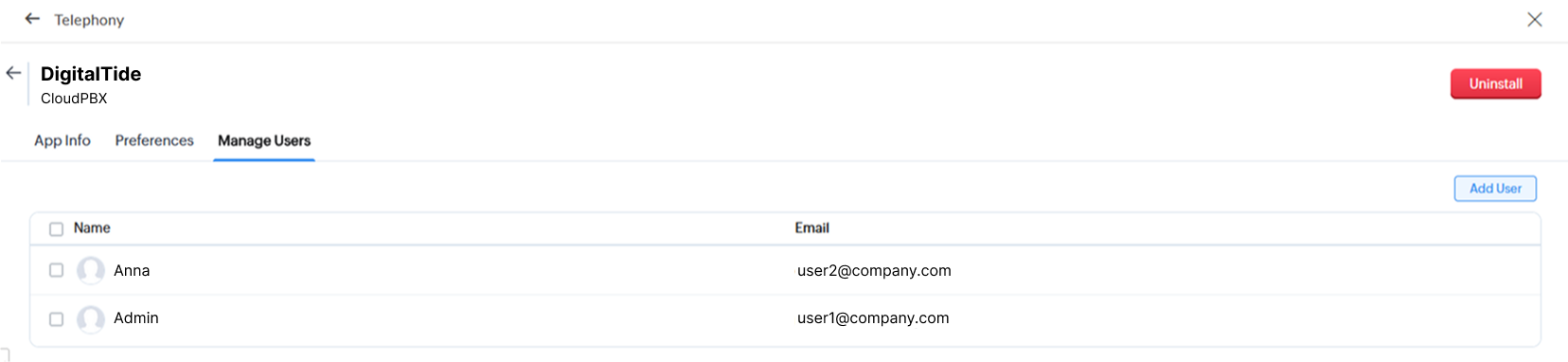
Later, you can add new users to Zoho by clicking Add User.
In the Cloud PBX Interface
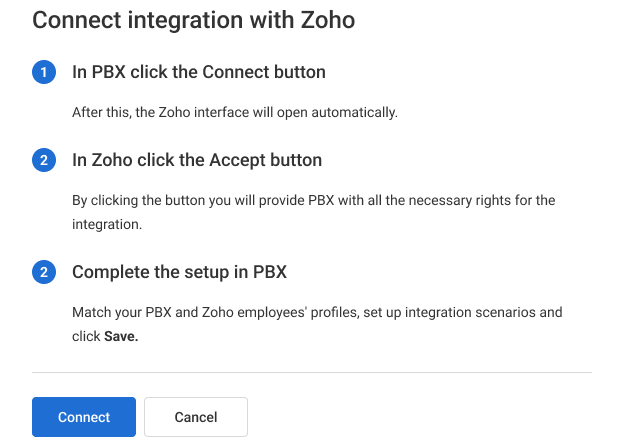
1. On the CRM Integration tab, find the Zoho CRM card and click Connect.
2. In the window that opens, click Connect.
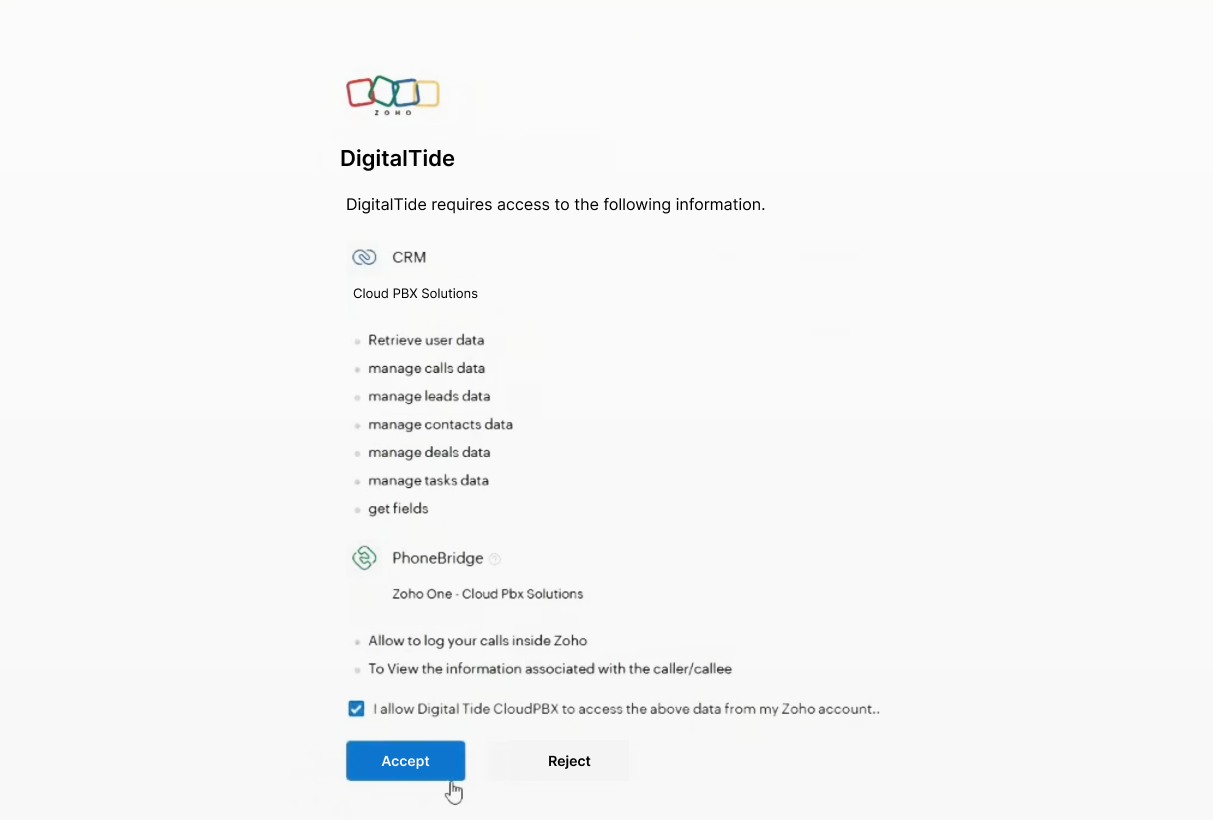
3. Grant consent for personal data processing — check the box next to I allow…. Then click Accept.
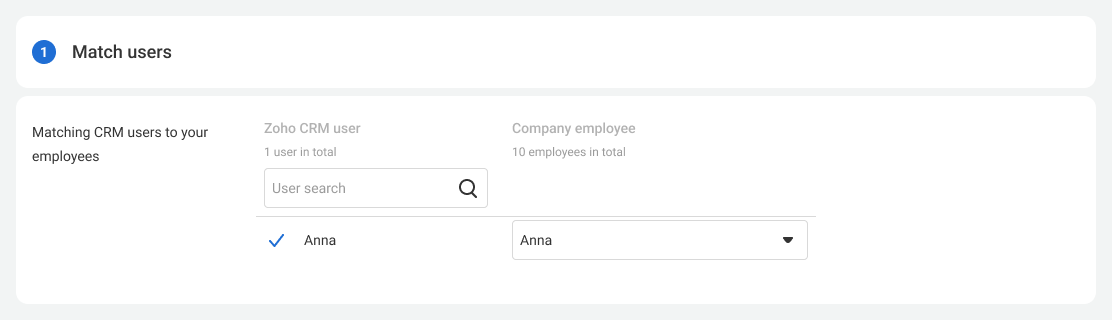
3. Match all Cloud PBX users with Zoho users so the systems can correctly log related events. Only matched users’ calls will be logged in Zoho CRM. If you add new employees in the future, you’ll need to match them as well.
4. You can set up the integration for all numbers at once (this option is selected by default) or for each number individually. For details, see the article Setup of Multiple CRM Integration Scenarios.

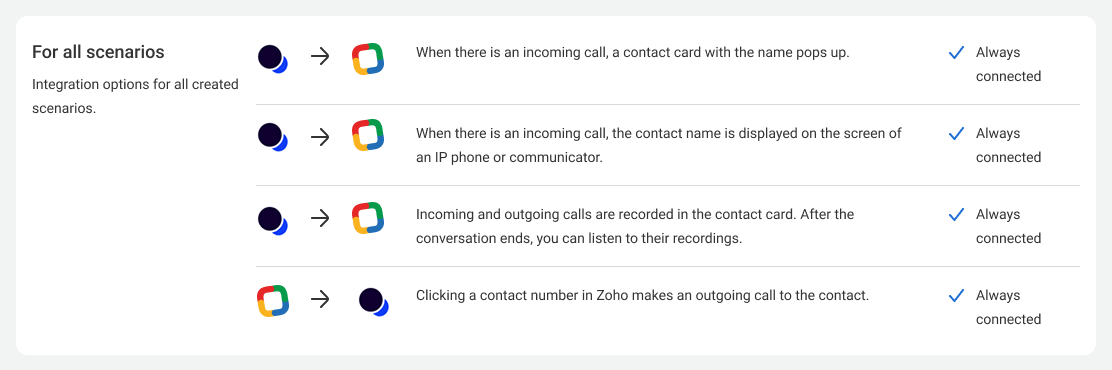
5. The first section contains preset scenarios.
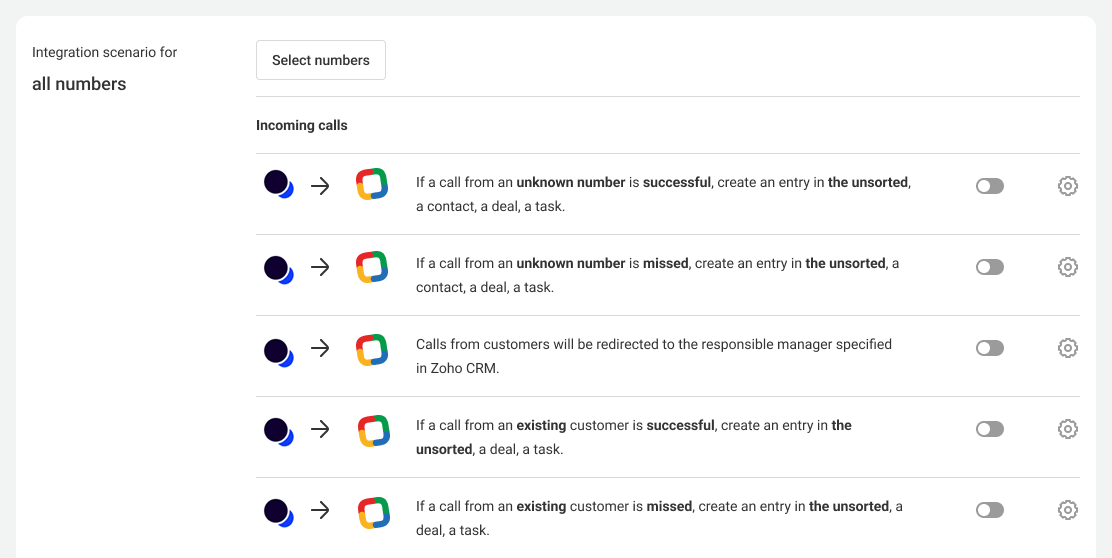
6. The remaining scenarios allow you to flexibly set up the integration based on your current business needs.
You can configure integration scenarios separately for incoming calls.
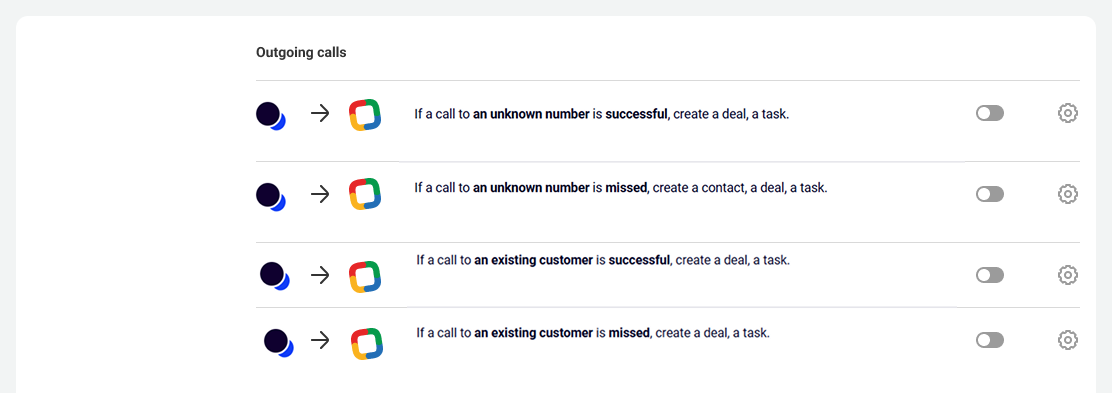
And for outgoing calls.
7. Below is an overview of how scenario configuration works.
You can enable creating leads, deals and contacts separately for:
- incoming calls from an unknown number;
- incoming calls from an existing customer;
- outgoing calls to an unknown number;
- outgoing calls to an existing customer.
You decide who will be responsible for the created entities in Zoho.
For example, if a call comes from an existing customer, either the employee who answered the call or the person responsible for the contact can be assigned as responsible for the deal and task.
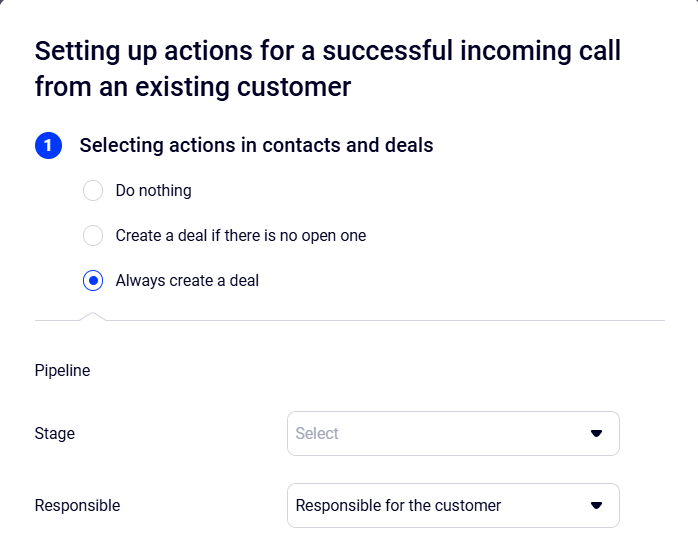
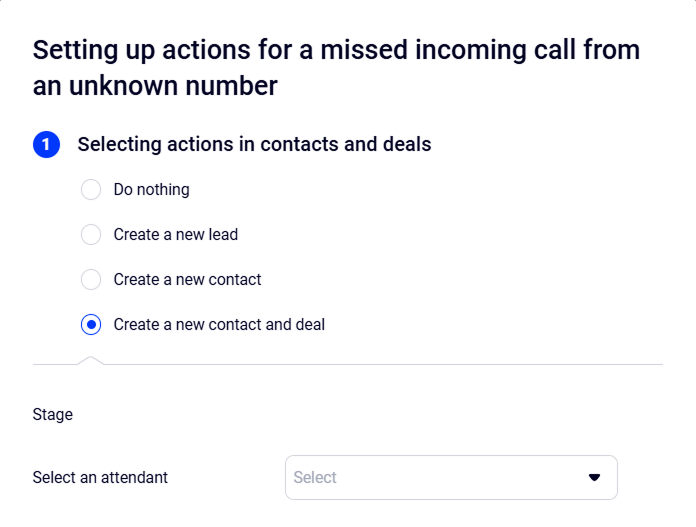
For calls abandoned during the greeting, in the IVR, while routing to a department, or outside business hours, you can select an attendant who will receive the call on an external number and will be assigned as responsible for the lead.
Set up task creation for incoming and outgoing calls (both successful and unsuccessful).
To do this, select the person responsible and due date for the task in the scenario settings, enter a title, and if necessary, provide additional details in the Task text field.
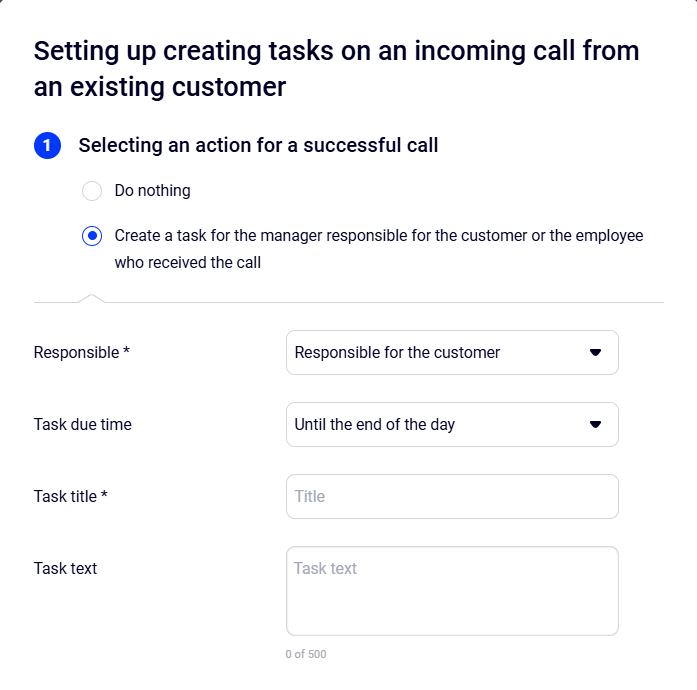
The related lead, deal, or contact will be linked to the created task, enabling employees to quickly access all relevant information.
Customer calls can automatically be redirected to their personal managers if you enable this rule in the integration settings. You can also specify where to route the customer if the personal manager does not answer the call.

In this case, customers won’t need to navigate an IVR or speak with a receptionist or other employees. Cloud PBX will immediately transfer the call to the responsible manager (optionally, you can enable an automatic audio message to notify the customer).
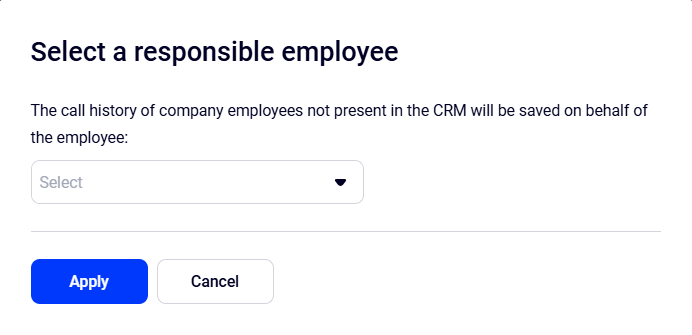
The call history of your employees who are not present in Zoho will be saved on behalf of the selected user. This option is useful if not all managers are matched or if some employees do not work in Zoho but may still call customers (for example, an accountant or courier). Contacts, deals, and leads will not be created for such calls, but the call history and recordings will still be stored in Zoho.