Bitrix24 and Cloud PBX Integration Capabilities
Handling calls in Bitrix24 is easy with the built-in calling widget powered by WebRTC technology. You can manage calls directly in the interface — make and answer customer calls, transfer them to colleagues, and much more, without installing any extra apps.
To take full advantage of the Cloud PBX and Bitrix24 integration, enable it right now.
1. Customer Pop‑Up Card for Incoming Calls
The widget appears in the Bitrix24 interface as soon as the phone starts ringing. Even before the manager clicks Answer, they will already see:
- the customer’s first and last name (if the contact is already saved in the CRM);
- the name of the employee responsible for the customer;
- the customer’s phone number;
- the phone number the customer dialed;
- active deals associated with the customer (if any).
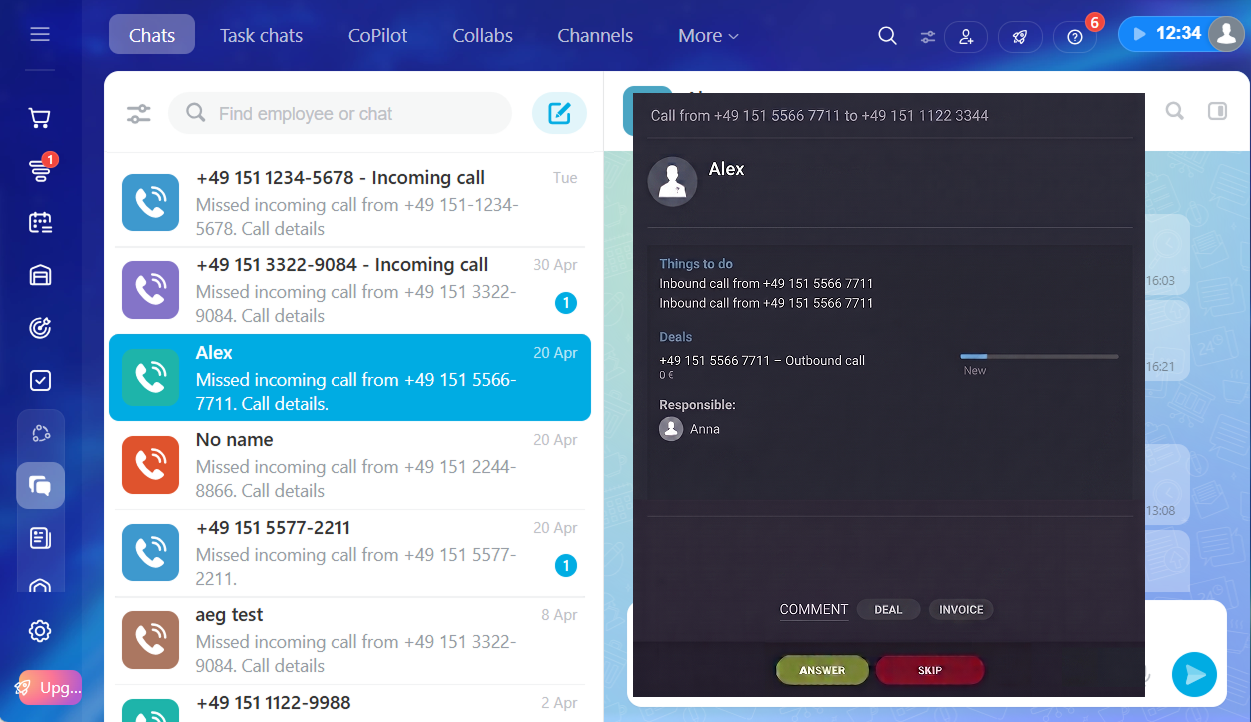
Once the call is answered, the employee can address the customer by name right away — there’s no need for the caller to introduce themselves or repeat details from previous interactions with your company. Customers appreciate being recognized, which helps build loyalty. Even if the call comes from an unknown number, after picking up you can leave a comment and create a deal and/or invoice during the conversation.
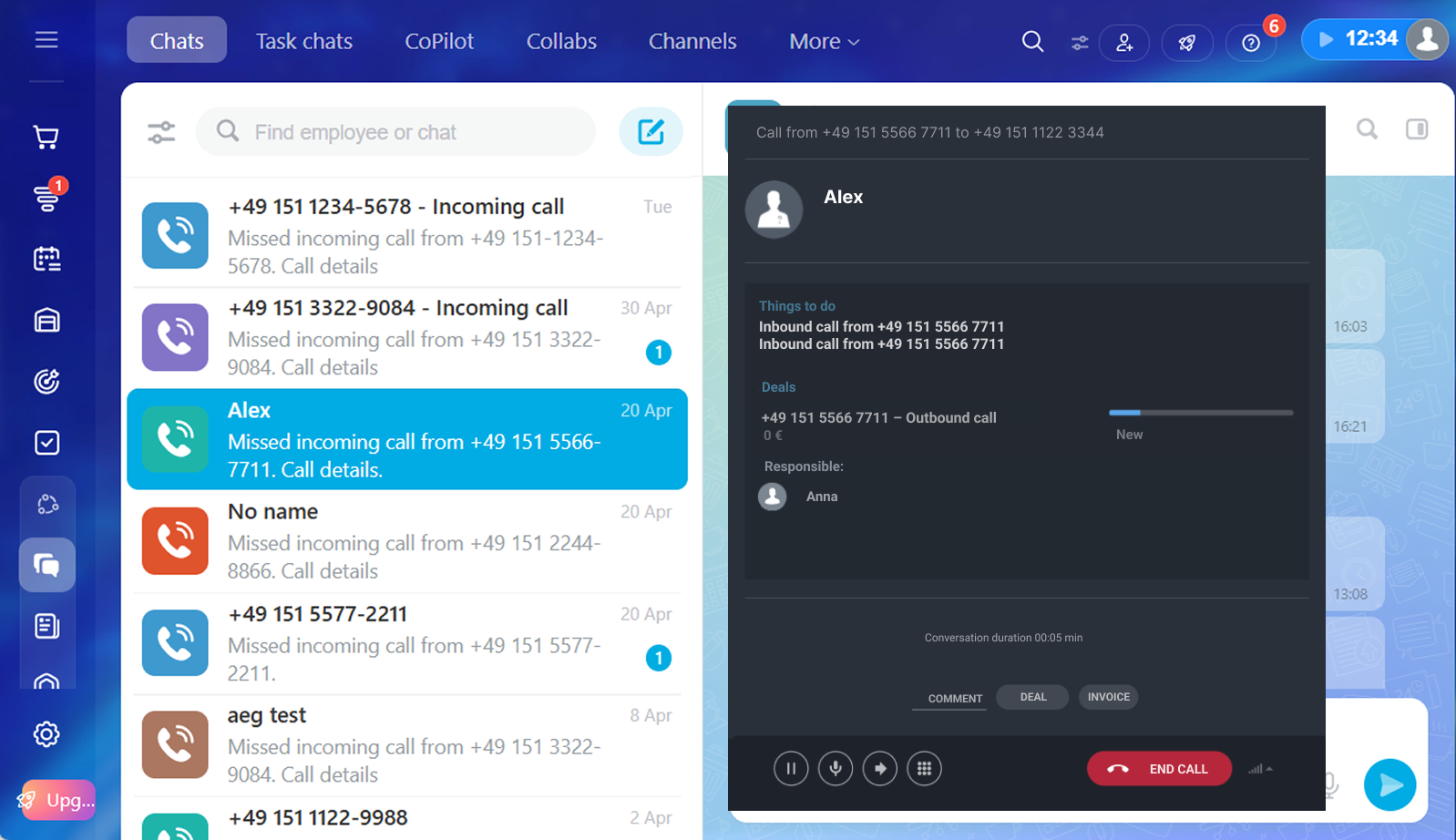
For more details about incoming calls via the widget, please see this article.
2. One‑Click Outgoing Calls
The Bitrix24 and Cloud PBX integration reduces manual work and helps you make more sales. There are several ways to make a call from Bitrix24:
- in the CRM: from the contact card or directly from the Kanban board;
- in the Bitrix24 chat: using the dialer or by clicking a phone number in notifications.
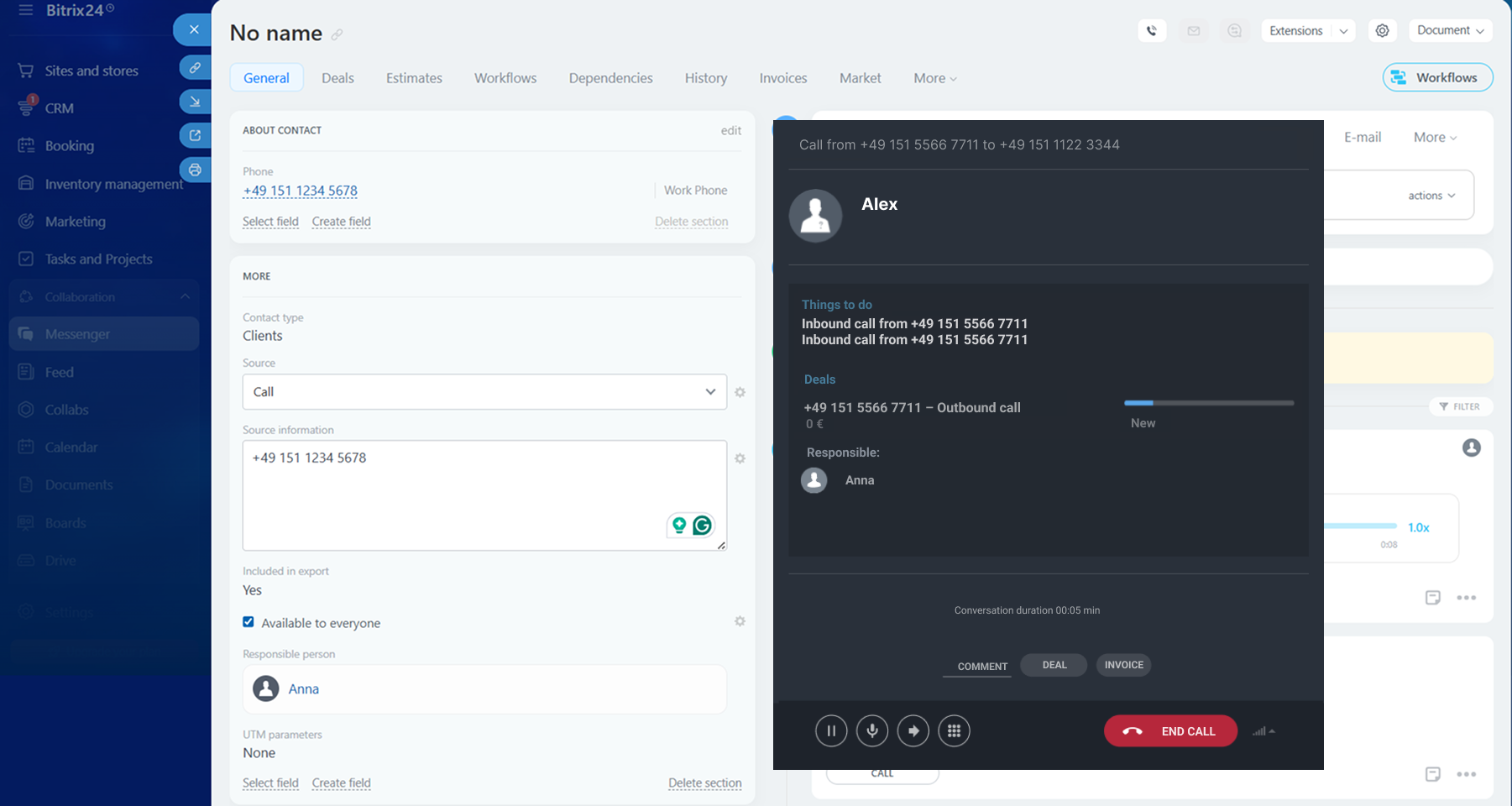
For more details about outgoing calls via the widget, please see this article.
3. Automatic Creation of Leads, Deals, and Contacts
If a manager forgets or does not have time to log a caller’s number, you could miss out on a major deal. To prevent this, leads and contacts are created automatically in Bitrix24 (if such a scenario is set up in the integration). Managers can return to them at any time, add details, and continue working. Supervisors can be confident that no call is lost and ultimately gain full visibility into the sales pipeline.
To make working with leads, contacts, and deals even more effective, you can automatically pass additional customer data from Cloud PBX to Bitrix24. Learn more about data passing settings.

4. Automatic Creation of Tasks for Employees
In addition to leads, deals, and contacts, tasks can also be created automatically. These tasks draw managers’ attention to customers and deals and guide them on what to do in each situation — whether it’s a missed or answered call from an existing contact or from an unknown number. You can customize the task title and description and update them at any time in your Cloud PBX account. Supervisors can rest assured that managers have called back to every customer.

5. All Calls and Recordings Are Saved in the Contact Card
If call history and recording is enabled in your Cloud PBX, all calls are synced to Bitrix24. You can listen to call recordings at any time. This helps supervisors monitor service quality, while managers stay polite and professional knowing their conversations are being recorded.
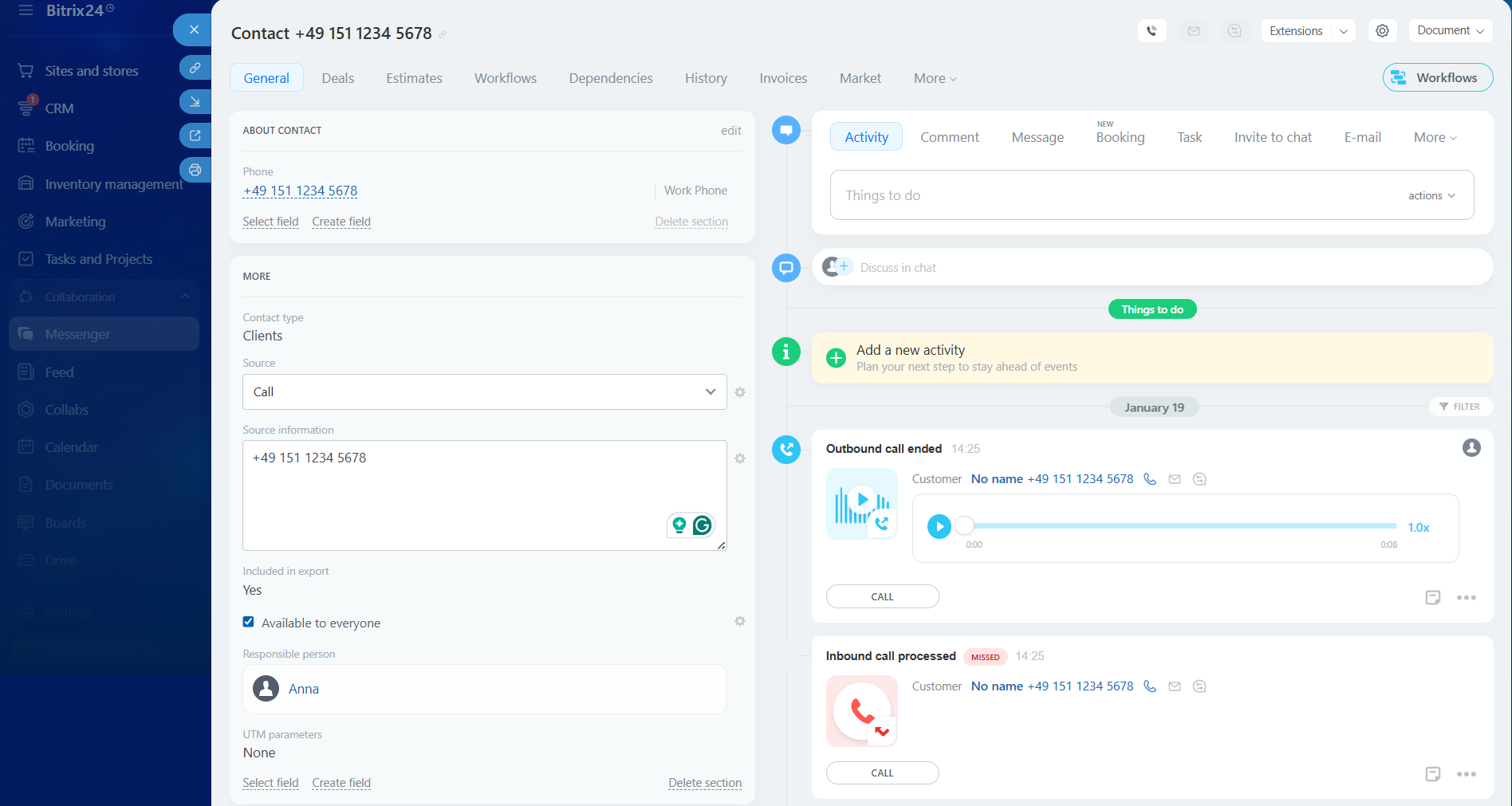
Recordings are also available in the call details, as well as in the lead and deal cards (if created).
Make it easier
We recommend logging important customer details and agreements in the contact card after each conversation and creating follow‑up tasks to move the deal to the next stage on time.6. Automatic Routing to a Personal Manager
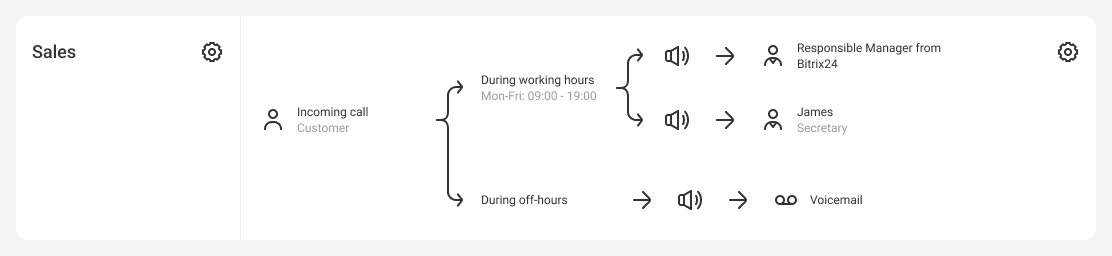
If customers are assigned to personal managers, you can route calls to them automatically — customers won’t have to navigate the IVR or talk to a secretary or other managers. As soon as a call comes in, Cloud PBX routes it to the employee responsible for that customer.
7. Bitrix24 Website Callback Button
Cloud PBX has its own convenient website callback button, which is continuously improved and expanded. However, if you prefer the Bitrix24 callback button, you can integrate it with Cloud PBX so that these calls are also routed to Cloud PBX, and their recordings can be listened to and analyzed.
For more details about integrating the Bitrix24 website callback button with Cloud PBX, please see the guide.
8. End‑to‑End Analytics and Call Tracking from Bitrix24
Once the integration with Cloud PBX is set up, Bitrix24 end‑to‑end analytics and call tracking will become available to you. You can set traffic sources and assign your Cloud PBX numbers to them. When customers call these numbers, lead and deal data, along with traffic-source details, will be logged in the End‑to‑End Analytics reports.
9. Excluding Departments from Bitrix24 Integration
If some departments in your company do not use Bitrix24, you can easily exclude them from the integration. This prevents unnecessary leads and keeps the focus on the inquiries that require managers’ attention. For example, when someone calls the accounting department, no lead will be created in the CRM. Please see more details in the article “Excluding Departments from Bitrix24 Integration”.
10. Integration Diagnostics Panel
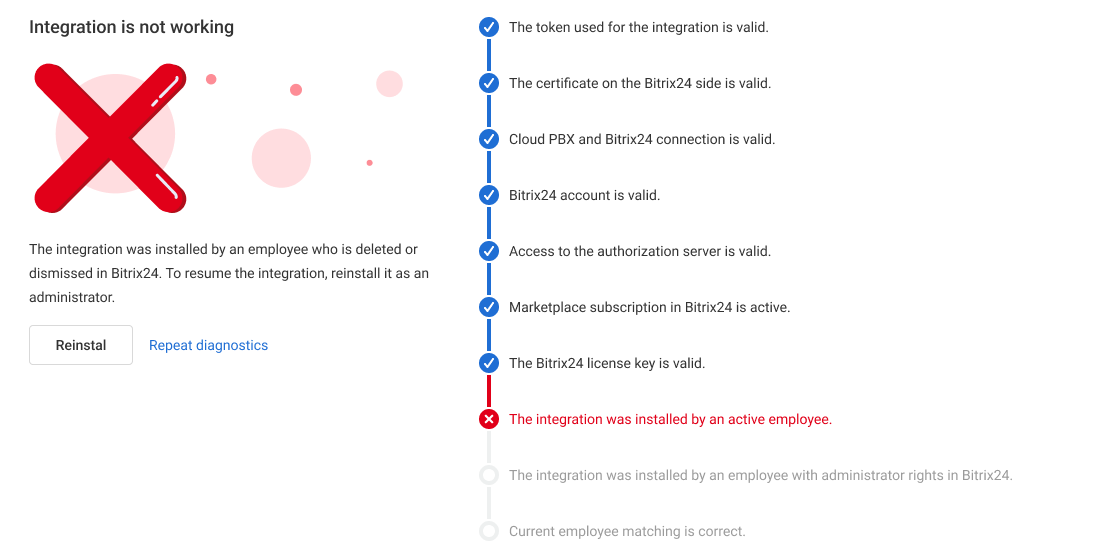
When the Bitrix24 integration encounters issues, it can disrupt your business — calls, leads, and tasks may be lost. The diagnostics panel automatically detects issues that previously required lengthy manual checks.
The system shows all errors and provides guidance on how to resolve them. You won’t miss any errors — the status updates automatically. This saves time and helps restore the integration without contacting support.
For more details about the diagnostics panel, please see this article.
For a detailed setup guide on setting up the Bitrix24 and Cloud PBX integration according to your business needs, please see this article.