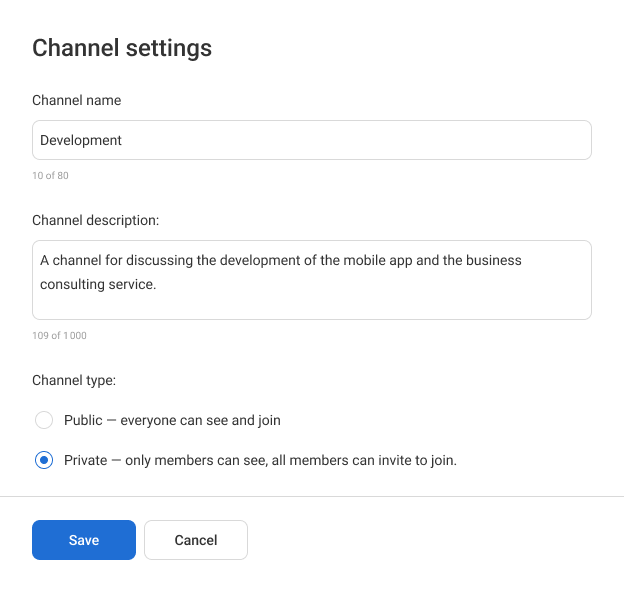
Channel Settings in Corporate Messenger
In Corporate Messenger, you can create channels to discuss daily tasks with your department or collaborate on a project.
There are two types of channels:
- Public channel appears in search results and is available to everyone.
- Private channel is available by invitation only.
How to Join a Public Channel
You can join public channels on your own:
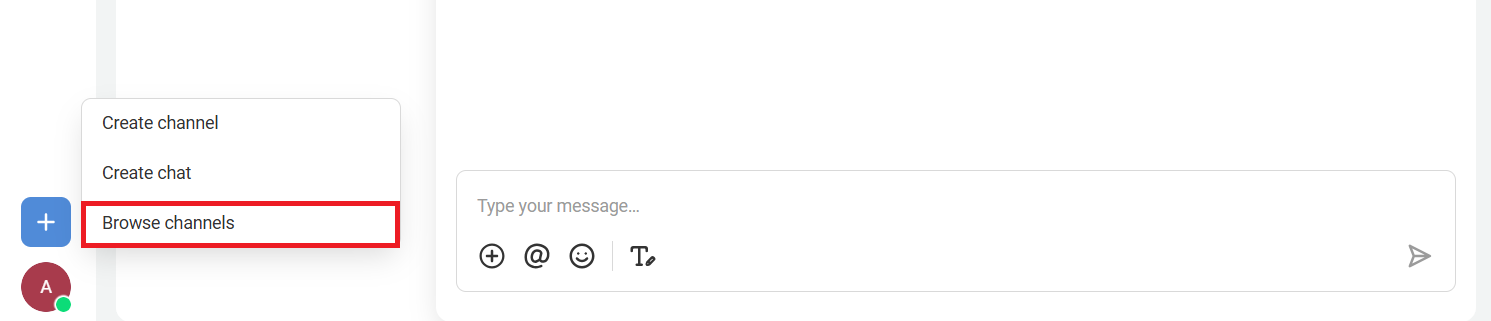
1. Click the plus icon in the sidebar and select Browse channels.
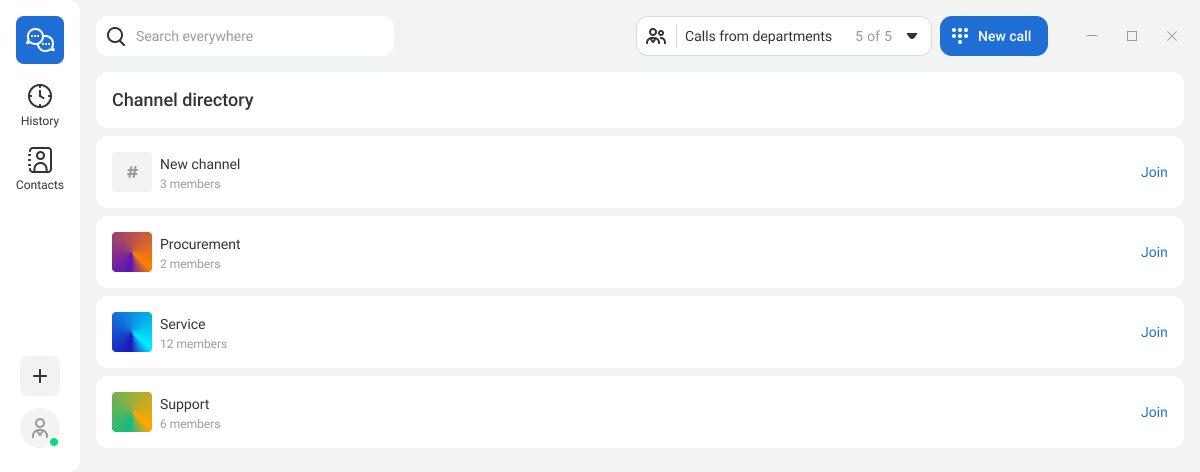
2. In the channel directory, before joining a channel, you can preview its content — just click the channel name.
To join multiple channels at once, click Join next to the channels you need.
How to Create a Channel
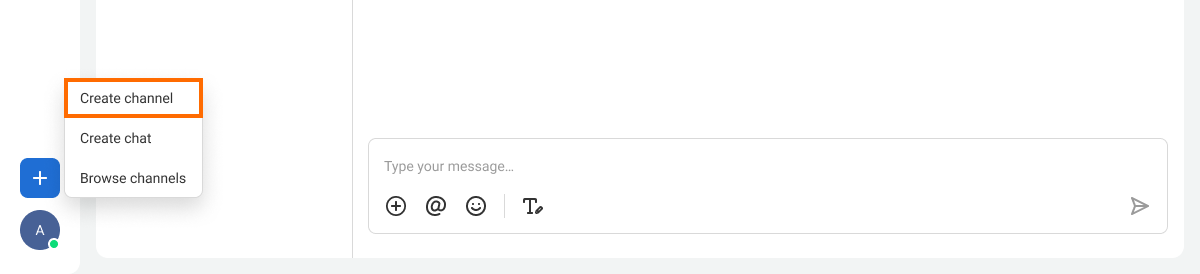
1. Click the plus icon in the sidebar. Select Create channel.
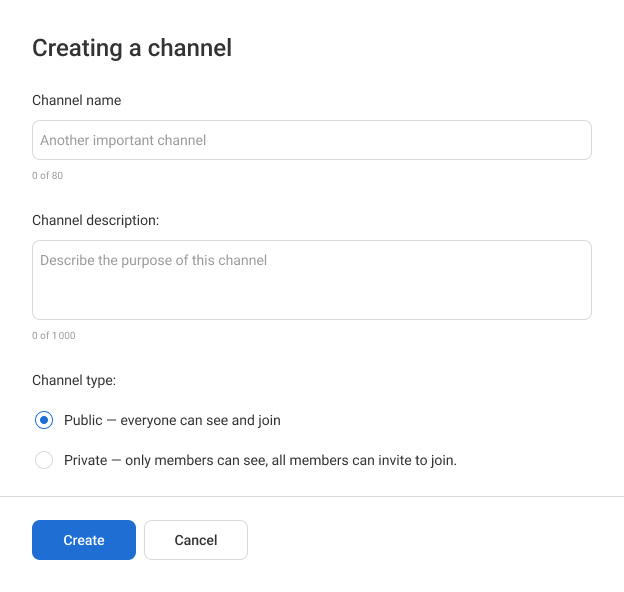
2. In the window that opens, enter the channel name and description, choose the channel type, and click the Create button. If you create a channel without filling in these fields, it will appear in the channel list as New channel. You can later change its name, description, and type settings.
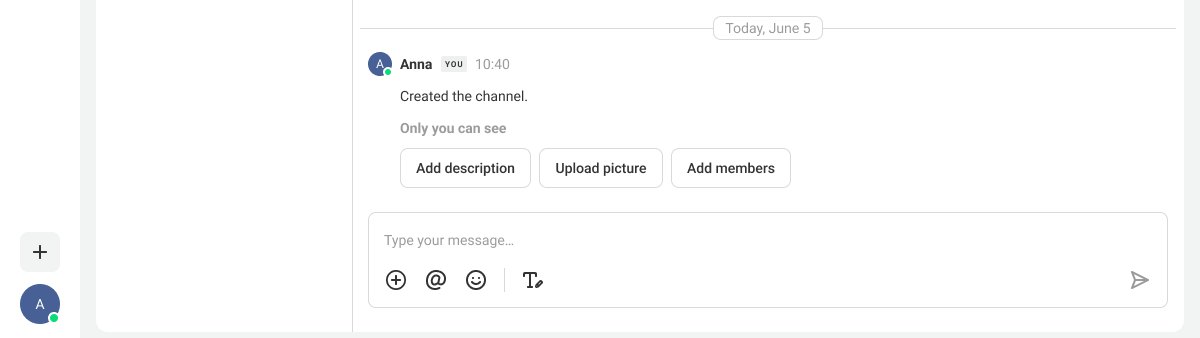
3. After creating the channel, click Add members.
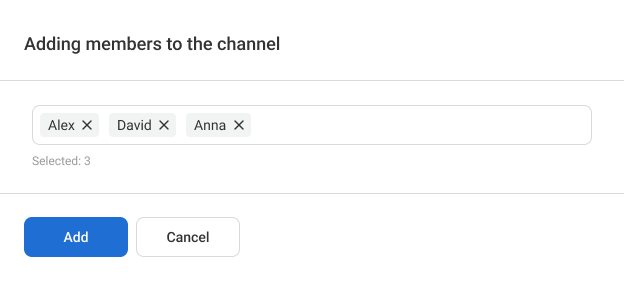
4. Use the employee search to find the colleagues you need and click Add.
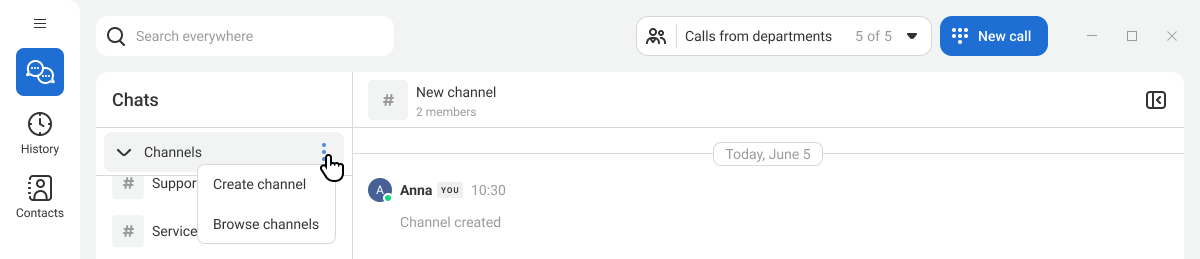
You can also create and browse channels from the Chats section. To do this, click the Channels tab and select the required option.
How to Add or Remove Members from a Created Channel
1. Open the channel and click the arrow icon in the top-right corner.

2. On the Members tab, you can add or remove channel members.
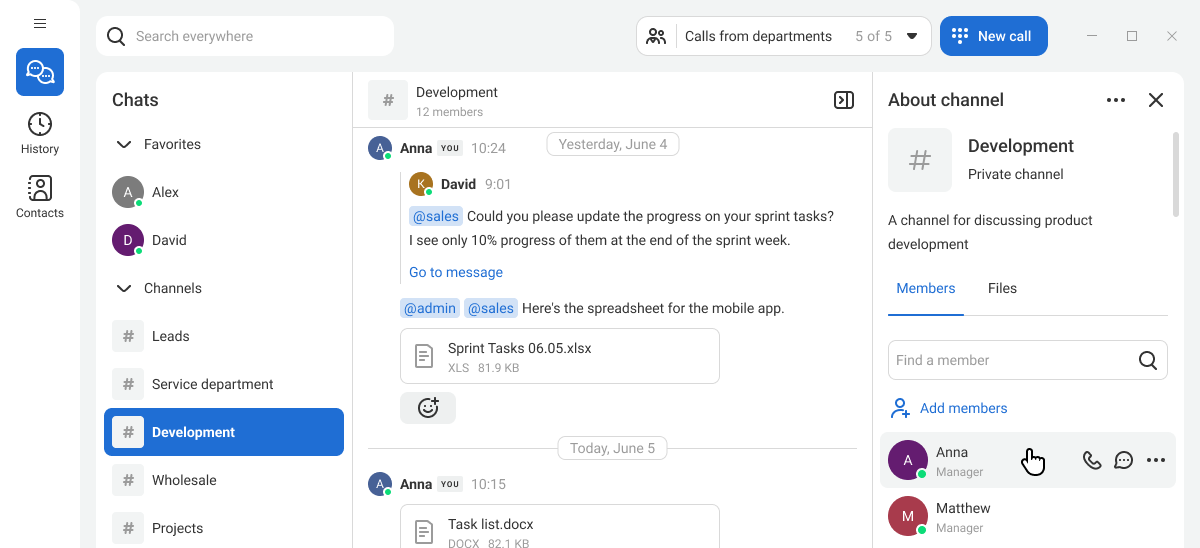
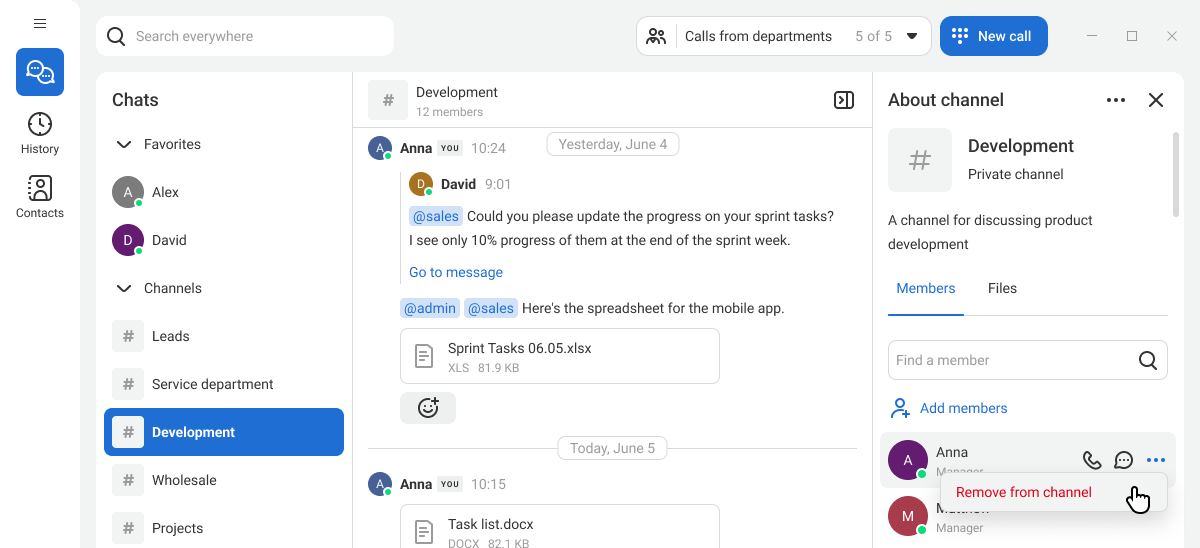
To remove a member, click the three dots to the right of the employee’s name and select Remove from channel.
How to Find a File Shared in a Channel
In the right sidebar, open the Files tab to view all files shared in the channel. By default, the list of recent files opens.
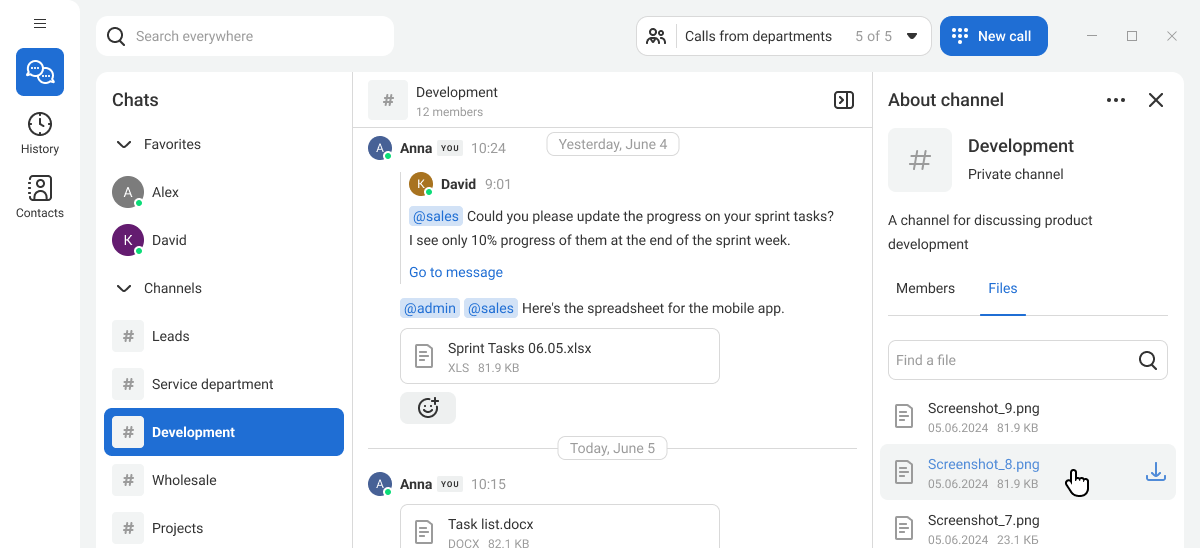
If the file you need is not in the recent list, use search across all channel files: just start typing the file name in the search bar.

Other Channel Settings
To add a channel to favorites, enable channel notifications, or leave a channel, right-click the channel in the channel list and select the required option.
To change channel availability, name, or description, open the About channel panel, click the three dots, and select Edit.
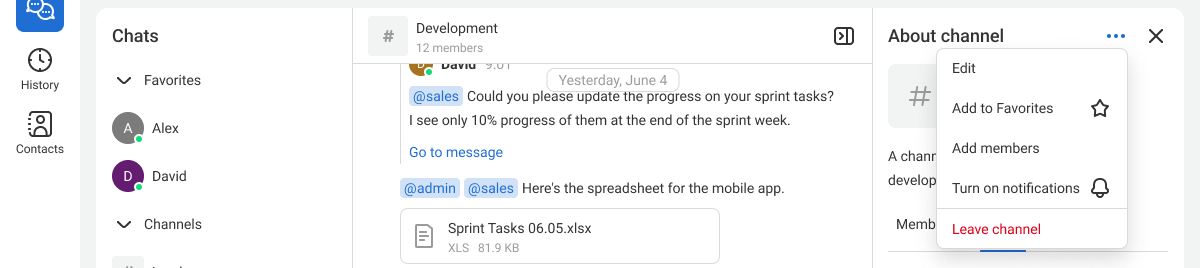
Save your changes in the channel settings window.