Corporate Messenger
Corporate Messenger combines team chats with a built-in softphone integrated with Cloud PBX.
Key benefits of the messenger for managers:
- Simple access control: when an employee is added to Cloud PBX, they instantly get access to all required contacts, chats, and call history. When the employee leaves the company, their account can be deactivated in one click.
- Focus on work communications: the messenger is designed exclusively for internal communication with colleagues, so personal chats don’t distract employees from their tasks.
How to install Corporate Messenger
- When signing in, enter:
- your Cloud PBX profile login in the user@company.pbx12345.com format.
- password.
Corporate Messenger Features
Calls
With the messenger, you can easily make and receive calls from anywhere in the app. When a call comes in, a contact card with key information pops up. The card includes everything you need to handle the call: hold, transfer, add a parallel call, or mute the microphone buttons. There is also a button to invite more participants and turn any call into an audio conference — all without leaving the messenger.
Learn more about receiving and making calls.
In addition, Corporate Messenger also allows you to choose an outgoing number and handle incoming calls from different departments and across multiple devices.
Learn more about call settings.
If you need to focus on tasks unrelated to calls, you can enable Do Not Disturb mode. For more details on this and other profile settings, see the User Settings in Corporate Messenger article.
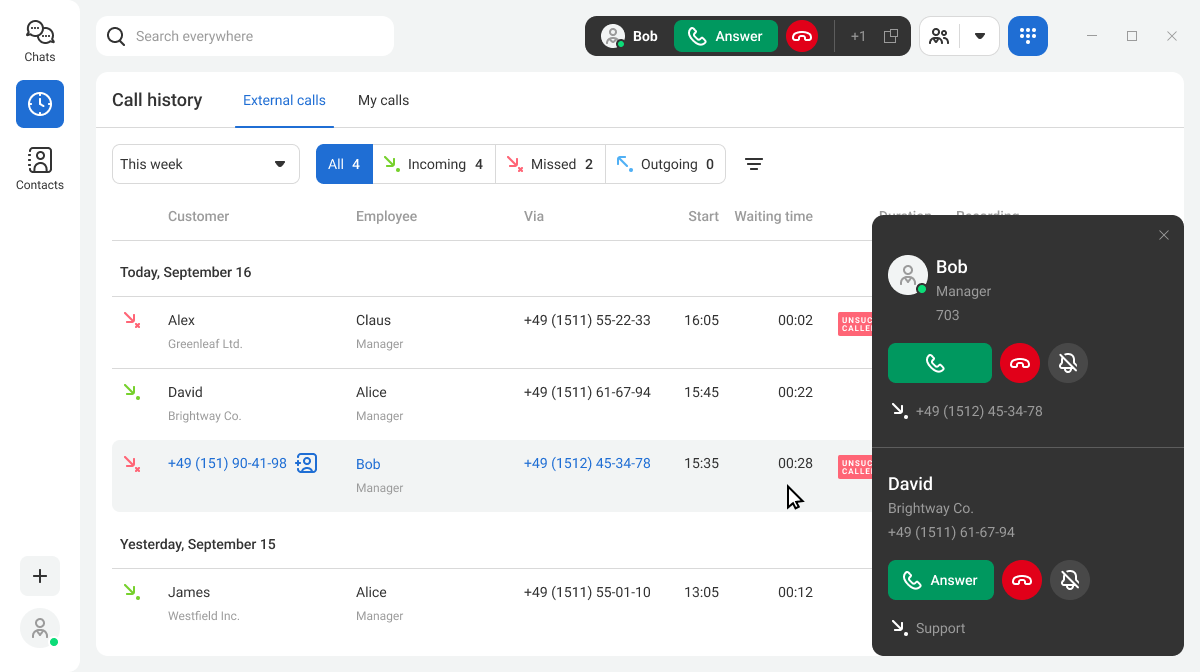
Chats
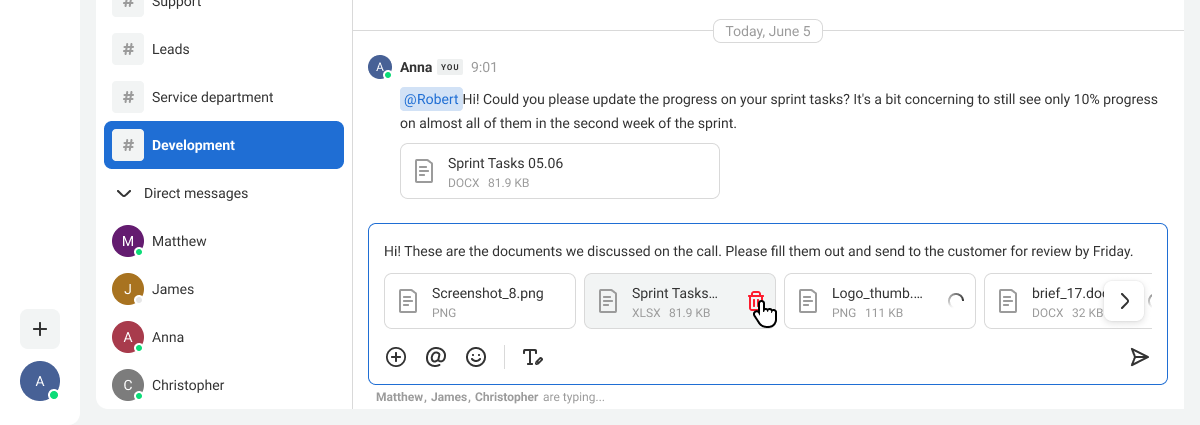
In the messenger, employees can only chat with colleagues, so they won’t have to waste time searching for work-related information among personal conversations. This helps stay focused on team goals.
Learn more about receiving and sending messages in chats.
Learn more about channel settings.
Contacts
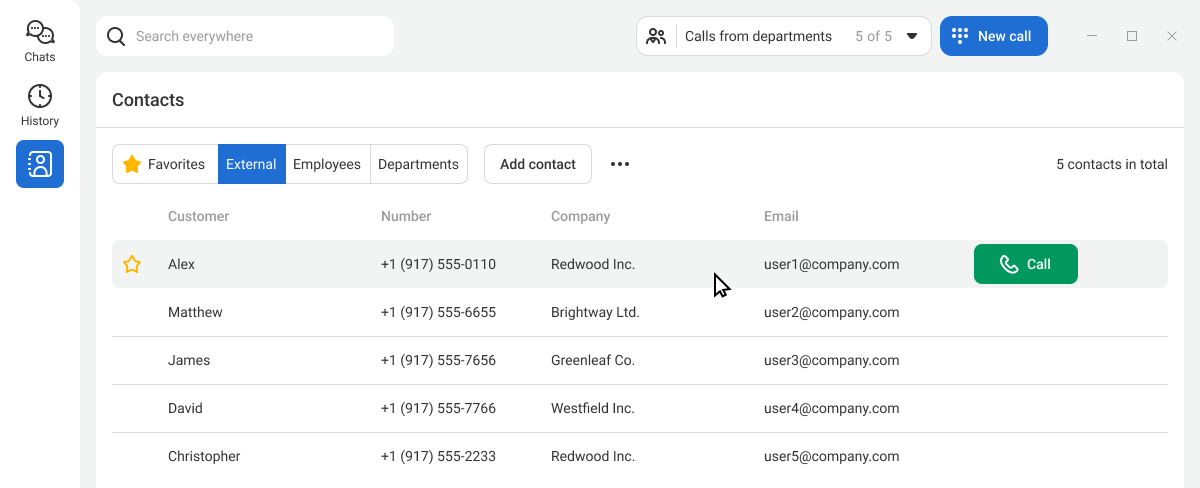
All contacts are synchronized between the messenger and the Cloud PBX web interface. Key customer details will always be at hand for every employee. To keep other managers' personal contacts private, you can restrict access so that only you can see them.
Learn more about contacts in the messenger.
Search Across All Sections
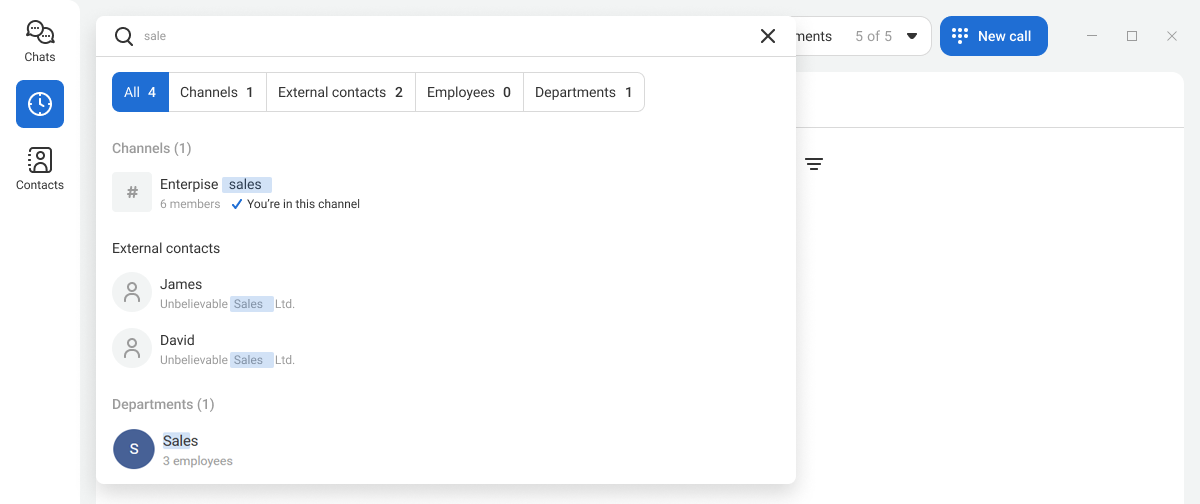
Use the unified search to quickly find a customer, colleague, or channel. You can send a message or call a contact directly from the search results.
Call History
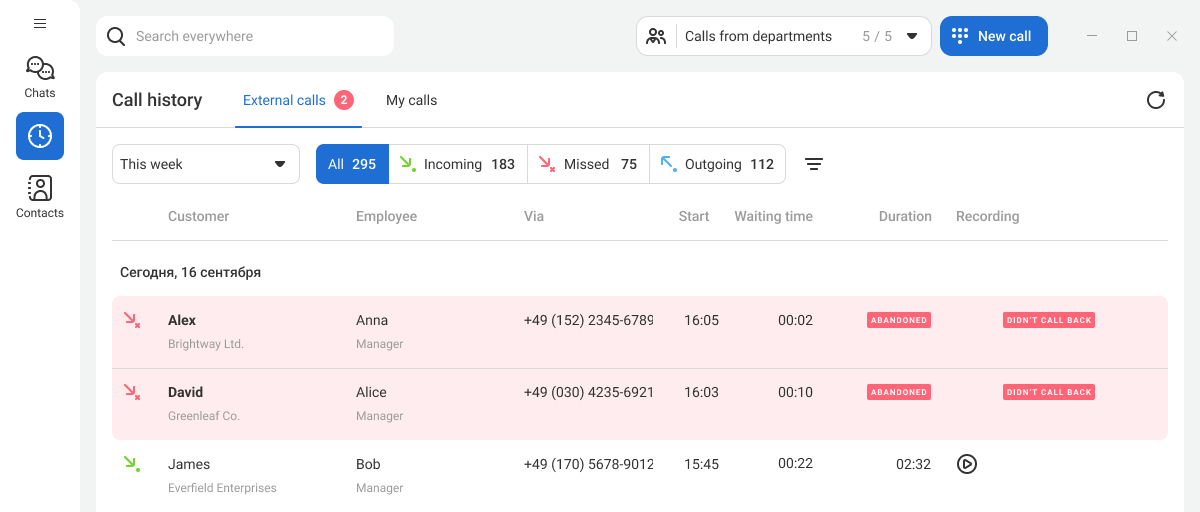
To make sure you never miss a call, the quantity of missed calls is displayed in the sidebar and on the tabs of your call history. From here, you can review contact details and quickly return missed calls. Flexible filters help you find any call in the archive and listen to its recording if necessary.
Learn more about call history in the messenger
System Requirements
For Windows
Recommended: Core i5 3 GHz CPU, 8 GB RAM, at least 400 MB of free disk space.
Windows versions: 10, 11.
For macOS
Recommended: macOS 14 or later, 4 GB RAM, at least 400 MB of free disk space.
If you use antivirus software, make sure it does not block Corporate Messenger or access to your PC’s audio devices.