Call Settings in Corporate Messenger
In Corporate Messenger, you can configure the following call settings:
Outgoing Number Setup
If you have multiple outgoing numbers, you can change the default outgoing number in the messenger:
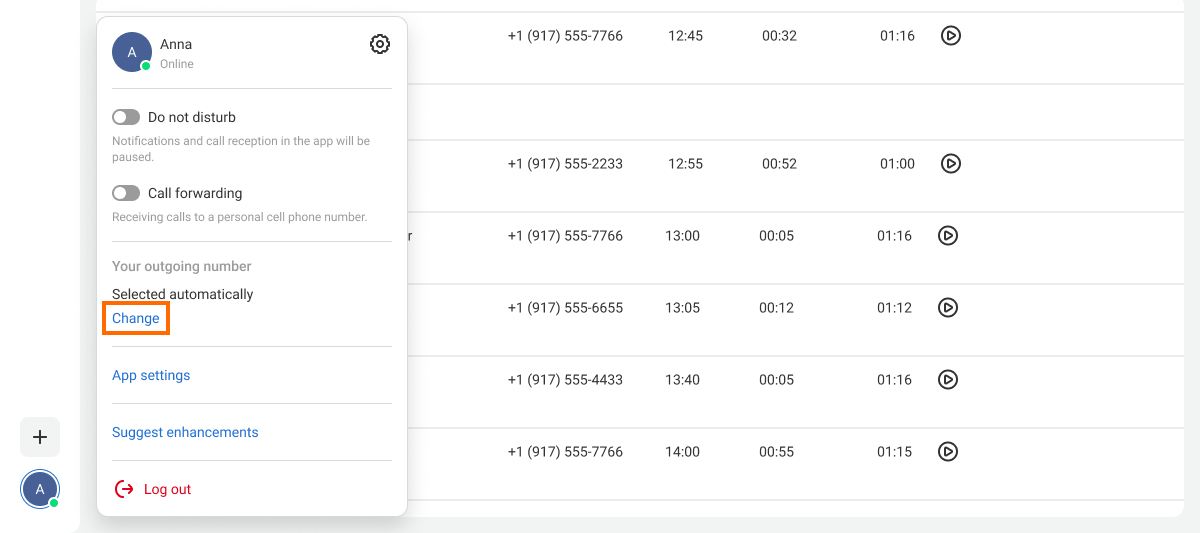
1. Click your profile photo in the bottom-left corner.
2. In the drop-down list, find the Outgoing number section and click Change.
3. Select the required number from the list.
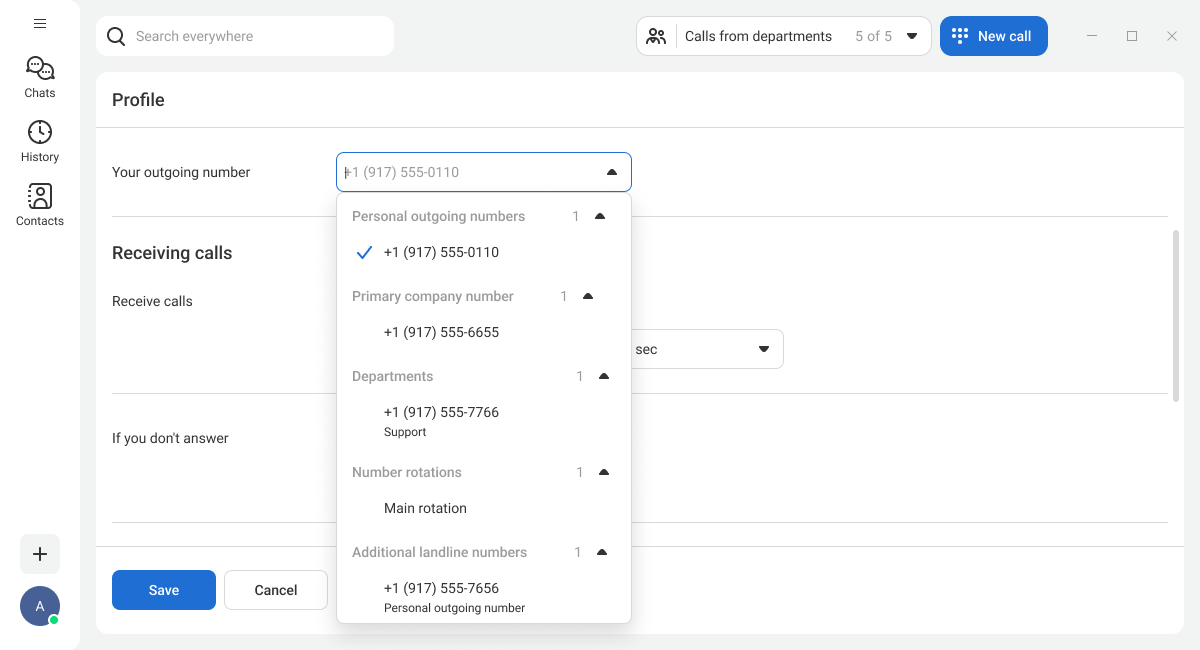
4. Save the settings at the bottom of the page.
Make it easier
If you occasionally need to call from a different number, you don’t have to change the settings every time — make a call using the dial pad. In this case, you can choose the outgoing number for the current call.Receiving Calls on Multiple Devices Setup
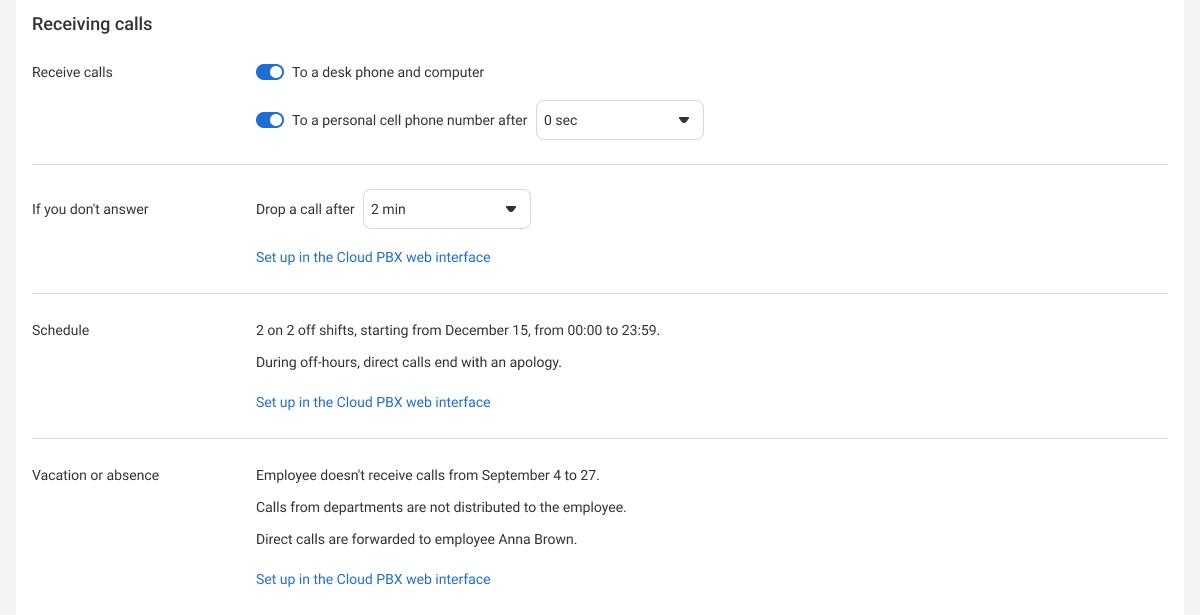
In your profile, in the Receiving calls section, choose devices and their delay to receive calls on workdays:
- desk phone and softphone,
- personal cell phone.
If you are usually in the office and can answer immediately from a desk phone or computer, we recommend setting a delay before forwarding calls to your mobile. This way, an incoming call will first ring on office devices and only then, for example, after 5 seconds, on your cell phone. For more details on waiting time settings, please see the article Flexible Setup of Waiting for Response Time.
Settings for Forwarding Direct Calls to Extension and Corporate SIM
In the Receiving calls section, you can also review settings for forwarding direct calls to your extension number and corporate SIM card. These settings can only be edited in the Cloud PBX web interface.
If the employee doesn't respond — direct incoming calls are forwarded to your extension number or corporate SIM card when you don’t have time to answer. You can set call decline, forwarding to another employee, a department, or voicemail, and set the waiting time before forwarding. For details, please see the article Forwarding of Direct Calls With a Long Response Time.
Schedule — your working days and hours. Outside these hours, Cloud PBX removes you from the department call queue and forwards direct calls to your extension number and corporate SIM card to colleagues, a department, or voicemail. For details, please see the article Employee’s Personal Schedule.
Vacation or absence (sick leave, force majeure, etc.) — your absence dates. During this period, Cloud PBX removes you from the call queue. Direct incoming calls during your absence can be routed to a colleague, a department, or voicemail. When you return from vacation, these settings are disabled automatically. For details, see the article Call Forwarding During Employee’s Vacation or Absence.
Receiving Calls From Different Departments Setup
Need to switch to other tasks? Take a break from receiving calls from departments.
In the top-right corner, click the drop-down list Calls from departments. Select the departments whose calls you don’t want to receive. Cloud PBX will remove you from the call queues for these departments.
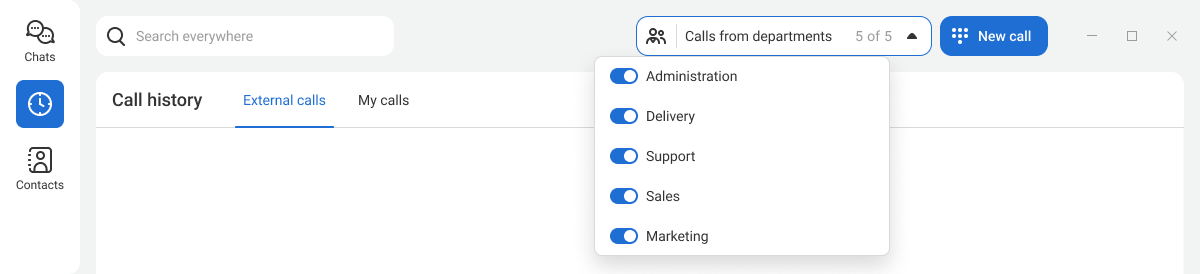
You can also disable incoming calls from all departments at once. To do this, click the icon to the left of the Calls from departments list.

If you don’t want to be interrupted by calls at all, enable Do not disturb mode. In this mode, you won’t receive calls or notifications about new messages. For details, please see the article User Settings in Corporate Messenger.