Chatting
In Corporate Messenger, you can exchange messages in chats with other employees. Below, we explain how to find or create a chat with a colleague, keep track of incoming messages, and share files in conversations.
How to Start a Conversation With a Colleague
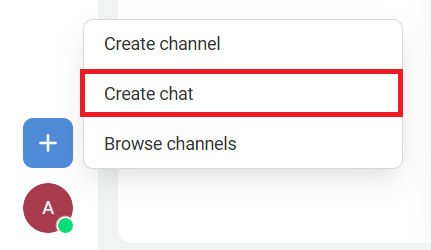
To start a conversation with a colleague in the messenger, click the plus icon in the sidebar. Select Create сhat.
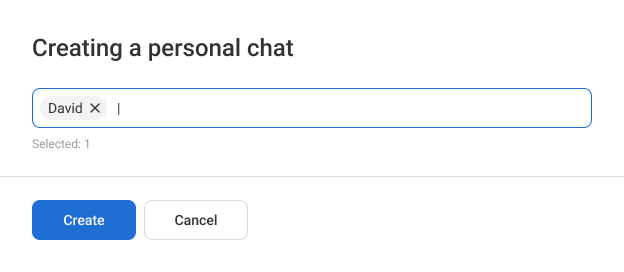
In the window that opens, enter the employee’s name and click Create.
The chat window will open, where you can send a message to your colleague.
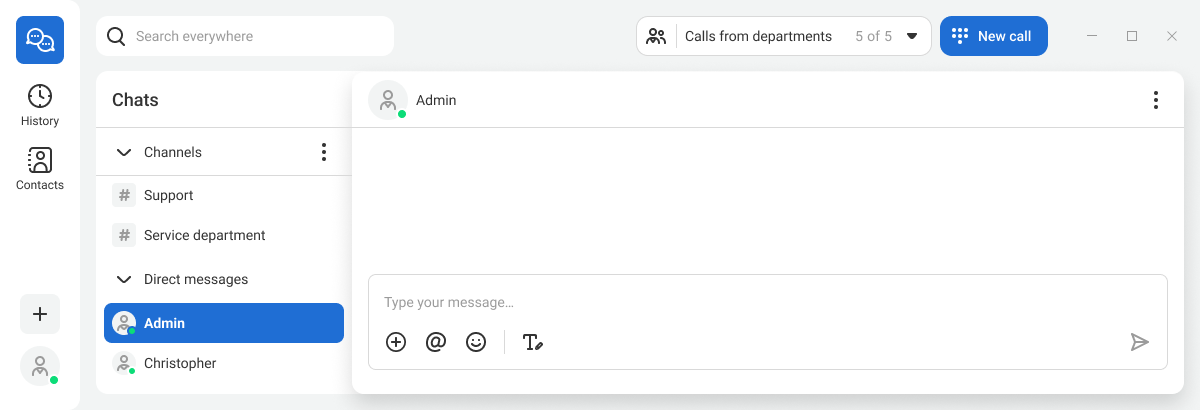
If you have already chatted with a colleague in the messenger, you can find this chat in the Chats section. Click the employee’s name or the channel name to open the conversation you need. For more details on how to join channels, configure them, and create new ones, see the article Channel Settings in Corporate Messenger.
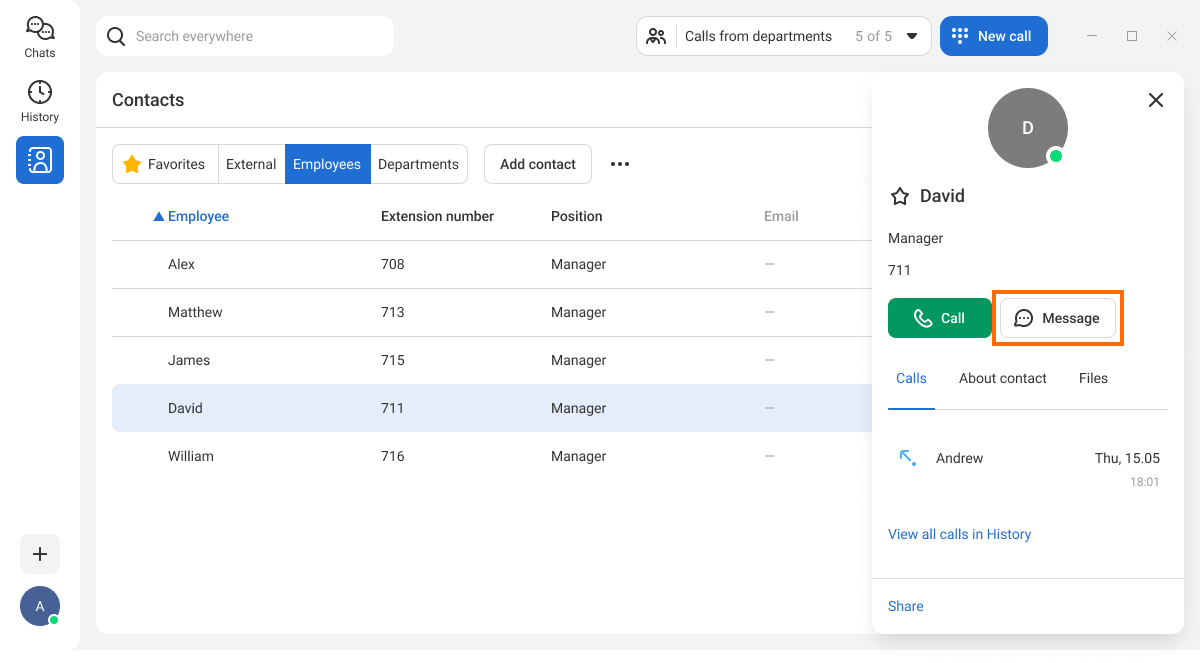
You can also open a chat with a colleague from their contact card by clicking the Message button in the top right corner.
In addition, you can message a colleague directly from the search bar or from the channel members list.
How to Track Incoming Messages
When new messages arrive in the messenger, push notifications pop up. Click a notification to open the chat where the new message was received.
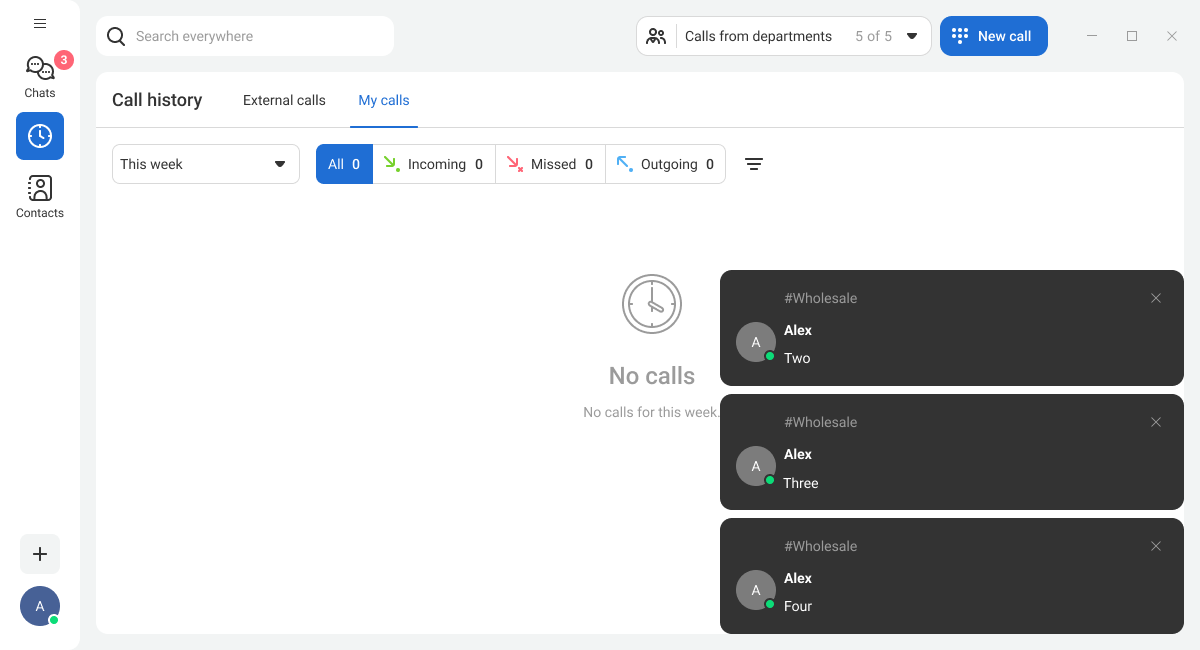
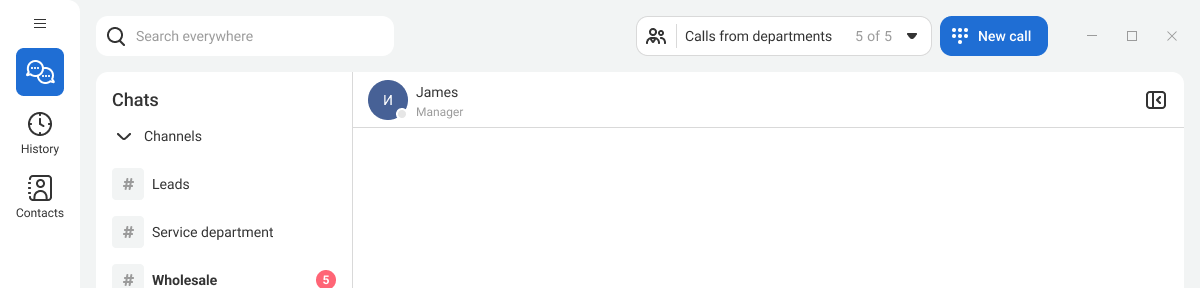
Additionally, an unread counter appears in three areas:
1. In the sidebar next to the Chats icon.

2. In the channel list next to the chat name.
3. Next to the app icon on the taskbar.

If you don’t want to be distracted by notifications at all, enable Do not disturb mode. In this mode, you won’t receive calls or notifications about new messages. For details, please see the article User Settings in Corporate Messenger.
How to Format a Message
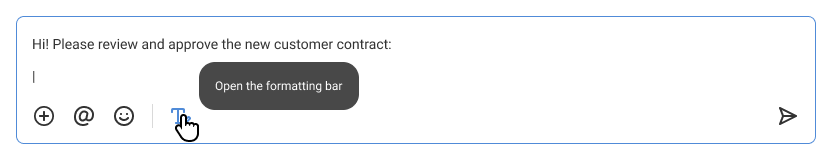
You can apply formatting to a message, for example, to highlight important parts with bold text or bullet points. To open the formatting menu, click the T icon below the text input field.
Select a text fragment and choose the required formatting option. Using the formatting tools, you can make text bold or italic, underline it, as well as use lists, indents, quotes, and hyperlinks.
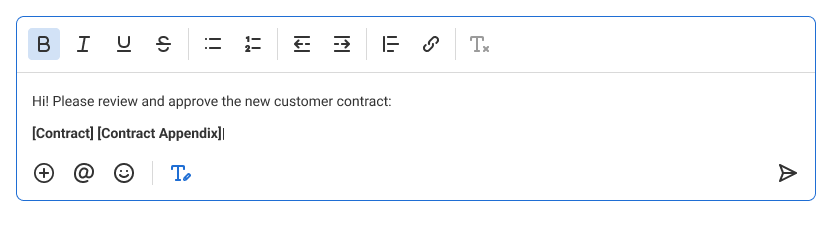
You can also use Markdown and standard OS keyboard shortcuts for formatting.
How to Mention a User in a Message
You can mention any user in a chat by name. To do this, type the @ symbol and start entering the user’s name. The messenger will suggest matching options.
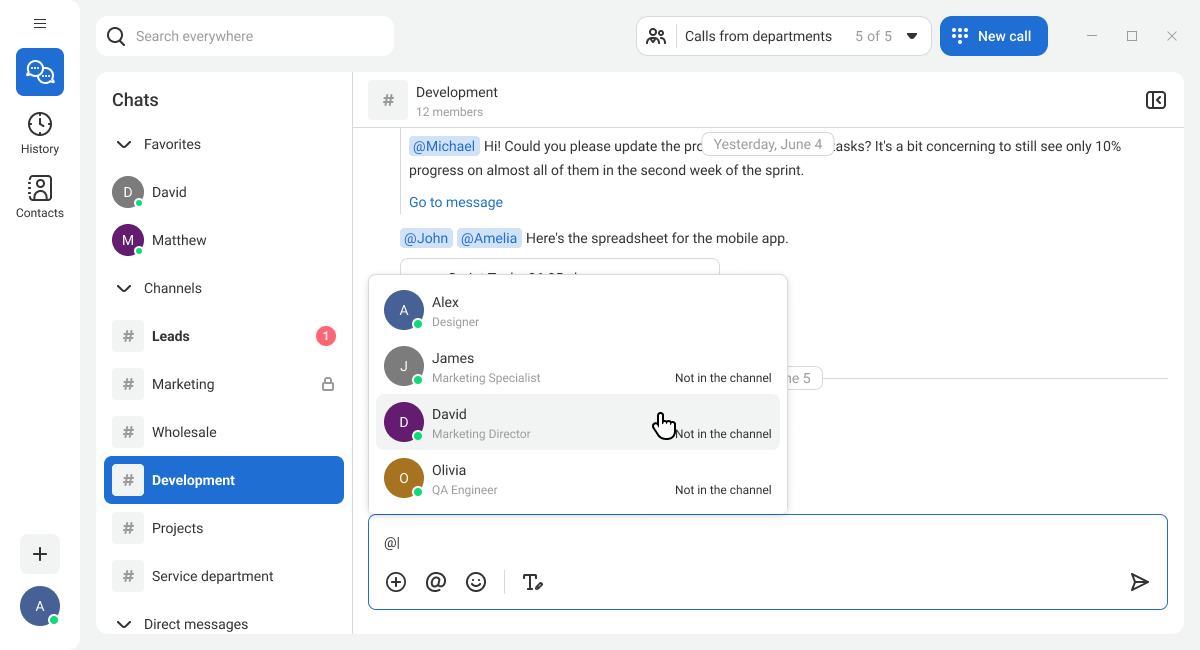
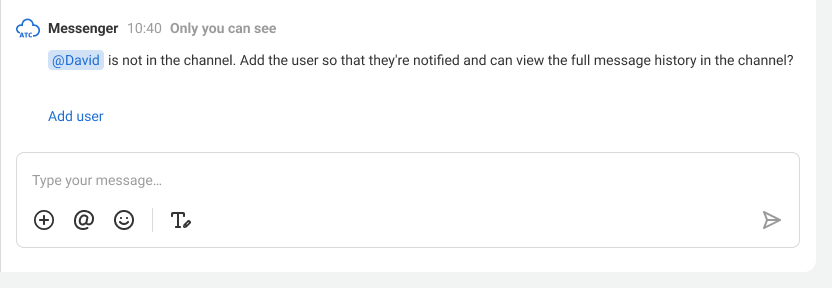
After the message is sent, the mentioned employee will receive a notification if they are a member of the channel. If the employee is not a member of the channel, the messenger will prompt you to add them. Without being added to the channel, the employee will not receive the notification.
User mentions in chats work even when notifications are disabled. This means that even if the person you need has chat notifications turned off, they will still receive them when mentioned.
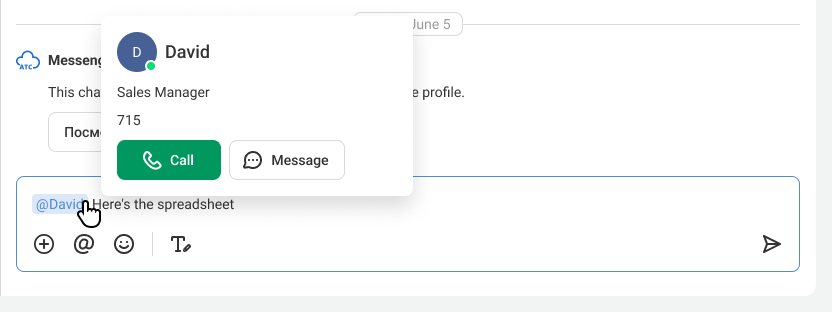
If you hover over a user mention, a card with key contact details will open. Clicking the mention opens the full employee’s contact card.
How to Quote, Forward, Edit, and Delete Messages
We recommend using quotes during active discussions in channels so that participants understand which message you are replying to. To quote a message, you don’t need to use the formatting panel, there is a faster and more convenient way: hover over the message and, in the menu that appears on the right, click the arrow. With this quoting method, you can return to the original message with a single click.
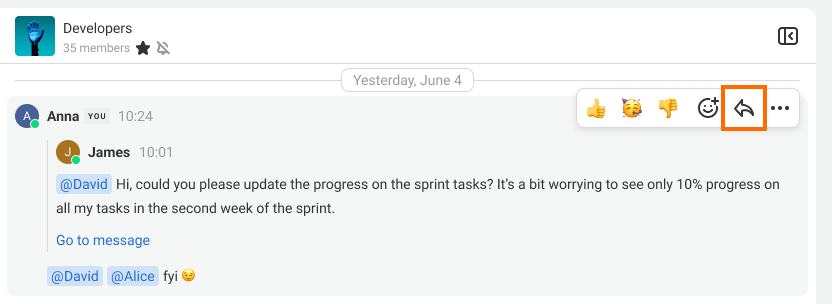
Message editing and forwarding to other chats can be done from the same pop-up menu. To do this, click the three dots and select the required action.
If you need to forward several messages at once, click Select.
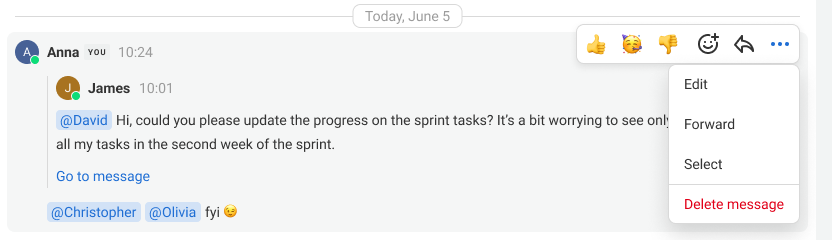
If you want to react to a message with an emoji, we recommend not sending the emoji as a separate message. Instead, choose it from the pop-up menu on the message. This way, your reaction won’t clutter the conversation.
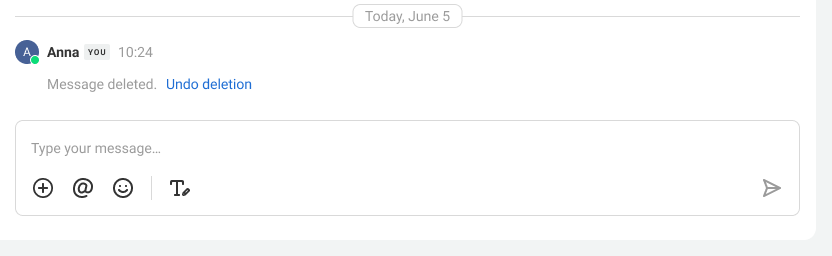
If you clicked Delete message by mistake, you can undo the deletion within one minute. To do this, click Undo deletion.
Note: a notification about message deletion is also sent to other users.
How to Share Files
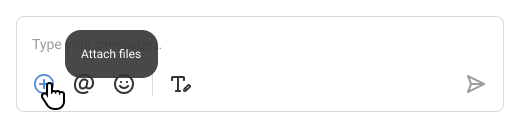
To send files, drag them into the message input field or click the + button. You can attach files up to 10 MB to a chat message. A single message can include up to 10 attachments.
Before sending a message, you can remove files that were attached by mistake. To do this, hover over the file name and click the trash icon that appears to the right of the name.
