Call History in Corporate Messenger
In the Corporate Messenger call history, you can:
- filter calls by numbers, departments, employees, customers, and call types for a selected period;
- view basic statistics for incoming, missed, and outgoing calls according to the applied filters;
- track calls that require special attention (unprocessed missed calls, calls with service quality ratings);
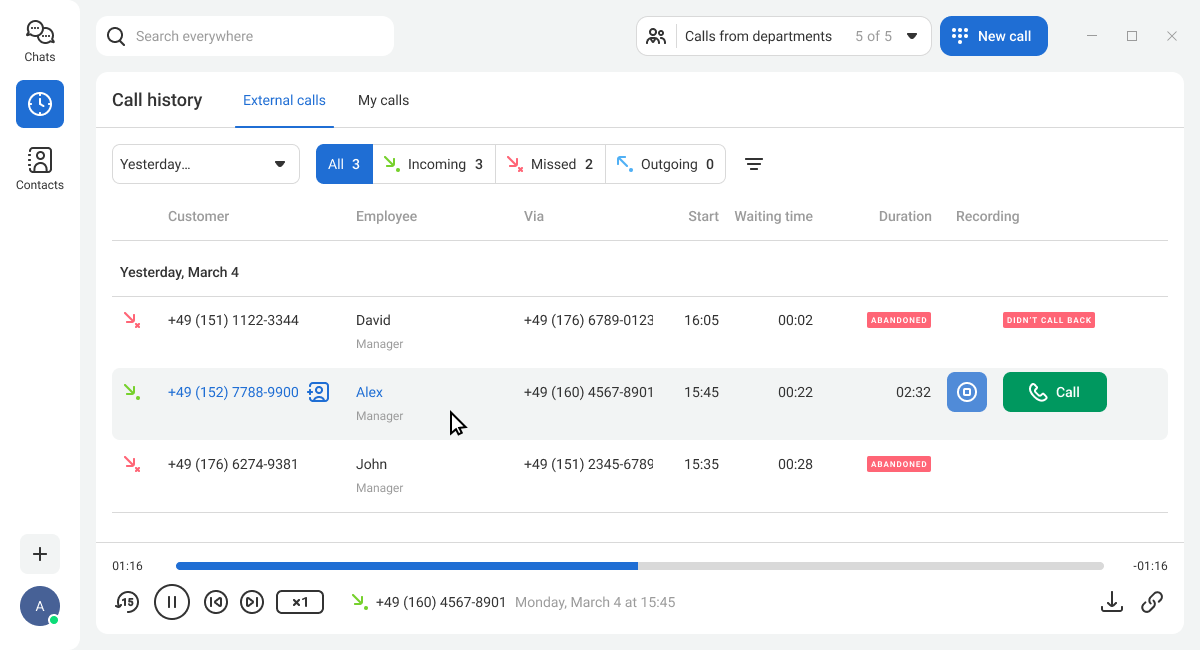
- listen to call recordings;
- open a contact card or add a new number to contacts;
- call back a customer or a colleague.
Note
The ability to view call history depends on the user access level.How to Quickly Respond to Missed Calls
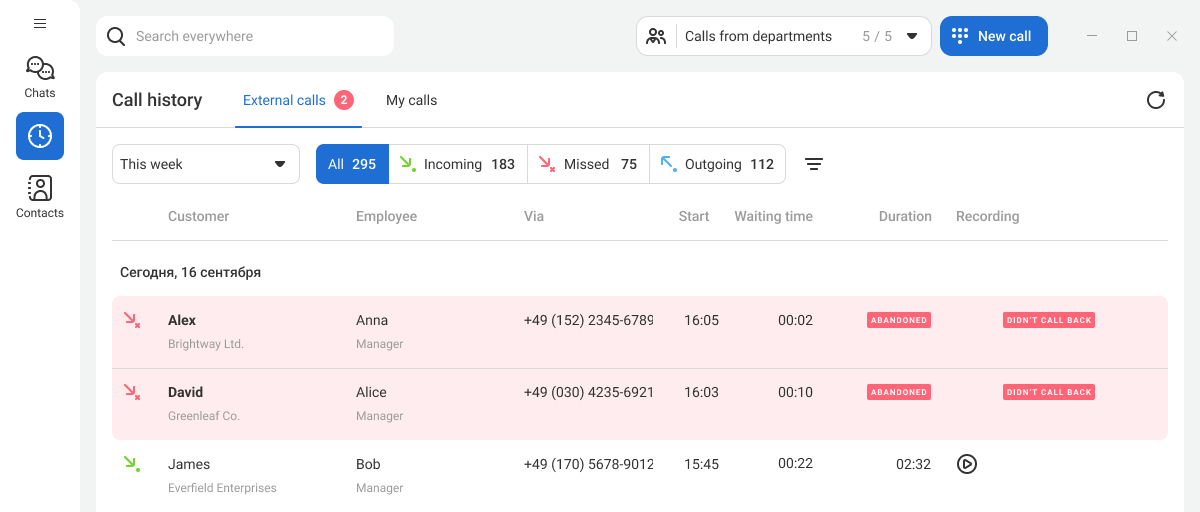
The history icon in the sidebar shows the total number of missed calls, both personal and department-wide.

When you open the history, a new missed call is highlighted in red. The indicator disappears if you keep the tab with the new missed call open for a long time or if one of the employees calls this contact back. To return a missed call, hover over the corresponding row and click Call on the right.
How to Quickly View a Customer’s Call History
You can click the customer’s name or number, or enter the required number in the search bar to see a list of their calls to your company for the selected period.
To display customer names in the history, add them to the contacts.
How to Exclude a Manager’s Calls From Recording and Notify a Customer About Recording?
Other Filters
Click Filters to open the filter panel. It allows you to filter calls not only by customers and employees, but also:
- by numbers;
- by departments;
- by missed call processing statuses.

Select the required filter values and click Apply. Only calls matching the specified parameters will remain in the table.
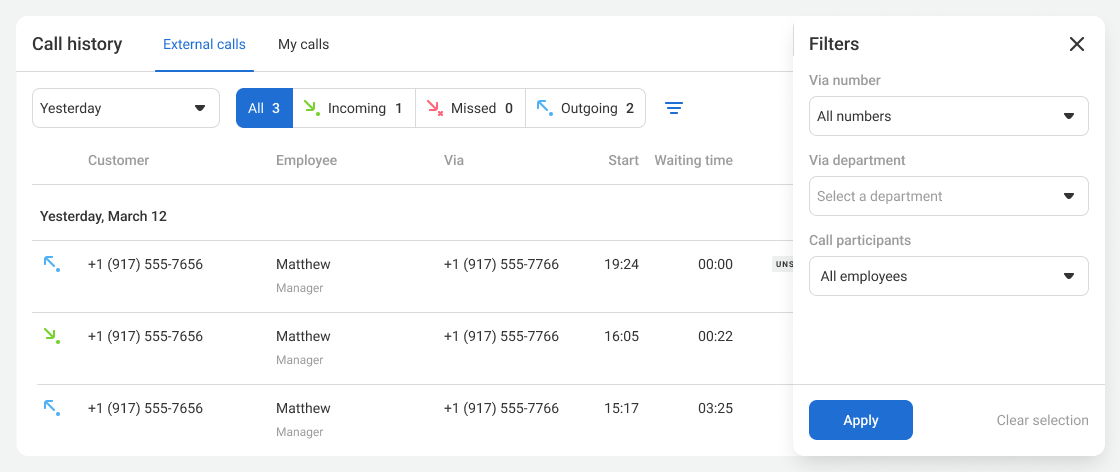
Via Department and Call Participants Filters
When you select the Via department filter, you will see incoming calls routed to the specified department and outgoing calls made by employees of that department from the shared numbers of the company. This filter allows you to select not only existing departments, but also deleted ones that handled calls during the selected period.
With the Call participants filter, you can not only select individual employees but also apply the filter to all employees of the required department at once. When all employees of a department are selected, the history will show all calls involving each employee, including direct calls to employees. The Call participants filter also shows call attempts, which helps track the total quantity of incoming calls for each employee.
Missed Calls Control Filter
The Missed calls control filter makes it easy to find unanswered calls where employees did not call back or where callback attempts failed.
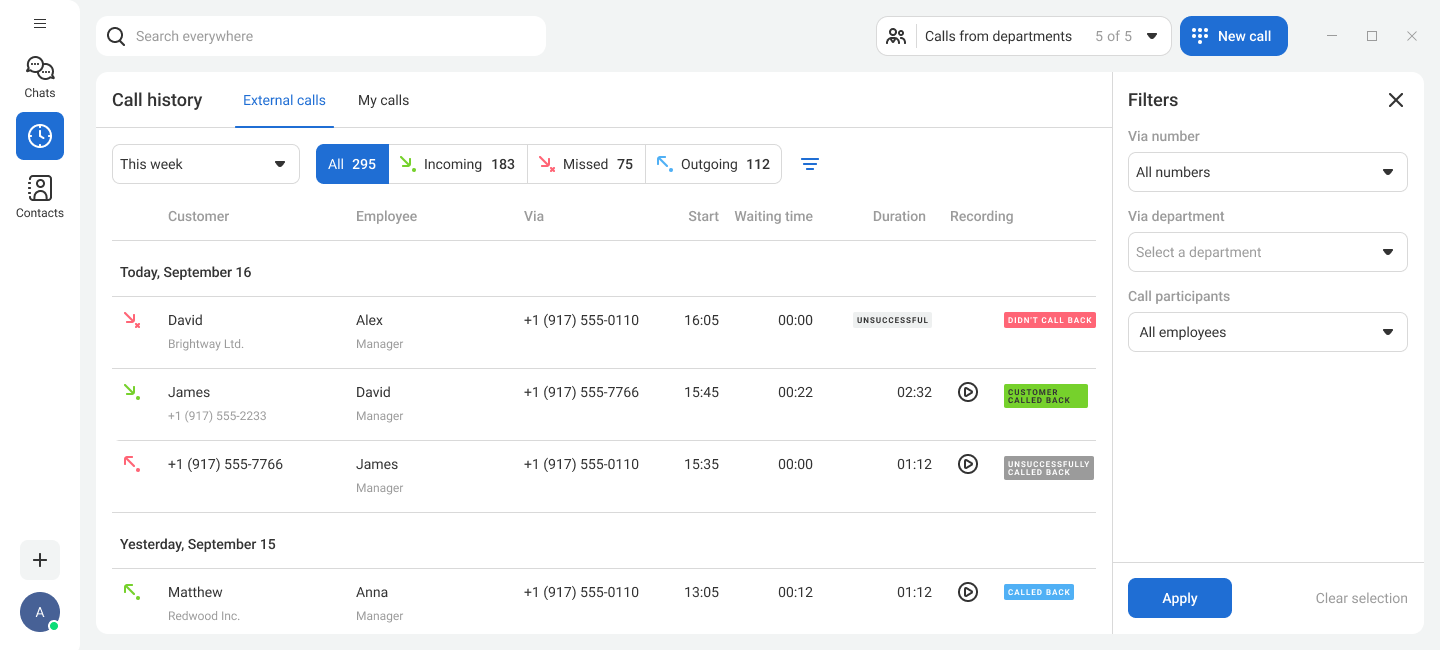
Colored status labels for missed call processing are displayed in the far-right column of the table. These labels help you understand the current status of each unanswered call: whether the employee reached the customer or made no contact attempt at all.
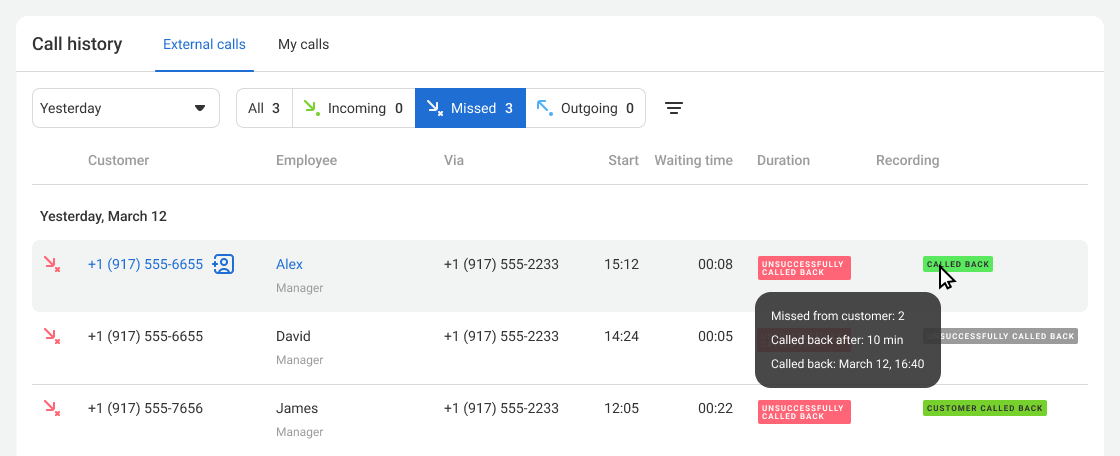
Note
To see the most up-to-date missed call processing statuses, refresh the page.How to Quickly Reset Filters
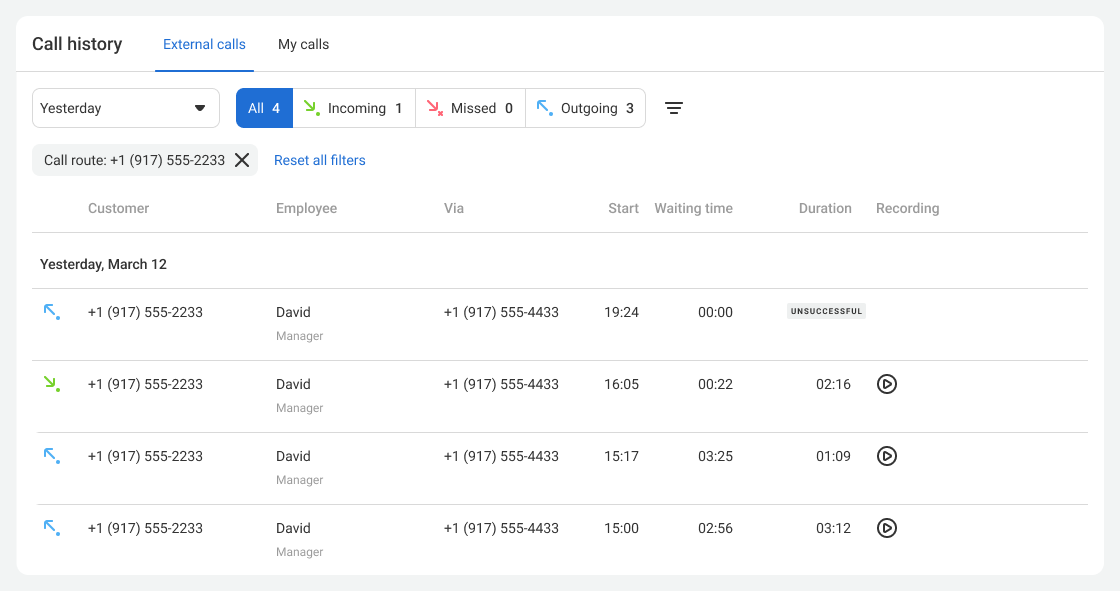
To ensure you always know which criteria are used for call sorting, the selected filter values are pinned above the call table. Each parameter you set is displayed as a separate gray badge. To quickly disable an unnecessary filter, click the cross on the corresponding badge. The table will update based on the remaining parameters.
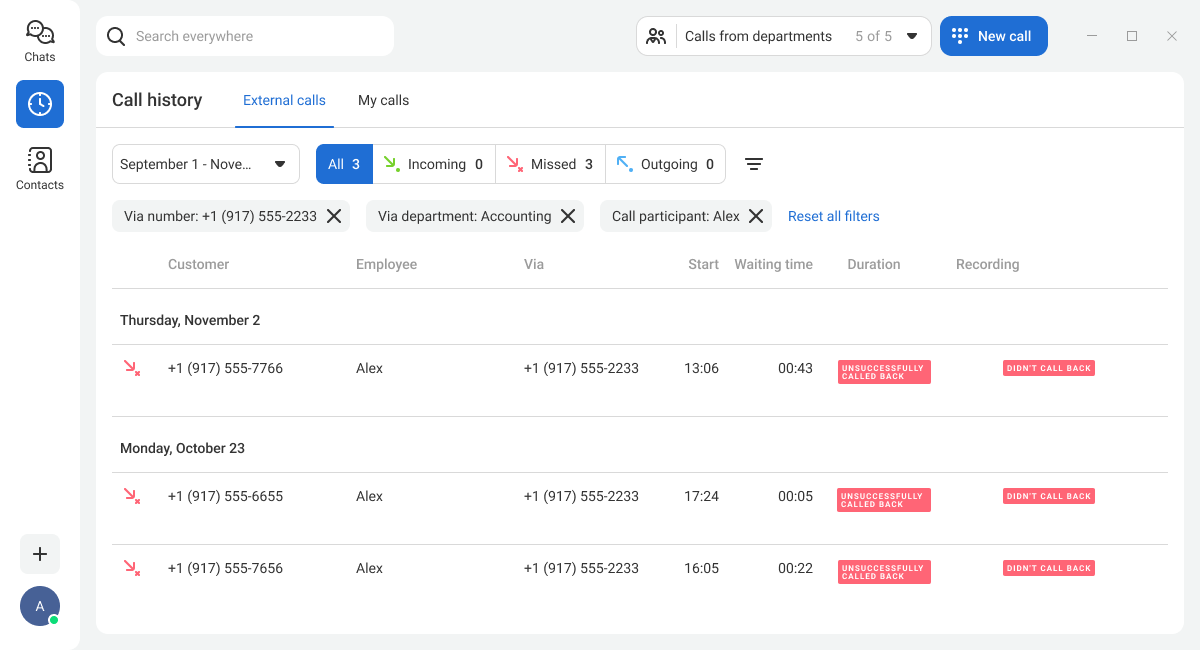
To clear all selected filters at once, click Filters and, in the sidebar that opens, click Reset selected.
How to Share a Call Recording
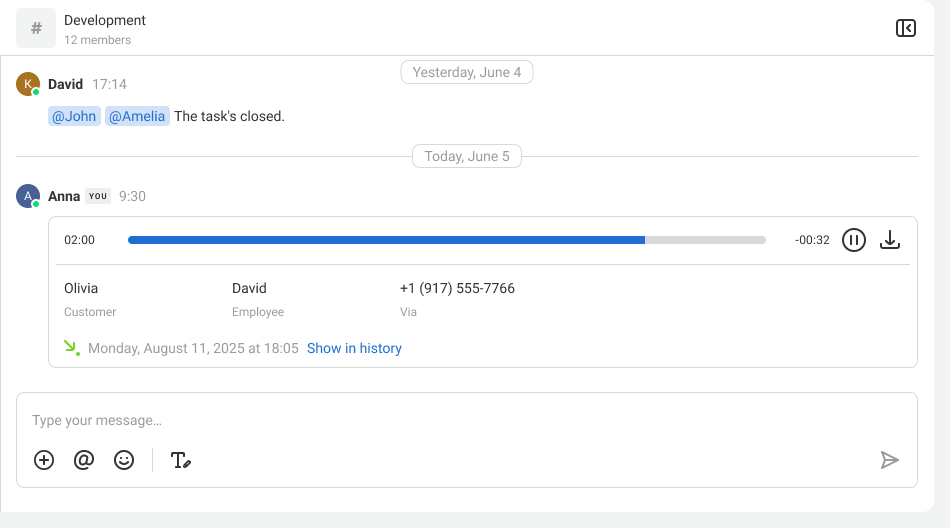
To share a call recording in a chat, click the link icon in the bottom right corner of the player.

In the window that opens, choose where to send the recording.
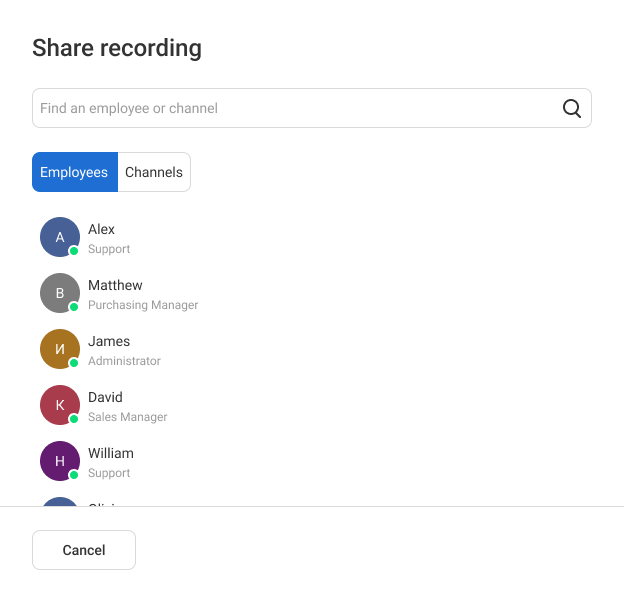
A notification window will appear confirming that the recording has been sent — from there, you can go directly to the chat.

The recording can be played back and downloaded directly in the chat.