Receiving and Making Calls in Corporate Messenger
Corporate Messenger makes it easy to handle calls with both colleagues and customers. Below, we explain how to receive and make calls.
How to Take a Call in Corporate Messenger
When a call comes in, a card pops up in the messenger with key contact details: the caller’s name, department, and the company number the call was made to. This helps you address the caller by name and quickly understand the context. To answer the call, click Answer.
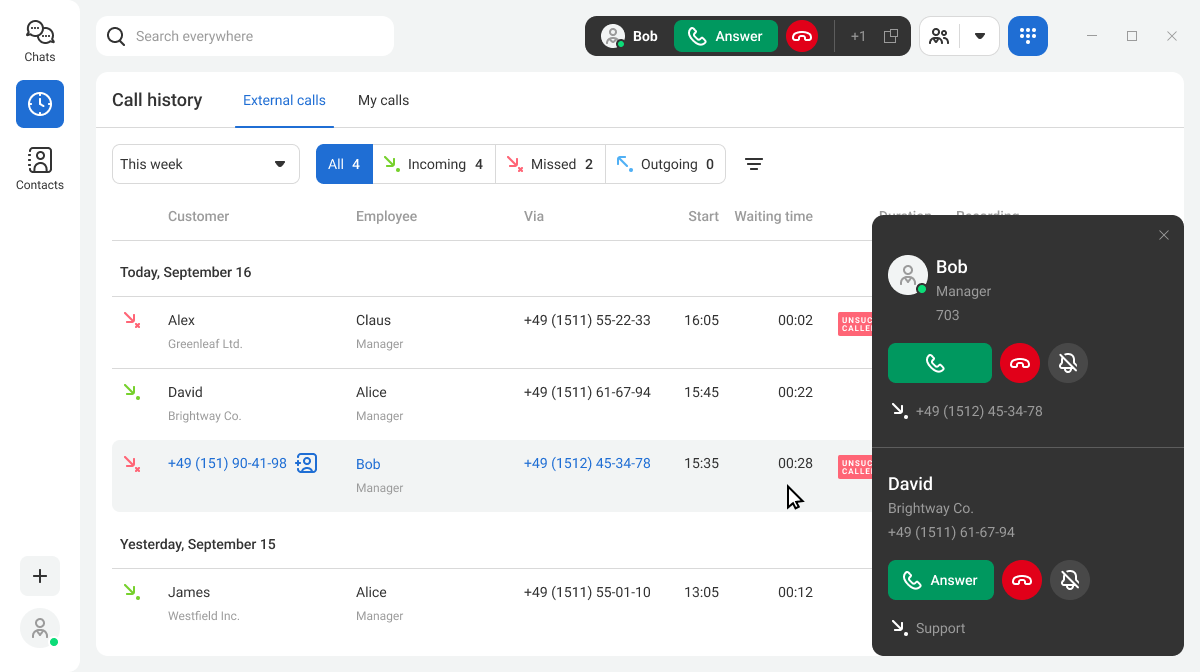
If you’re not ready to answer but don’t want to decline the call, you can mute the call notification by clicking the bell icon and hide the call card by clicking the X icon. Even if the call card is hidden, you can still answer the call using the Answer button in the top panel of Corporate Messenger.

To see what was discussed with this contact earlier, click their name in the top panel or on the call card. If the caller is a customer, their contact card will open. If it’s a colleague, the chat with them will open instead.
How to Make a Call in Corporate Messenger
From Call History
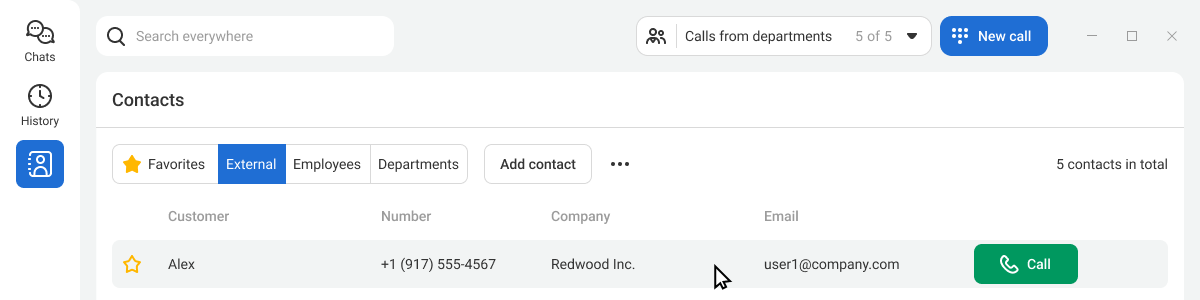
If you have a missed call from a customer and need to call back as quickly as possible, hover over the required call in the call history and click the Call button on the right side of the screen.
From a Contact Card
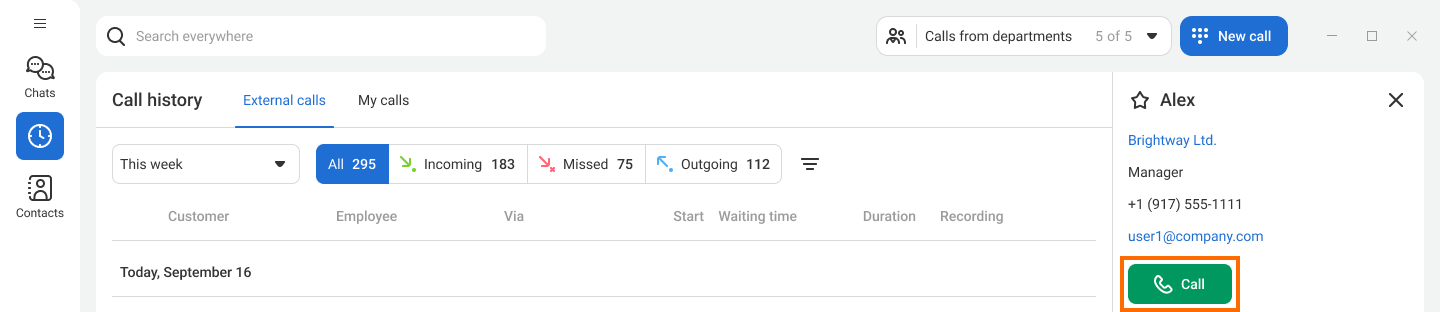
To start a call from a contact card, click the Call button in the top-right corner.
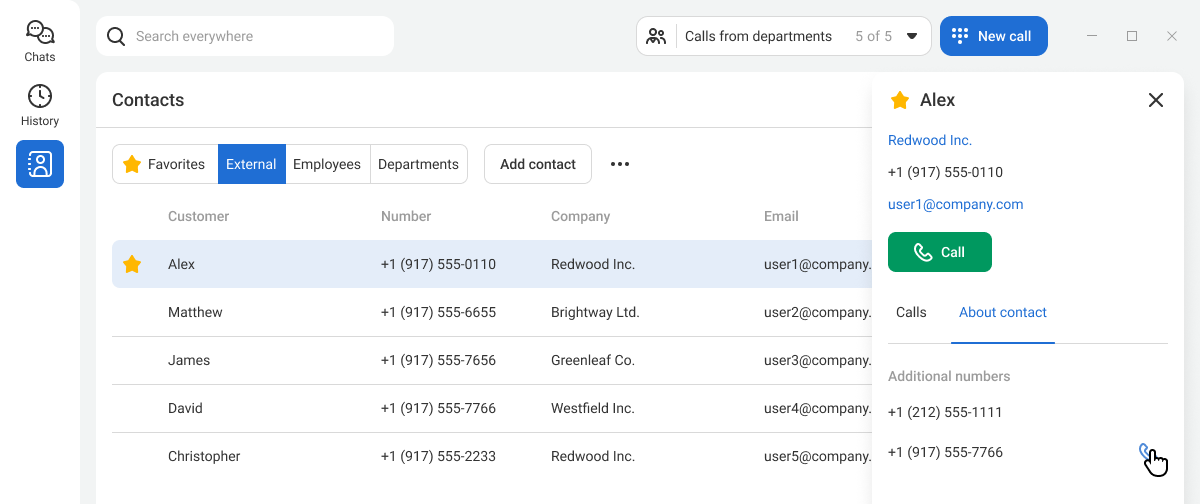
If a customer has multiple numbers, you can also call an additional number directly from the contact card. To do this, open the About contact tab in the contact card.
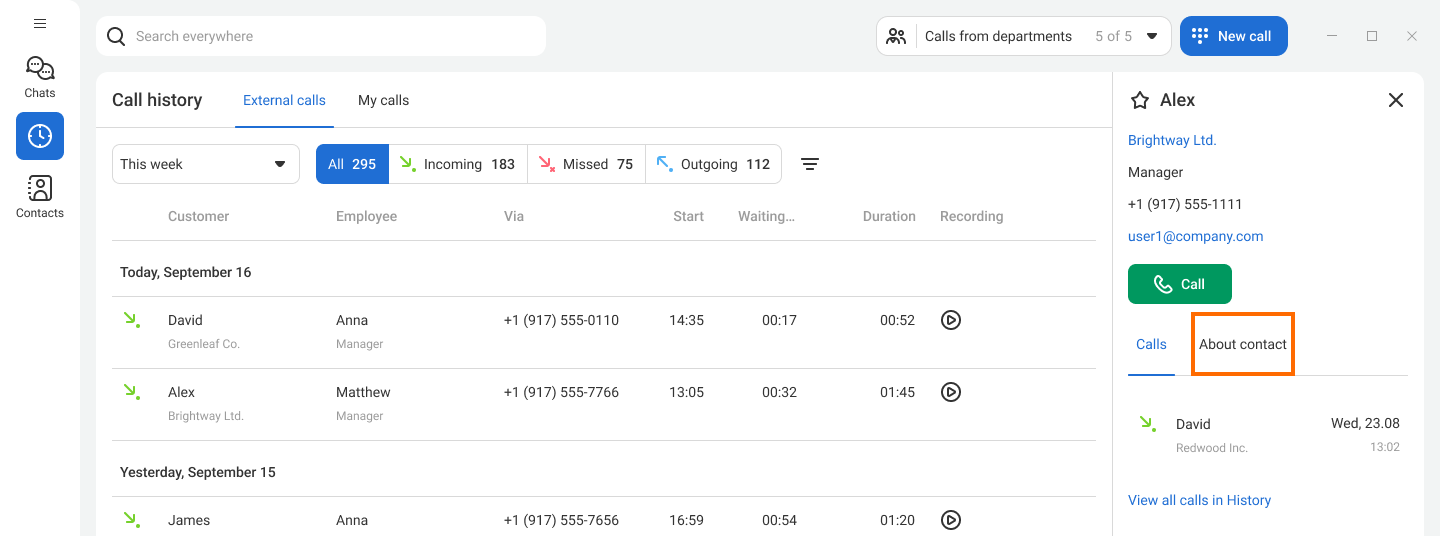
Hover over the additional number and click the phone icon to the right of the number.
Using the Dial Pad
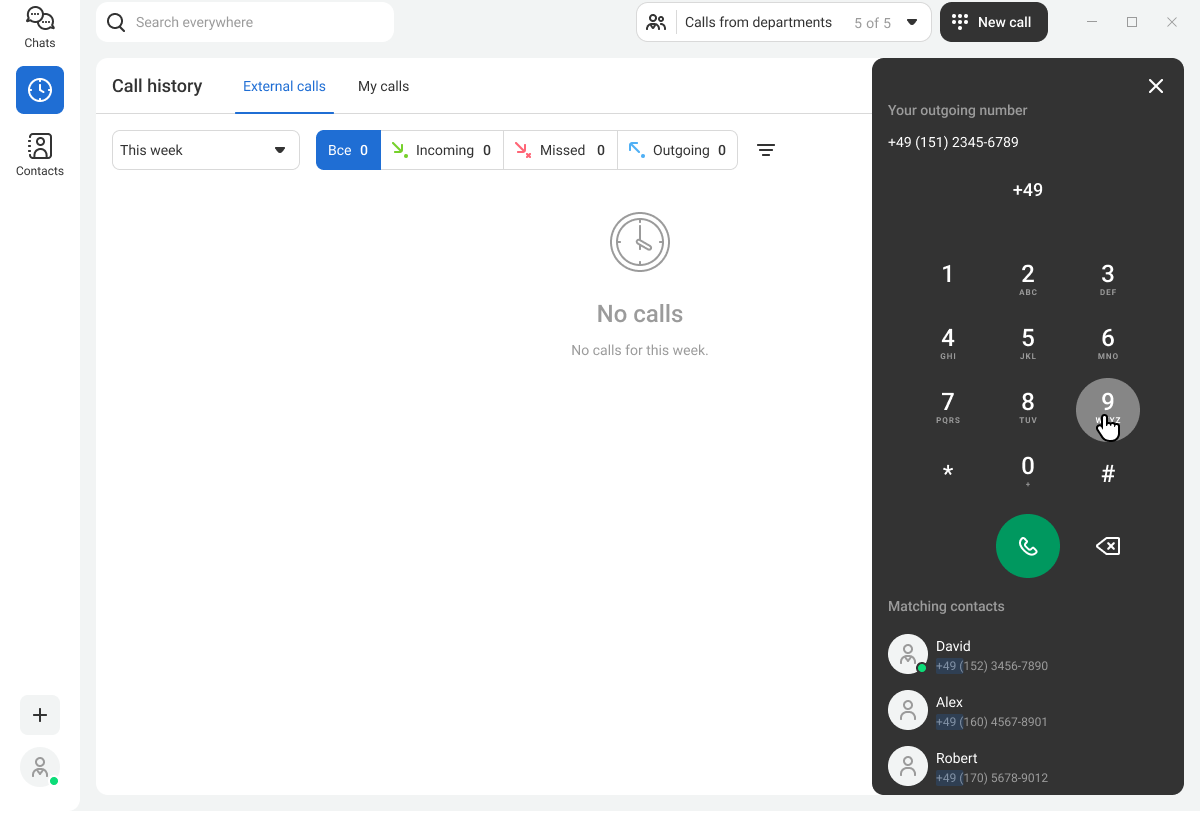
If you’re not sure whether a contact has been added to the messenger, call them using the dial pad:
1. Click the phone icon in the top-right corner.

2. As you enter the number, the messenger automatically suggests contact numbers that start with the same digits.
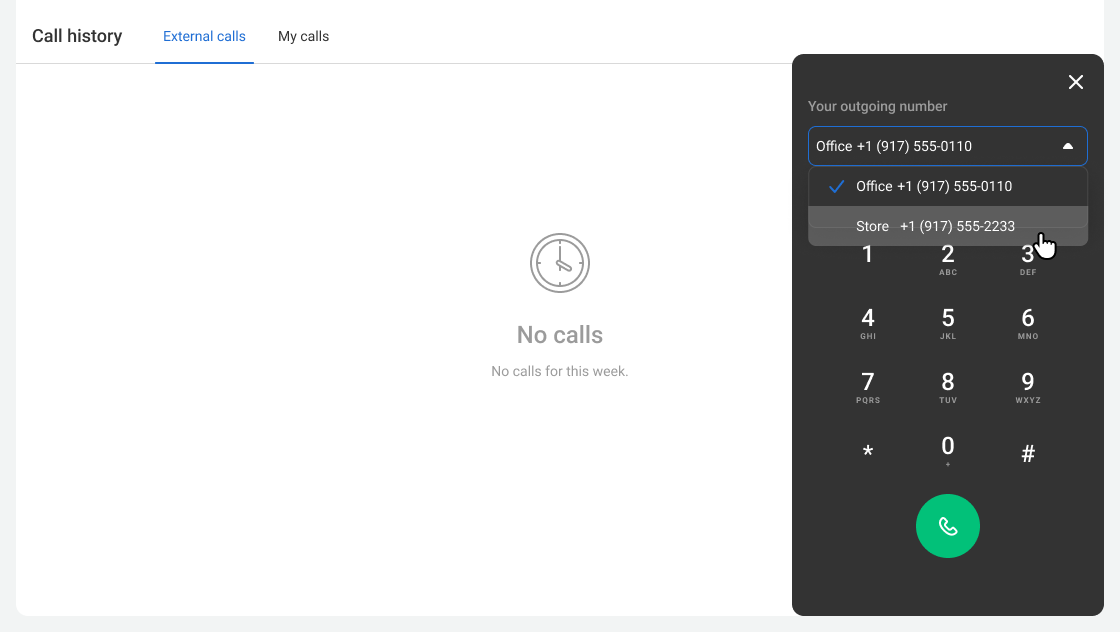
If you have multiple numbers, you can choose which one to use when calling a customer via the dial pad. To do this, open the drop-down list at the top of the dial pad.
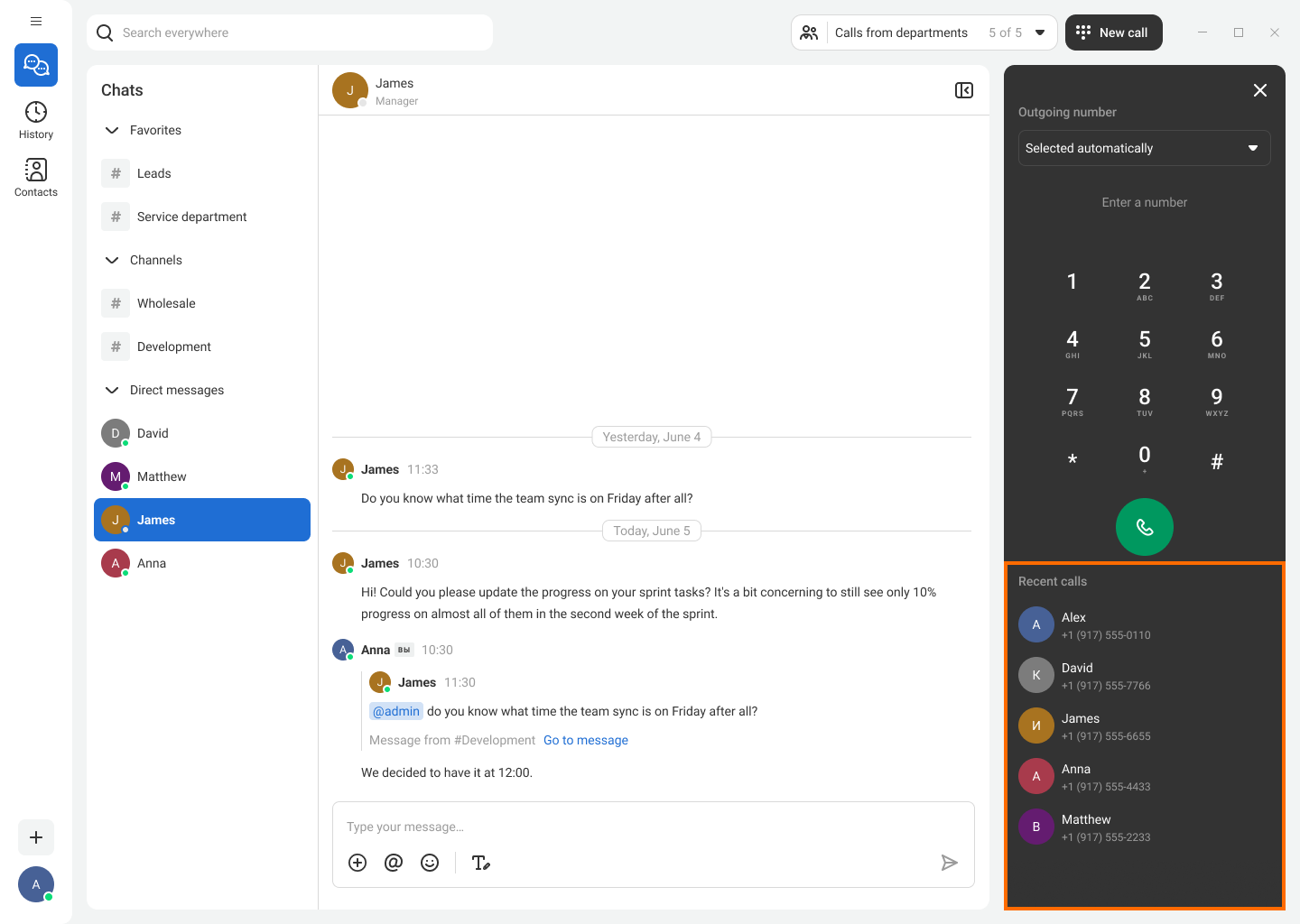
Using the dial pad, you can also quickly repeat recent outgoing calls — by default, they are displayed at the bottom of the dial pad.
In addition to the calling methods described above, you can also make a call from the search bar, from a chat with a colleague, from the channel member list, and from the context menu opened with a right-click.
Call Card Features
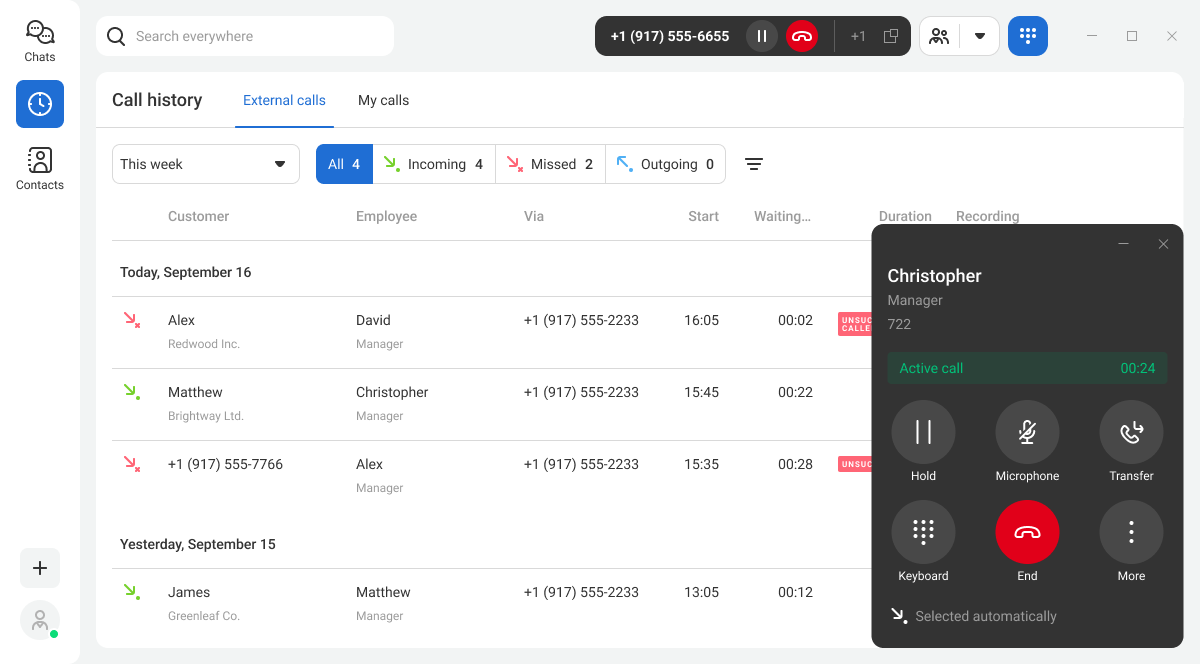
The call card opens in a separate window and doesn’t interfere with working in other applications. The call card provides all essential functions: hold, transfer, mute the microphone, and add participants to the call.
If the call card gets in the way, you can close it — the call will continue.
Call Transfer
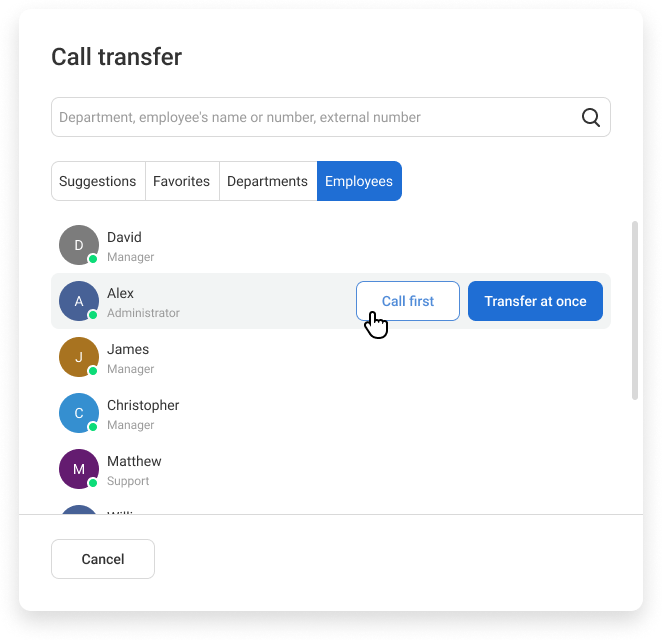
To transfer a call, click the Transfer button on the call card. A window with the Departments and Employees tabs will appear. On the Employees tab, you can choose the transfer method — transfer at once or call first.
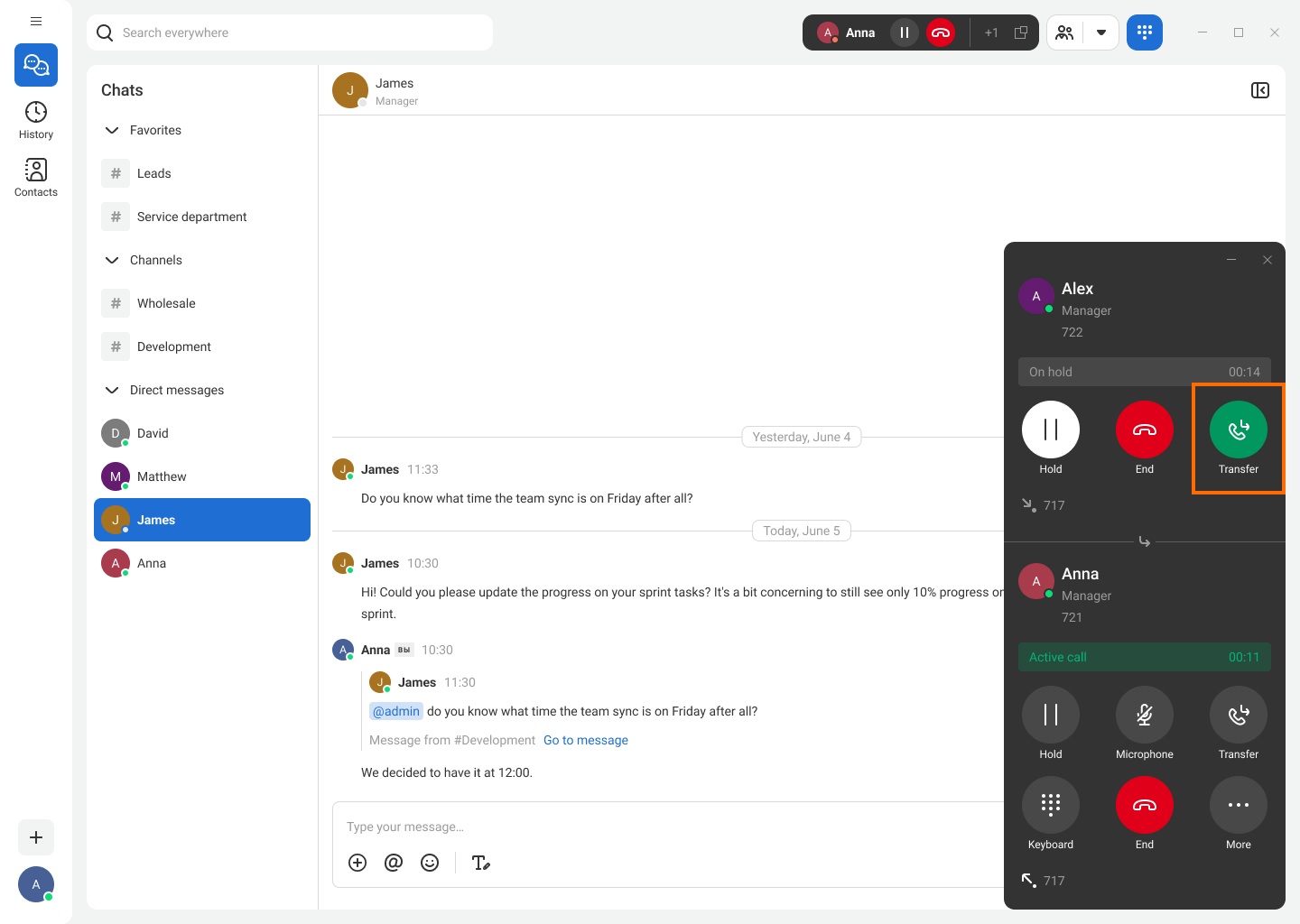
When you choose a transfer with notification, the call is first routed to the selected employee. You can check whether your colleague is ready to answer the customer’s questions and only then complete the transfer by clicking the Transfer button again. The customer will not hear this conversation — their call will be placed on hold.
Adding Participants to a Call
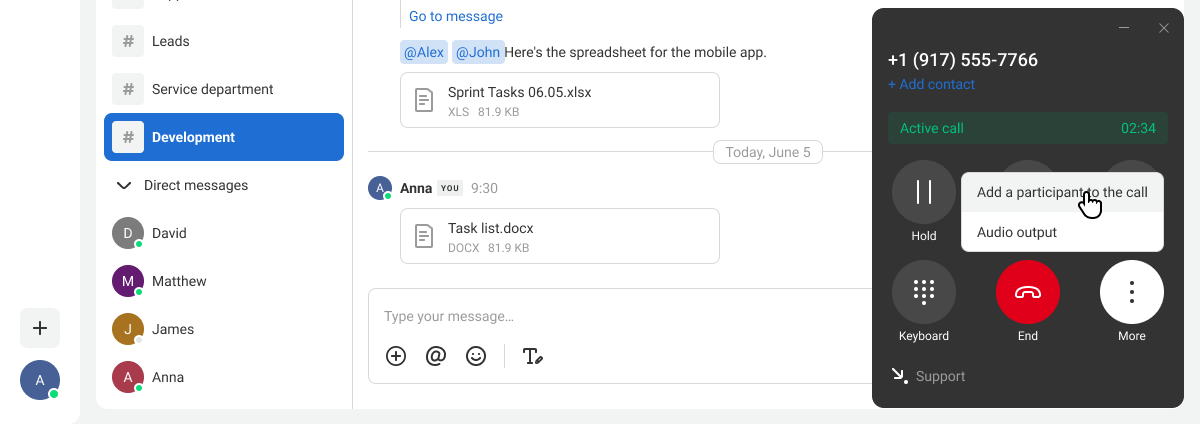
To add a participant to a call, click the More button on the call card and then select Add a participant to the call in the drop-down list.
A pop-up window will display your contacts. Find the required contact and click Add to the right of their name.
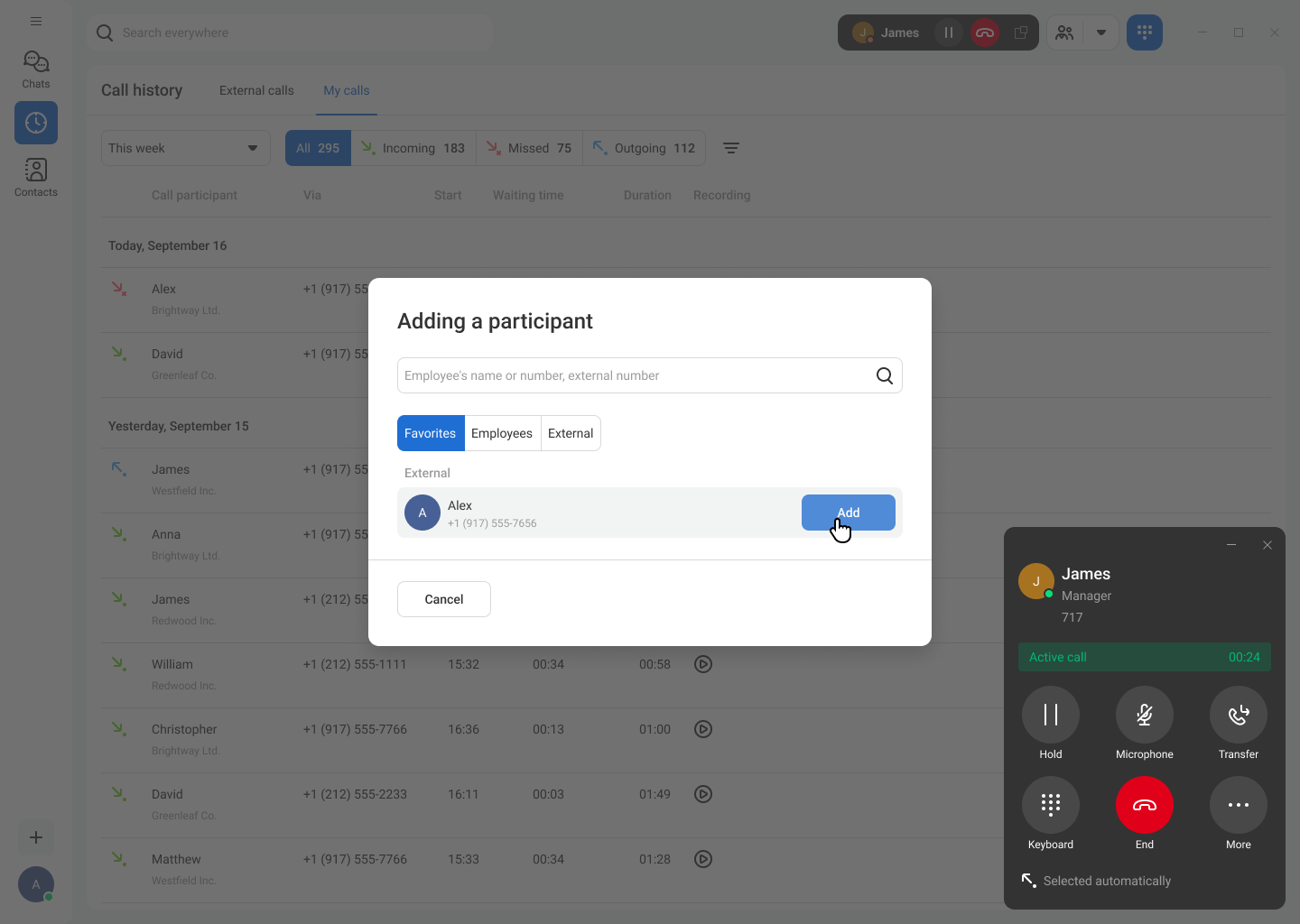
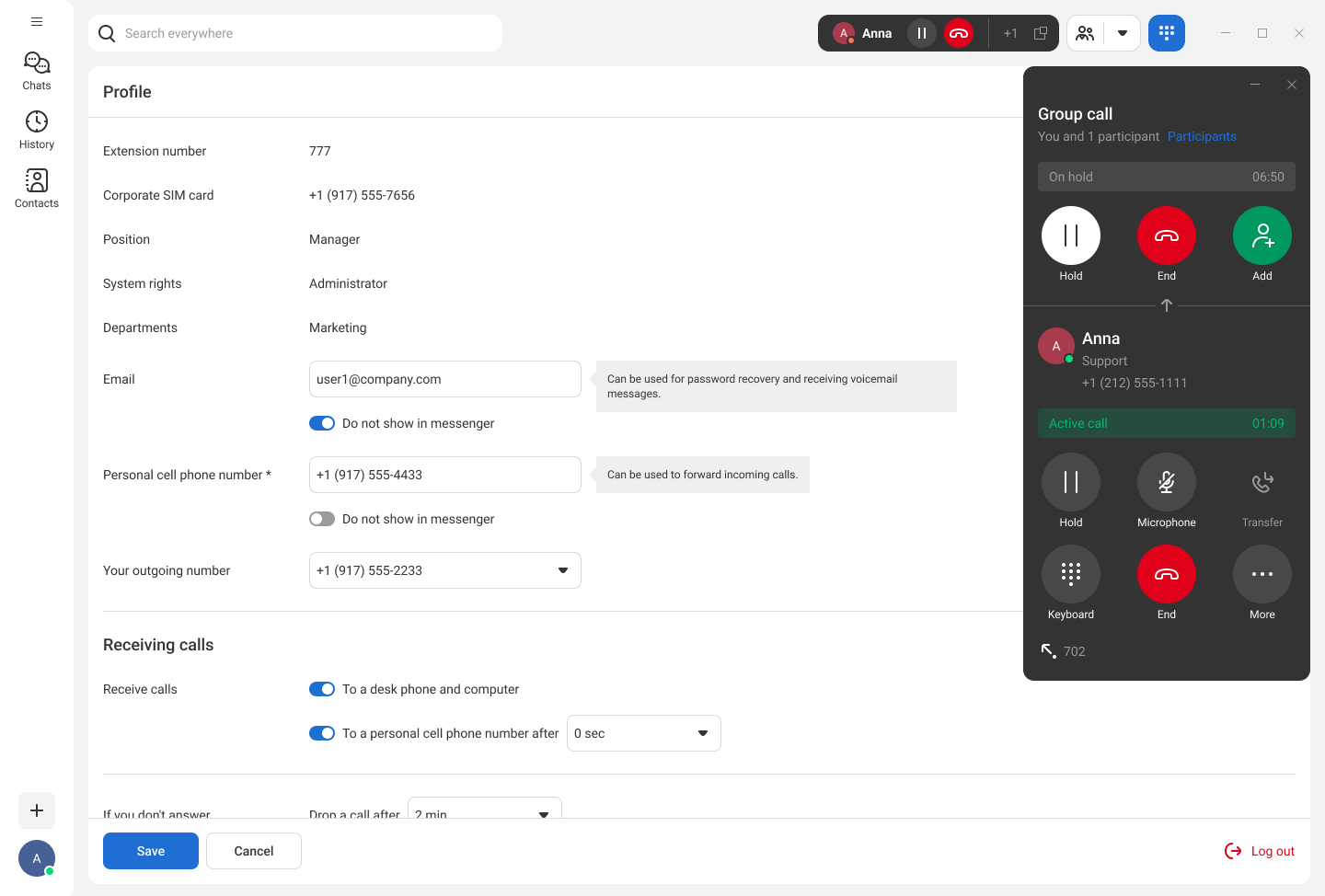
If you need to check whether the participant is ready for a group call before adding them, you can call them first — the current call will be placed on hold. After receiving confirmation, click the Add button.
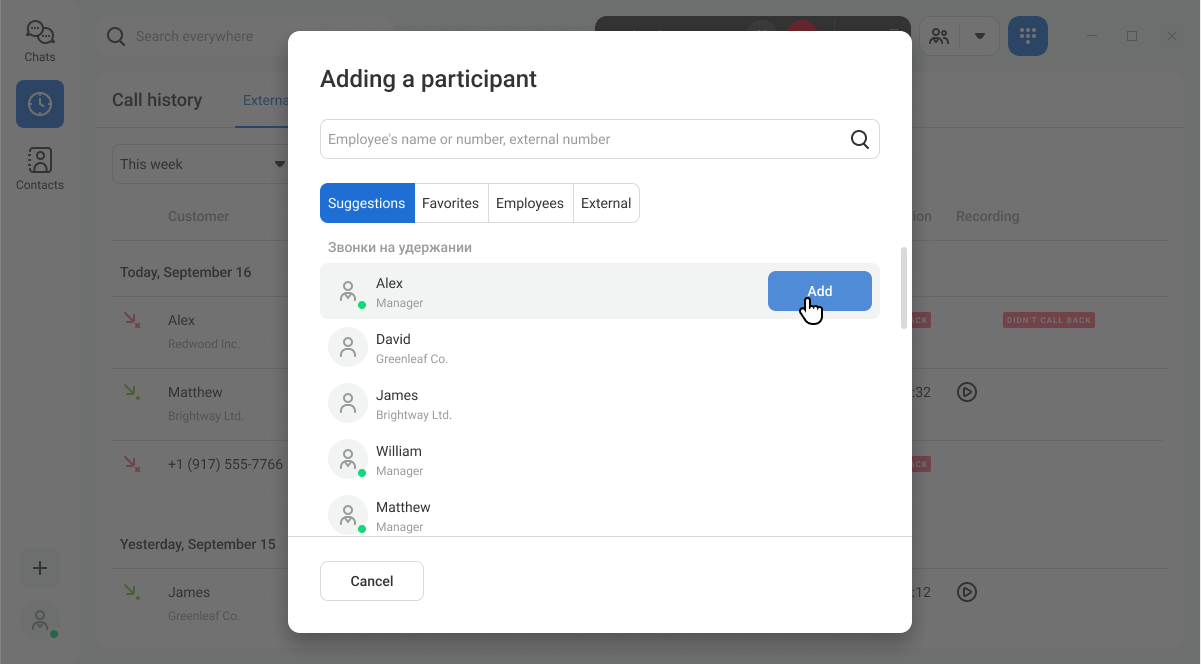
If you have parallel calls, they will appear on the Suggestions tab when you attempt to transfer a call or add participants. This makes it easier to switch between multiple calls.
Switching a Call Between Devices (Call Flip)
Sometimes, during a conversation in the messenger, you may need to leave the office. In this case, you can seamlessly switch the call to another device (Call Flip):
During the call, click the More button and select Switch to another device.
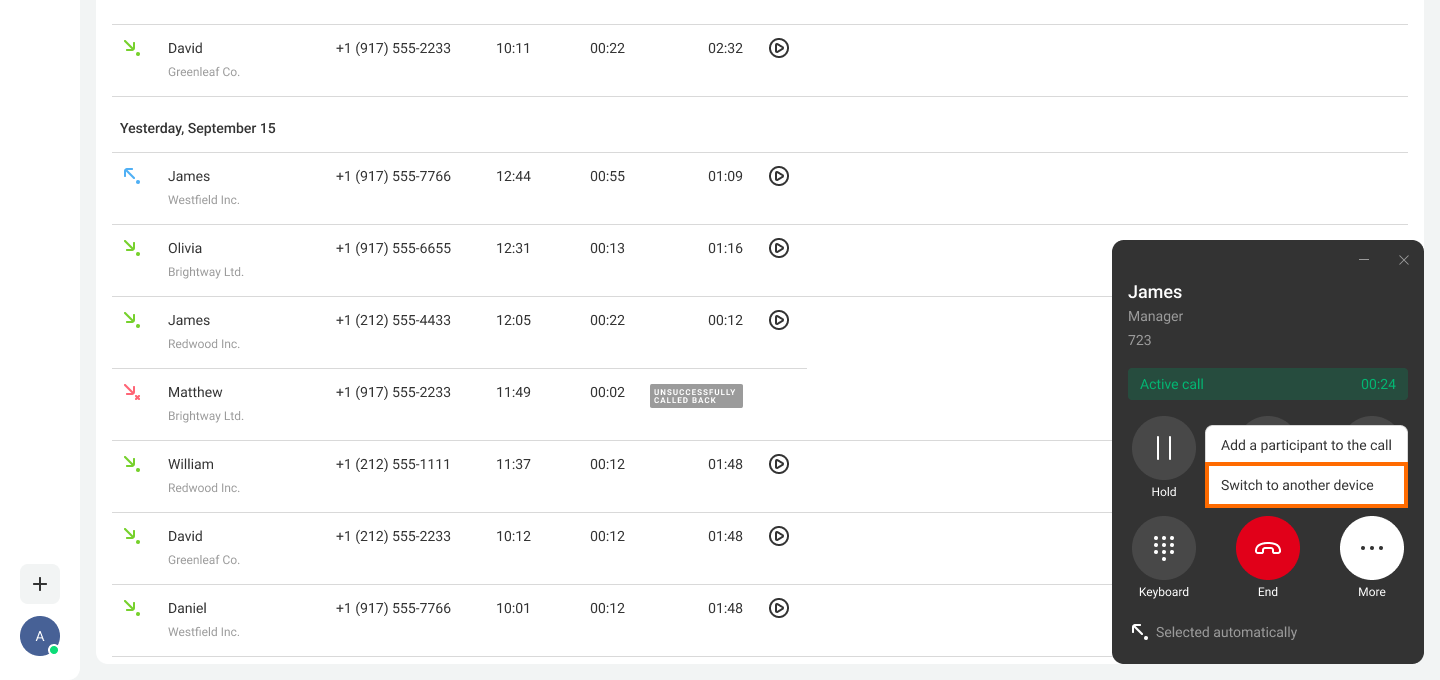
Do not hang up. The system will immediately start calling all your connected devices. The incoming call will ring not only on your cell phone, SIP phone, or softphone, but also in the messenger.
Take the call on the preferred device and continue your conversation.