Speech Analytics Settings for Kommo Integration
All Kommo integration settings can be found in Settings — CRM Integration — Kommo, and Speech Analytics settings are at the bottom of the page. Here you can set up automatic task creation, as well as call and lead tagging.
Task Creation
Once Cloud PBX Speech Analytics detects poor service indicators, Kommo will automatically create a task for a supervisor to contact this customer. You can configure task creation differently for incoming and outgoing calls: with different urgency levels, assignees, etc.
Let's set up task creation for incoming calls with poor service indicators as an example. This is the first integration scenario in the Speech analytics list.
1. To enable the corresponding scenario, move the toggle to the right.
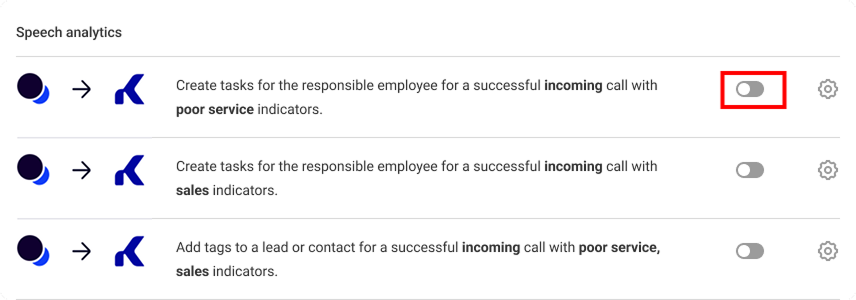
2. In the window that opens, select In case of a call from an unknown number, create a task without tying it to a lead or contact…”
3. In the additional settings window, select the assignee for this task. This can be a supervisor, a senior manager, or any other employee whose Cloud PBX account is linked to their Kommo account. Next, set the due time (for example, until the end of the day) and the task type. Select one or several poor service indicators that you want to track in Kommo.
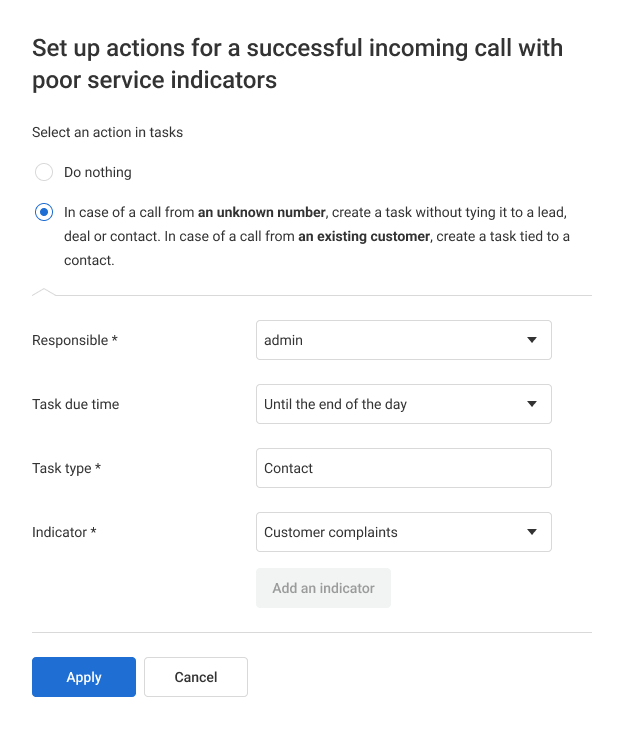
You do not have to create a task for every indicator. For example, if you do not plan to respond each time your employees use filler words, do not select Filler words in this list.
4. Click Apply.
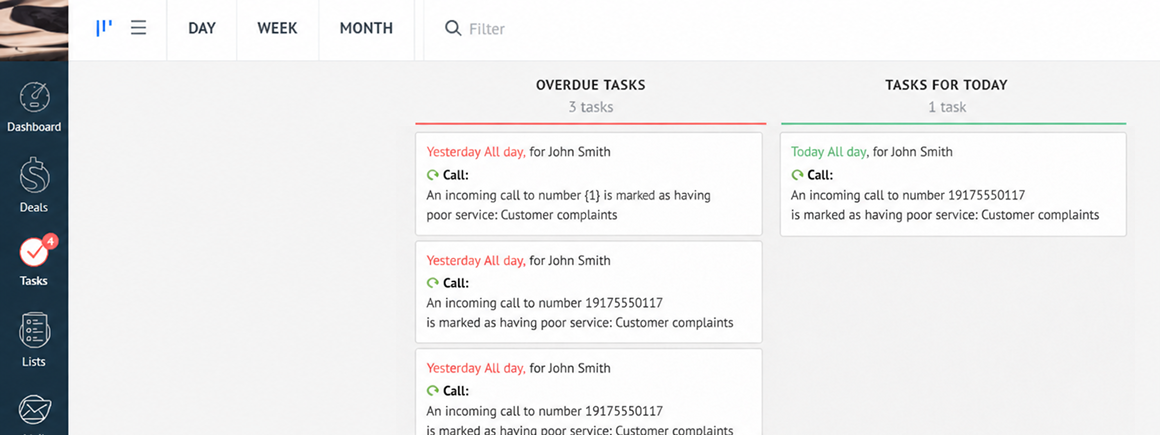
Tasks automatically created in Kommo after calls with poor service indicators will look like this.
Tagging Calls and Leads
For calls with sales or poor service indicators, Kommo automatically adds the corresponding tags to two cards:
- customer contact;
- most recent lead.
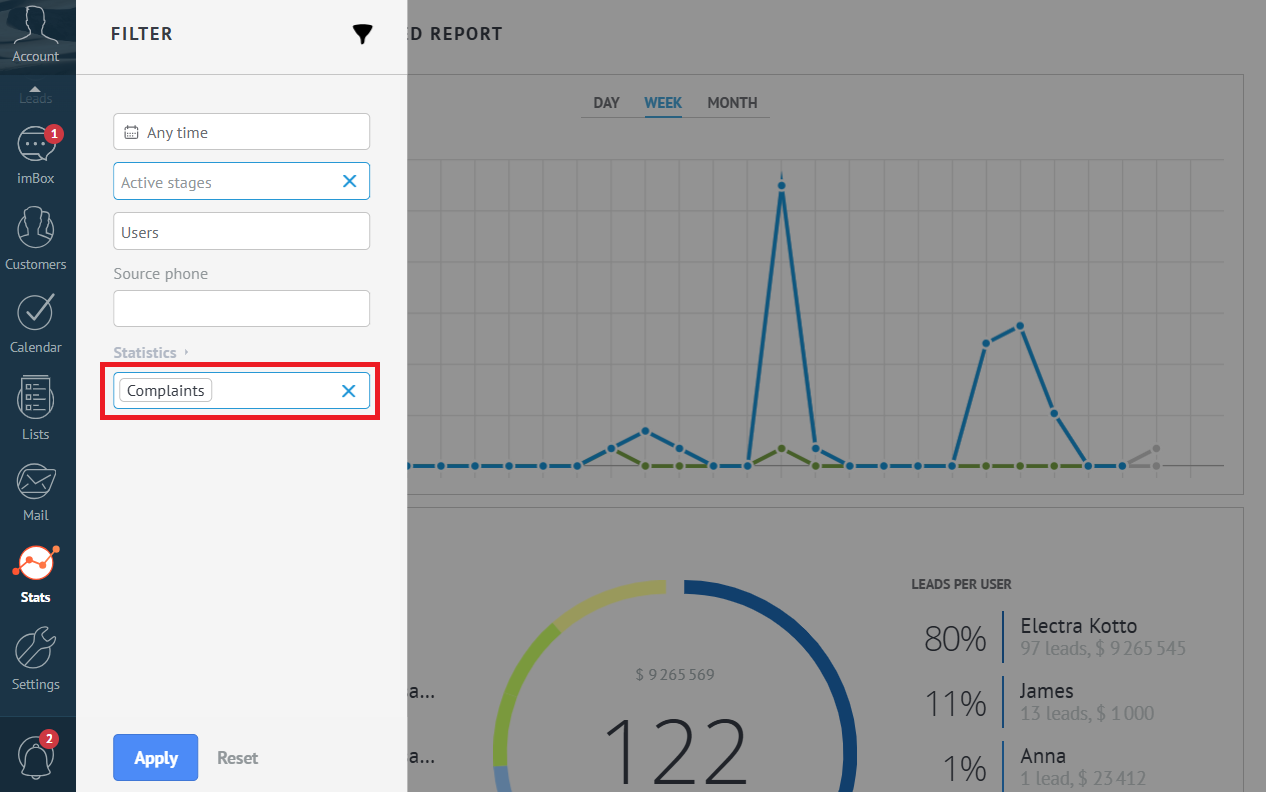
You can later use these tags to view call statistics directly in Kommo and correlate them with sales statistics. This allows you to see how often managers offered additional services or promotional products and what share of these activities resulted in sales.